MCP Basics
Model Context Protocol (MCP) lets you connect external servers that provide domain-specific tools. These tools extend your AI agents with new capabilities.
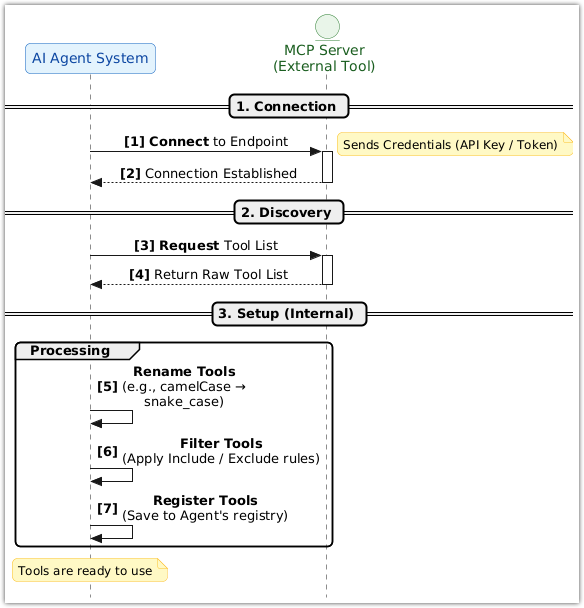
After connection, the platform automatically discovers available tools. Agents can use them without hardcoded or custom integrations.
Key Features
- Automatic Tool Discovery from remote MCP servers
- Real-time Capability Extension without redeployment
- Fine-grained Control via tool filters and name transformations
- Multiple Server Support through unique integration codes
- Flexible Authentication options for secure connections
Use Cases
- Access domain-specific tools. Examples: weather services, financial calculations, document processing
- Integrate specialized business services. Examples: CRM operations, inventory management
- Extend agents with third-party capabilities. Examples: external APIs, analytics services
How MCP Tools Work
This section explains how MCP tools are discovered, registered, and invoked during agent execution.

Tool Discovery
When an MCP integration is configured, the platform:
- Connects to the specified MCP server endpoint
- Authenticates using the provided credentials
- Requests the list of available tools from the MCP server
- Applies name transformations to tool names
- Applies include and exclude filters
- Registers the resulting tools with the agent
Tool Invocation
During agent execution:
- The agent decides to use an MCP tool based on its workflow configuration
- The platform sends a tool execution request to the MCP server using the original tool name provided by the MCP server
- The MCP server processes the request and returns results
- The platform delivers the results to the agent
- The agent incorporates the results into its response or decision-making process
Multiple Integrations
Multiple MCP servers can be configured with different integration codes. Each integration operates independently:
- Tools from different servers are isolated by their integration code
- Authentication, timeouts, and other settings are per-integration
- Name transformations and filters are applied independently
Example Scenario:
- Integration Code:
WEATHER— Connects to weather service, filters to include only weather-related tools - Integration Code:
BANKING— Connects to banking API, applies strict authentication and timeout settings - Integration Code:
DOCS— Connects to document service, transforms tool names to PascalCase withdocs_prefix
⚠️ Note: With
stdiotransport, the MCP server runs as a single local process per integration code. This process is shared across all agents and sessions using that integration.
Basic Setup
This basic setup contains all the steps required to integrate MCP servers as agent tools.
How to Set Up an MCP Integration
Each MCP integration is configured through a web-based form on the Flametree portal. The form collects connection details, authentication credentials, and operational parameters. Multiple MCP servers can be configured simultaneously by assigning each a unique integration code.
- Go to Settings > Connectivity
- Open MCP > MCP Tools
- In the upper-right corner, press Add +
- Use the Make default toggle to make this integration default
- Use the System integration toggle to make this integration a system integration
- Fill in the fields below:
Show MCP configuration fields
| Field | Description |
|---|---|
Name | Custom name of the integration. Required field |
Description | Custom description of the integration |
Integration code | A unique identifier for an MCP integration. Required field |
Server Endpoint | The primary connection port for an MCP integration. Required field |
Transport Protocol | The communication protocol used to interact with the MCP server |
Authentication Type | Specifies the authentication mechanism to use when connecting to the MCP server |
Auth Token | Bearer or authentication token sent in the Authorization header |
API Key | The API key value |
API Key Header | The HTTP header name |
API Key Query Parameter | Optional query parameter name for URL-based authentication |
Basic Auth Username | Username for HTTP Basic authentication |
Basic Auth Password | Password for HTTP Basic authentication |
Custom Headers | JSON object containing HTTP header name–value pairs attached to each MCP server request |
Request Timeout | The maximum time in seconds the platform will wait for a response from the MCP server |
Maximum Retries | The maximum number of retry attempts for failed requests |
Include Tools Filter | Controls which tools from the MCP server are exposed to the agent |
Exclude Tools Filter | Controls which tools from the MCP server are not exposed to the agent |
Name Transformer | Applies transformations to tool names discovered from the MCP server, improving readability and consistency |
Tool list | A list of tools available for your MCP server integration. Will be autofilled after you finalize the integration setup. You need to add them to your agent's Workflow |
Minimum Pool Connections | The minimum number of connections to maintain in the connection pool |
Maximum Pool Connections | The maximum number of concurrent connections allowed to the MCP server |
Connection Inactivity Timeout | Time in seconds before idle connections are removed from the pool |
- Press Save to create the integration
For a complete configuration reference and detailed description of all the fields, go to Configuration Reference
How to Connect to Agent
After creating an integration with an MCP server, you need to connect the newly created MCP Tool to your agent.
To do this:
- In the left sidebar menu, go to Agents
- Choose and open the agent you wish to connect
- In the right sidebar menu, go to Models > MCP Tools
- Select the MCP server you have created
- Add the tools you wish to be included in your agent’s communications to the Workflow:
- Go to agent's Workflow
- In the
available toolsconfiguration section add the tools from theTool listyour agent needs to access and be able to use during sessions. Workflow configuration requires YAML syntax
- Press Save in the upper-right corner to apply the change
⚠️ Important: After you set up the integration, restart the agent if it was running. To do it, press Stop agent and then Start agent.