User and Tenant Management
Flametree uses a tenant-based structure to manage users, roles, and organizational settings. This article explains how to register, invite, and manage users, assign roles, and configure your tenant.
Tenants and Users: Key Concepts
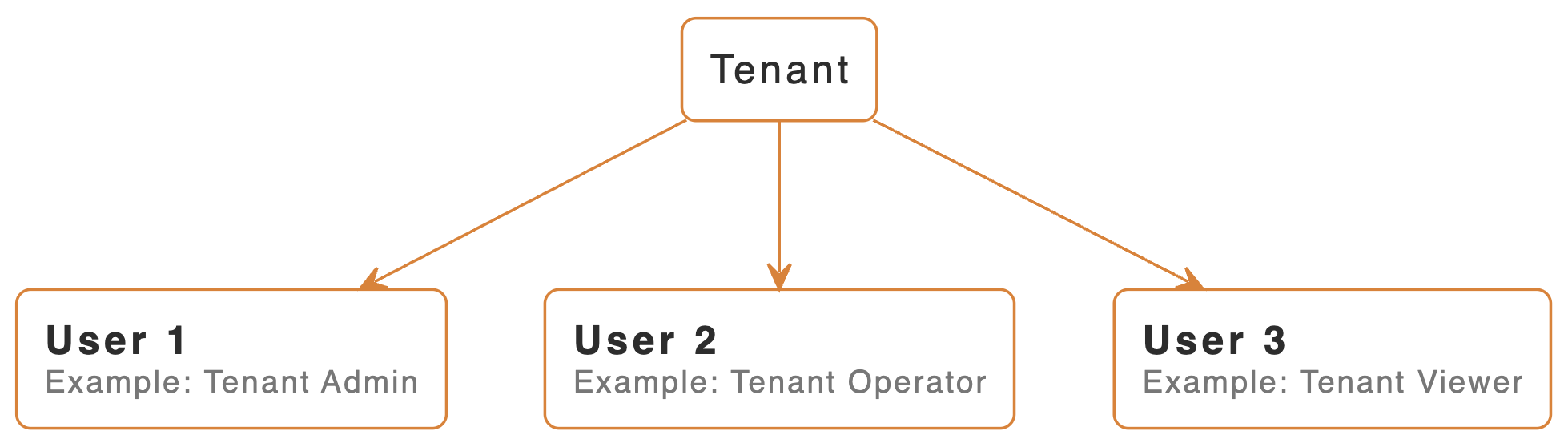
On the Flametree portal, a tenant represents an organization’s workspace, while users are people who work inside that workspace.
Each tenant contains all system configuration and data, such as AI agents, integrations, knowledge bases, and billing information. Users are assigned roles that define what actions they can perform within the tenant. Both users and tenants can be managed in the Identity section on the Flametree portal.
Registration and First Tenant
To register your tenant:
- Go to the Flametree portal
- Click Register at the bottom of the page
- Choose how to register: with your Google account or with an email
- If you choose to register with email, fill out the registration form — all the fields are required:
- Email — Enter a email address
- Password — Set a secure password
- First name — Enter your name
- Last name — Enter your last name
- Click Register to finish creating your account
After registration, Flametree automatically creates your first workspace called a tenant. You automatically receive Tenant Admin rights for your new tenant. Tenant Admins can manage all users, billing, and integrations.
Users
In this section, you can invite team members, assign roles, and manage permissions within your tenant.
Accessing User Settings
To open the list of users:
- On the left sidebar menu, go to Identity > Users
- The Users tab displays all users in your tenant
When you first register, the list contains only your own account.
Add User
Only Tenant Admins can add or remove users.
To add a new user:
- On the left sidebar menu, go to Identity > Users
- Click + Add User
- Complete the form:
- Name — Enter user's name
- Email — Enter Valid email address
- Password — Set a temporary password for first login of the new user
- Role — Select an access level. For more on this, see User Roles below
- Tenant — Your organization’s workspace (usually prefilled)
- Operator schedule — For the Tenant Operator role, define working days and hours. AI agents redirect sessions to this operator only during the specified time
- Click Save to add the user
The new user can sign in immediately after being added.
New user sign-in
- Go to the Flametree portal
- Enter your email
- Enter the temporary password your Tenant Admin provided
- Click Start
- Enter your new secure password you will use to sign in to the Flametree portal
- Click Submit
- Check your email inbox for the email verification message. Follow the instructions to verify your email
Done! You will be redirected to your organization’s space on the Flametree portal. For further instructions, please contact your organization’s portal administrator.
⚠️ Note: Each user is assigned to one tenant only.
User Roles
Each user in Flametree has a specific role that defines their access and permissions.
| Role | Description | Permissions |
|---|---|---|
| Tenant Admin | Full administrative access | • Create, edit, delete AI agents • Manage knowledge bases and integrations • Add/remove users and change roles • Manage billing and subscriptions • Access AI agent and session logs • Configure integrations (channels, LLM, STT/TTS) |
| Tenant User | Limited access for testing | • Access to Playground only • Test AI agents and review dialogs • No access to create or delete agents • No access to user management |
| Tenant Viewer | Read-only access | • View agents and their configurations • Test AI agents • View knowledge bases and session logs • Cannot create, edit, or start/stop AI agents • Cannot modify knowledge bases or integrations |
| Tenant Operator | Operational access for handling conversations and sessions | • Work with conversations and live sessions • View 360 contacts • Assign and resolve conversations • Export and import sessions • No access to agent configuration, integrations, or tenant settings • If schedule is set, sessions can be redirected only within the specified hours |
Detailed role matrix
| Area / Action | Tenant Admin | Tenant User | Tenant Viewer | Tenant Operator |
|---|---|---|---|---|
| Profile (view and update own profile) | ✅ | ✅ | ✅ | ✅ |
| User management | ✅ | ❌ | ❌ | ❌ |
| Tenant management | ✅ | ❌ | ❌ | ❌ |
| AI agents (create, edit, delete, start, stop, view logs) | ✅ | ❌ | ❌ | ❌ |
| AI agents (test in Playground) | ✅ | ✅ | ✅ | ❌ |
| Knowledge bases (create, edit, delete) | ✅ | ❌ | ❌ | ❌ |
| Knowledge bases (view) | ✅ | ❌ | ✅ | ❌ |
| Integrations & channels (add, start, stop connectors) | ✅ | ❌ | ❌ | ❌ |
| Product catalogs (add, reset invitations) | ✅ | ❌ | ❌ | ❌ |
| Sessions (export, import from audio, check logs) | ✅ | ❌ | ✅ | ✅ |
| Conversations (assign, resolve, send messages) | ✅ | ❌ | ✅ | ✅ |
| 360 View (add, edit, delete contacts) | ✅ | ❌ | ❌ | ❌ |
| Campaigns (view) | ✅ | ❌ | ✅ | ✅ |
| Campaigns (import, create, export, view logs, delete) | ✅ | ❌ | ❌ | ❌ |
Manage User Roles
Only users with Tenant Admin rights can assign or change roles.
To change a user’s role:
- On the left sidebar menu, go to Identity > Users
- Find the user in the list
- Click Edit
- Select a new role
- Save the changes
💡 Tip: Role changes take effect immediately.
Tenants
A tenant represents your organization’s workspace in Flametree.
Users with the Tenant Admin role can manage the tenant created during registration.
Accessing Tenant Settings
To open tenant settings, on the left sidebar menu go to Identity > Tenants
The Tenants tab allows you to:
- View the list of available tenants (by default, only one tenant is created during registration)
- Copy the tenant API key (used for private API methods)
- Edit tenant details
Edit Tenant Information
To edit tenant information:
- On the left sidebar menu, go to Identity > Tenants
- Click Edit Tenant
- Update the following fields:
- Name — Сompany name (tenant)
- Description — Tenant description
- Phone — Company contact number
- Billing email — Billing contact email
- Country — Selected from the dropdown list
- Street — Optional mailing address
- ZIP code — Postal code
- Website — Company website
- Click Save to apply changes
You can also copy the Tenant API key from this section to use with private API methods. Keep this key secure and regenerate it if needed.
⚠️ Note: If you lose access to tenant settings, contact your organization's Tenant Admin or create a new account if you're the sole user. At least one Tenant Admin must exist per tenant.
Best Practices
- Role Assignment: Start new team members with Tenant User role for testing, then upgrade to Tenant Admin only when necessary
- Security: Regularly review user access and remove inactive users
- Documentation: Keep tenant information up-to-date for billing and support purposes
- API Keys: Protect your tenant's API key and regenerate if compromised