Find, open, and assign conversations
Find escalated conversations in the workspace, open one to read its full history, check the customer's context in the Information panel, and take ownership so you can reply.
Find and open a conversation
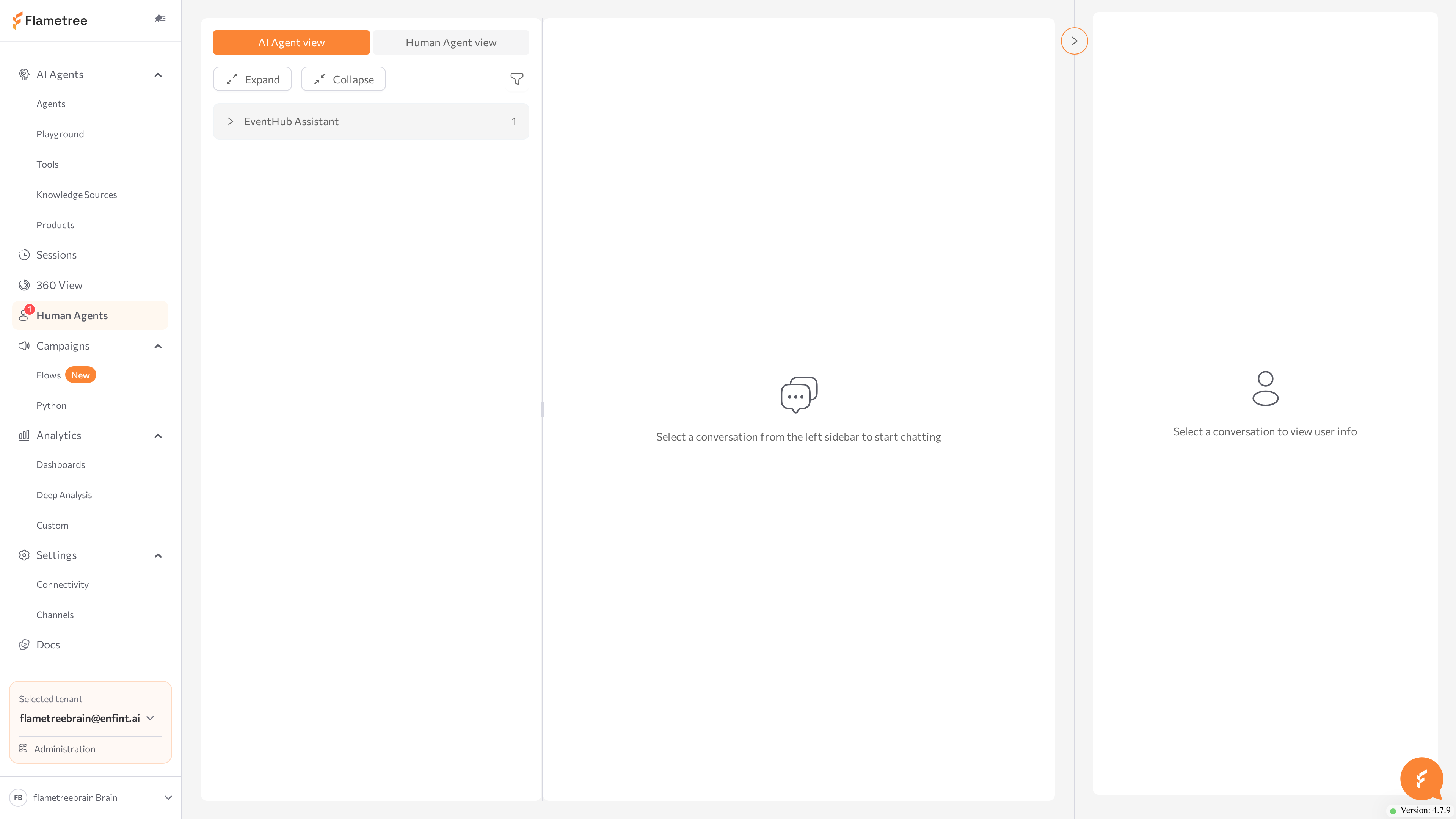
- In the conversations list, choose a view with the two buttons at the top:
- AI Agent view groups conversations by the AI agent that handled them. Use it when different agents serve different products or teams.
- Human Agent view groups conversations by assigned human agent, plus an Unassigned group. Use it to balance workload and find unclaimed conversations.
- Narrow the list with the filter button next to Expand/Collapse: in AI Agent view, filter by agent name; in Human Agent view, filter by Assigned to me, Unassigned, or a teammate's name. If nothing matches, the list reads Nothing was found for the specified filters.
- Click a group header to expand or collapse that group, or use Expand / Collapse for all groups at once. Each header shows the group's conversation count.
- Click the conversation card.
The chat opens in the center panel, and the card's unread badge clears. The page URL now contains the conversation ID — copy it from the address bar to share a direct link with a teammate.
Each conversation card shows:
- Channel icon — the channel the customer is using. Hover over it to see the channel name.
- Unread badge — the number of customer messages you have not opened yet.
- Customer name — from the customer profile; Unknown if the customer is not identified yet.
- AI agent name — the agent the conversation came from.
- Assignment — the name of the assigned human agent, or Unassigned.
Two warning tags flag blockers directly on the card:
- Agent not running — the AI agent attached to this conversation is stopped.
- Channel not running — the channel is stopped, so replies cannot be delivered. Start it in Settings > Channels.
Starting a shift? Switch to Human Agent view and filter by Unassigned to see what is waiting, then by Assigned to me to continue your own conversations.
Read the history
The chat is not limited to the current session — scroll up to load the customer's earlier escalated sessions. System markers in the message flow show how the conversation got here and who did what:
- A session header separates each session and shows when it started.
- Transfer to human agent at <date and time> — the moment control passed from the AI agent.
- Human agent <name> assigned at <date and time> — who claimed the conversation. If a teammate assigned it, the marker reads <name> was assigned by <name> at <date and time>.
- The session was resolved by <name> at <date and time> — how a previous session ended.
Messages written by a human agent are labeled with the agent's name, so you can always tell them apart from AI responses.
Review customer context
While you chat, the Information panel on the right keeps the customer's profile and the session's collected data in view. It is expanded by default; click its label to collapse or expand it. Before you select a conversation, it reads Select a conversation to view user info.
Contact info shows the customer's identity and reachable channels: Name, Email, Phone, Telegram, WhatsApp, and LinkedIn. Click a value to act on it — email opens your mail client, phone starts a call, and the messenger entries open the chat. Fields without data appear dimmed with a dash.
Click Open in 360 in the section header to open the full customer profile in 360 View in a new tab: all communications, sessions, and campaign participation across every channel.
Below the contact info, three sections show what the conversation has produced so far:
- Summary — an AI-generated summary of the session, when available; otherwise No summary found.
- Parameters — customer details captured in the session plus session environment parameters; No parameters found when empty.
- Results — the conversation results the AI agent is configured to collect; No results found when empty. Which fields appear depends on the agent's configuration.
As you scroll up through earlier sessions in the chat, the session details update to match the session you are viewing — use this to check what a previous session collected without leaving the conversation.
Assign or claim a conversation
Every escalated conversation needs an owner. Until a human agent is assigned, the conversation stays in the Unassigned group and no one can reply — the message input appears only once the conversation is assigned.
Claim a conversation for yourself
- Open the conversation.
- In the chat header, click Assign. If the conversation already has an owner, the button shows their name instead.
- Click Me at the top of the list.
The confirmation Operator assigned. Copilot mode enabled appears. You are now the owner, the message input is available at the bottom of the chat, and Copilot mode is on by default — turn the Copilot switch off if you prefer to write every reply yourself.

Assign a teammate
- Open the conversation and click Assign (or the current owner's name) in the chat header.
- Click the teammate's name. Next to each name, the dropdown shows how many of the workspace's conversations that person already owns (for example,
3/12) — use the counts to balance the load.
The chat history records the change: <name> was assigned by <your name> at <date and time>. To reassign later, pick a different name from the same dropdown — the history stays in place, so the new owner sees everything that happened before.
In either case, the conversation moves out of the Unassigned group, and the owner's name appears on the conversation card and in the chat header.
Related pages
- Human Agents — the operator workspace overview, escalation, and common issues.
- Reply with messages and Copilot — send messages and work with Copilot draft suggestions.
- Resolve and return to the AI agent — close a session and bring the AI back in.
- 360 View — the complete customer profile; take over or start conversations from there.
- Settings > Channels — start, stop, and troubleshoot channel connections.