Reply with messages and Copilot
Once a conversation is assigned to you, reply to the customer in their channel, attach files, and leave private notes — and in Copilot mode, turn AI-drafted suggestions into the replies you send.
Send messages
Once a conversation is assigned to you, the message input appears at the bottom of the chat. Whatever you send is delivered to the customer in their channel — web chat, WhatsApp, Telegram, email — and logged in the session history.
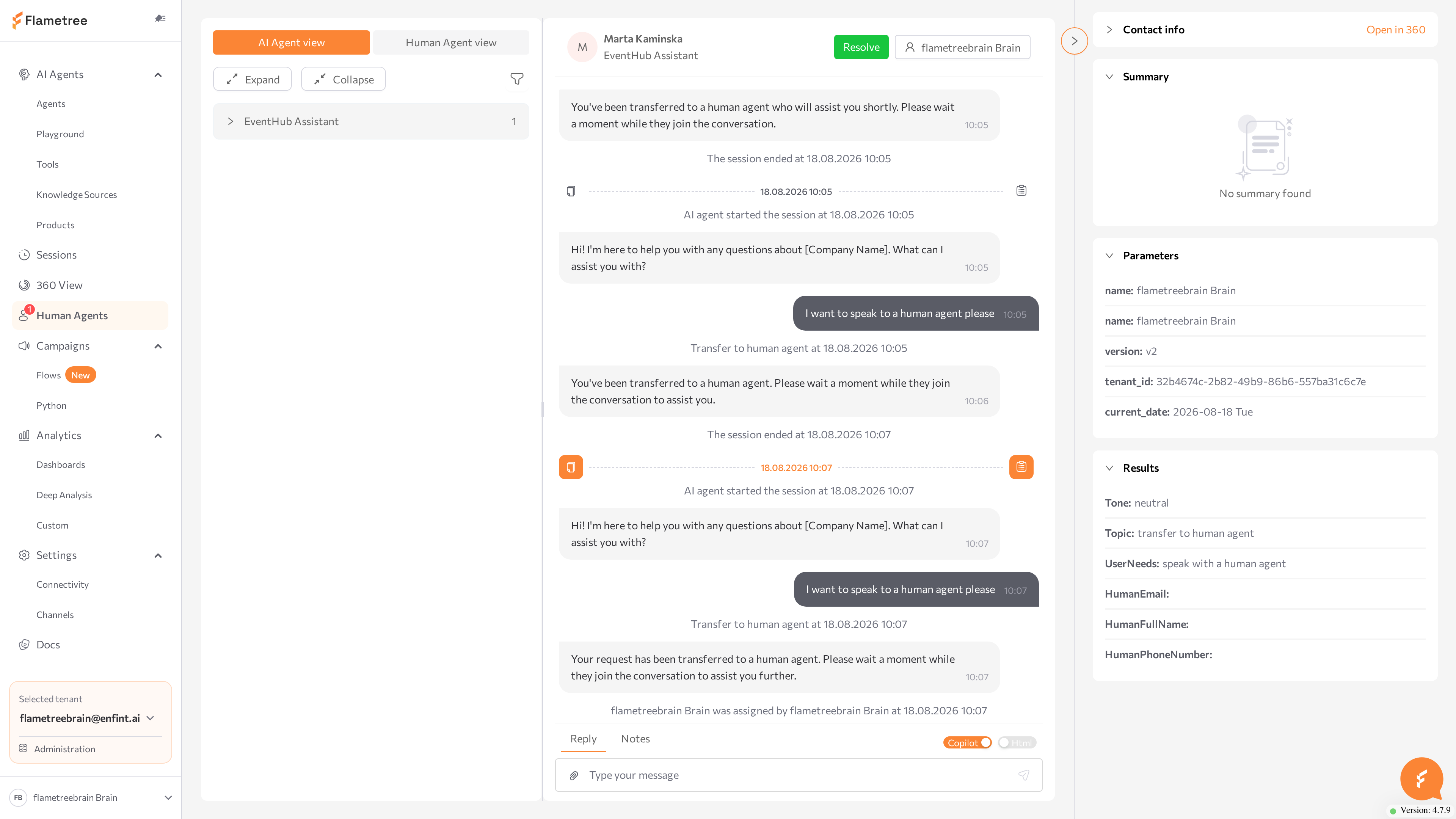
Reply to the customer
- Keep the Reply tab above the input active (it is the default).
- Type in the Type your message field.
- Press Enter to send. Shift+Enter inserts a line break.
Your message appears in the chat labeled with your name.
WhatsApp restricts free-form replies:
- If the conversation was started with a WhatsApp template and the customer has not replied yet, the input is disabled with the hint Waiting for customer reply. Messaging will be available once they respond.
- If more than 24 hours have passed since the customer's last message, the input is replaced by the notice It's been over 24 hours since the last reply. Select a WhatsApp template to continue. — click Continue with template to proceed with an approved template.
Attach files
- Click the paperclip button.
- Pick images or documents (PDF, DOC, DOCX, TXT).
- Review the previews above the input — remove an attachment with its delete icon if needed.
- Send as usual. You can send attachments with or without text.
Write rich text
For conversations in the email or web channel, turn on the Html switch to get a formatting toolbar: text size, bold, italic, underline, lists, and links. The switch is disabled for messenger channels, which do not accept HTML.
Leave a private note
- Switch to the Notes tab above the input.
- Write the note and send it.
The note is saved in the conversation with a Private note label and is never sent to the customer. Use notes to leave context for a teammate before reassigning, or to record why you took an action.
Check which tab is active before sending: Reply goes to the customer, Notes stays internal.
Channel-specific notes
Most channels behave the same in the workspace, but a few have rules worth knowing:
- WhatsApp. You can send free-form replies only within 24 hours of the customer's last message. If you reply later, the input is replaced by the notice It's been over 24 hours since the last reply. Select a WhatsApp template to continue. — click Continue with template and send an approved template. The window reopens as soon as the customer replies. For the full window and template rules, see WhatsApp.
- Intercom. Conversations on the Intercom channel are handed off inside Intercom, not from this workspace: a teammate takes over by assigning the conversation to themselves in the Intercom Inbox, and the agent then posts its replies as internal draft notes for them. Assigning the conversation back to the agent's teammate returns it to the AI.
Use Copilot suggestions
In Copilot mode the AI agent works alongside you: it drafts replies based on its knowledge sources and instructions, and you decide what reaches the customer. The AI never sends anything on its own.
Copilot mode is on when:
- You claim or assign a conversation from the Assign dropdown — it is enabled by default.
- An AI agent escalates a conversation — escalated conversations typically arrive in Copilot mode.
- You start an outbound conversation from 360 View — it begins in Copilot mode.
The Copilot switch above the message input shows the current state; its tooltip reads AI suggestions. Toggle it to change modes — a confirmation appears: Session set to copilot or Session set to operator. With Copilot off, the AI stays silent.
Send a draft
Drafts appear in the chat with the Draft from Copilot label. They are internal: the customer never sees a draft until you send it.
- Read the draft.
- Click the copy icon next to the Draft from Copilot label. The text is inserted into your message input.
- Edit it as needed.
- Press Enter to send.
The customer receives the message as coming from you, and it is logged under your name.
Treat drafts as a starting point — verify anything customer-specific (amounts, dates, commitments) before sending. If drafts are consistently off-topic, the agent may lack knowledge sources for the subject; raise it with whoever owns the agent.
Related pages
- Human Agents — the operator workspace overview, escalation, and common issues.
- Find, open, and assign conversations — find, open, read, and assign escalated conversations.
- Resolve and return to the AI agent — close a session and bring the AI back in.
- WhatsApp — the 24-hour messaging window and templates.
- Intercom — handoff driven from the Intercom Inbox.