360 View
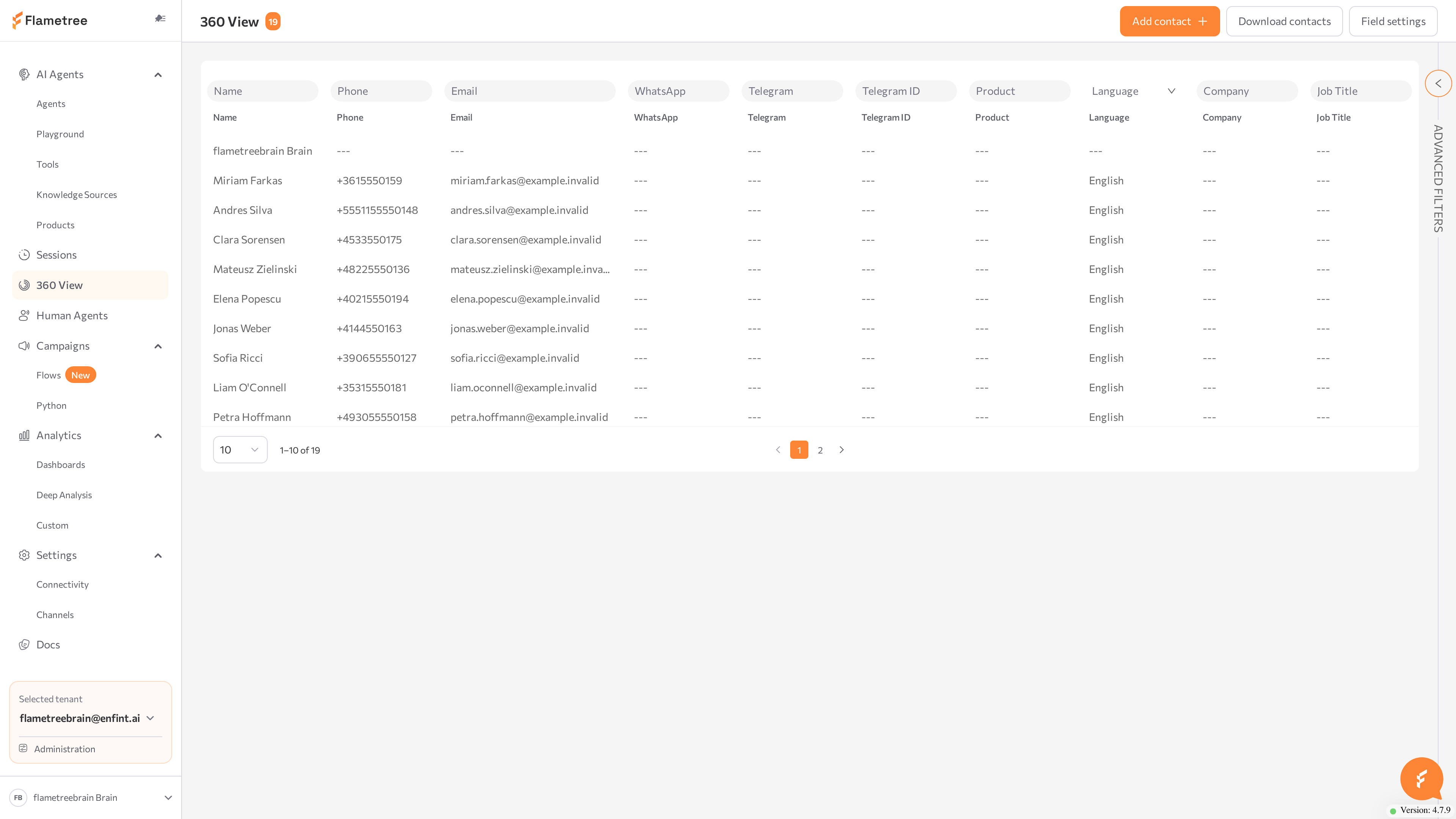
360 View is the customer database of Flametree. It collects everyone your AI agents and human operators have talked to — across channels and campaigns — into one searchable list, with one profile per customer.
Use 360 View when you need to:
- Investigate a customer case, complaint, or follow-up request.
- Check what an AI agent or an operator said to a specific customer.
- Build a filtered customer list, save it as a reusable filter, or download it.
- Reach out to a customer directly on WhatsApp, email, or Telegram.
- Take over an active conversation as a human operator.
Where customers come from
Customer profiles are created automatically. A customer appears in 360 View when:
- They are uploaded to a campaign.
- They start a conversation with your agent in any connected channel — web widget, WhatsApp, Telegram, email, voice, and so on.
Profiles are enriched during conversations: when an agent learns the customer's name, email, or phone, the value is saved to the customer profile and reused in later sessions.
Inbound conversations that are not linked to any campaign are grouped under a virtual campaign called Customer Service. You will meet it throughout 360 View.
How customer data is enriched
Campaign uploads and conversations are not the only sources of field values. Two automatic feeds update customer profiles:
- Session parameters. A session parameter whose name matches the Field Name of a custom field is copied to the customer profile. These are the same values you see under PARAMETERS in the Details panel.
- Deep Analysis. When an analysis runs, a metric whose ID matches a customer field's Field Name — built-in or custom — writes its result to the customer profile. This lets an analysis fill customer fields from conversation content at scale. See Deep Analysis.
Matching uses the technical Field Name, not the field title, so create the custom field in Field settings first.
How customers are matched
Flametree keeps one profile per customer by matching channel identifiers — External ID, email, phone, WhatsApp, Telegram username and ID, and the web widget visitor ID. A customer who reaches you in different channels with no shared identifier gets one profile per channel, and profiles with different External IDs are never combined. A campaign upload that matches several existing profiles by identifier merges them into the oldest one.
Find your way around
Open 360 View in the left menu. The screen is built around the customer table:
| Element | What it does |
|---|---|
| Customer table | One row per customer. Columns are configurable. Double-click a row to open the customer profile. |
| Quick filters | Search inputs under each column header. |
| Advanced filters | Collapsible panel on the right for multi-condition filters with AND/OR logic and saved filters. |
| Add contact | Creates a customer profile manually. |
| Download contacts | Exports the current filtered list as a file. |
| Field settings | Manages which customer fields exist and which columns are visible. |
The counter next to the 360 View title shows how many customers match the current filters.
Before you start
- You are signed in to the portal. What you can see and do in 360 View depends on your role.
- The list has data only after at least one agent has had conversations or customers have been uploaded to a campaign.
Common issues
- A customer can't be found. Profiles exist only for customers who were uploaded to a campaign or talked to an agent. Try another field — for example, phone instead of name — and check the spelling.
- The same person appears as two customers. This happens when their conversations share no common identifier — see How customers are matched.
- Apply is disabled in Advanced filters. Add at least one condition with a field selected.
- Nothing happens when you click a customer row. Use a double-click; a single click only highlights the row.
- A profile shows few fields. Only fields with values appear, and hidden fields are controlled in Field settings.
- Add contact, Edit, or Download contacts is disabled. Your role does not include the matching permission.
- A conversation seems missing. Check the Other tab of the campaign list — inbound sessions outside campaigns live under Customer Service.
- The chat shows "No data". The selected campaign has customers loaded, but no communications have happened yet.
- RESULTS is empty in the Details panel. The agent has no conversation result fields configured, or the conversation ended before they were filled. See Simple mode for configuring conversation results.
- Start conversation is greyed out. The customer profile has no reachable channel.
- A channel is missing in Select channel. Connect and start it in Settings > Channels, and make sure an agent attached to it is running.
- Continue in Human Agent is disabled. The conversation is finished. Use Start conversation to begin a new one.
Related pages
- Sessions — full session records: logs, statuses, and audio
- Human Agents — the workspace where outbound and taken-over conversations continue
- Settings > Channels — connect and run WhatsApp, email, and Telegram channels
- Simple mode — configure the conversation results agents collect
- Campaigns — outbound campaigns that load contacts into 360 View
- Deep Analysis — conversation analyses whose metrics can fill customer fields
In this section
- Find customers — search the database with quick and advanced filters, and configure which columns appear.
- Add, edit & export — create and update profiles by hand, and download a filtered list.
- Customer profile — read contact details, campaigns, products, and the full communication history.
- Conversations — reach out to a customer directly or take over an active conversation.