Flows
Campaign Flows automate outbound communications with flows you configure visually, across channels such as WhatsApp, Email, and Telegram, or with voice calls. You define the audience as a list of participants, then build flows that decide who is contacted, when, on which channel, and what happens after each communication — open the screen from Campaigns > Flows in the left menu.
Use campaigns to:
- Send outbound messages to thousands of customers without manual work.
- Build multi-step sequences — for example, WhatsApp first, then a voice call if there is no reply.
- React to customer behavior: replies, finished conversations, incoming sessions.
- Track participant progress, communications, and campaign outcomes.
This page covers the visual flow builder. For code-based campaigns, see Python campaigns.
Before you start
- At least one AI agent exists with the channel you want to use attached — see Agents and the Channels tab in Simple mode.
- The channel connection is running in Settings > Channels. Campaigns send through the channels attached to your agents.
- You are signed in to the portal with a role that allows managing campaigns.
How campaigns are organized
A campaign can contain several independent flows. Each flow is one business process: it starts from one or more triggers and continues through conditions and actions. Only active flows take part in campaign processing.
Open a campaign from the list to see five tabs:
| Tab | What it does |
|---|---|
| Data | Defines the participant fields: types, which ones can be imported, which are required. |
| Workflow | The visual flow editor: triggers, conditions, and actions. |
| Uploads | Imports participants from CSV files and shows upload history and errors. |
| Participants | Lists everyone enrolled in the campaign, with their field values and communications. |
| Analytics | A dashboard with campaign performance and communication outcomes. |
Every campaign has one of three statuses:
| Status | Meaning |
|---|---|
| Inactive | The campaign is not processing events. Everything can be edited. New campaigns start here. |
| Active | The campaign is running: it processes events through its active flows and creates communications. Active flows are read-only. |
| Error | The campaign hit an error. In the campaign list, hover over the status tag to read the message. |
Only Inactive campaigns can be started, and only Active campaigns can be stopped.
A typical setup order:
- Create the campaign (name and description).
- Define fields on the Data tab.
- Build and activate one or more flows on the Workflow tab.
- Upload participants on the Uploads tab.
- Click Start and monitor the Participants and Analytics tabs.
Create a campaign
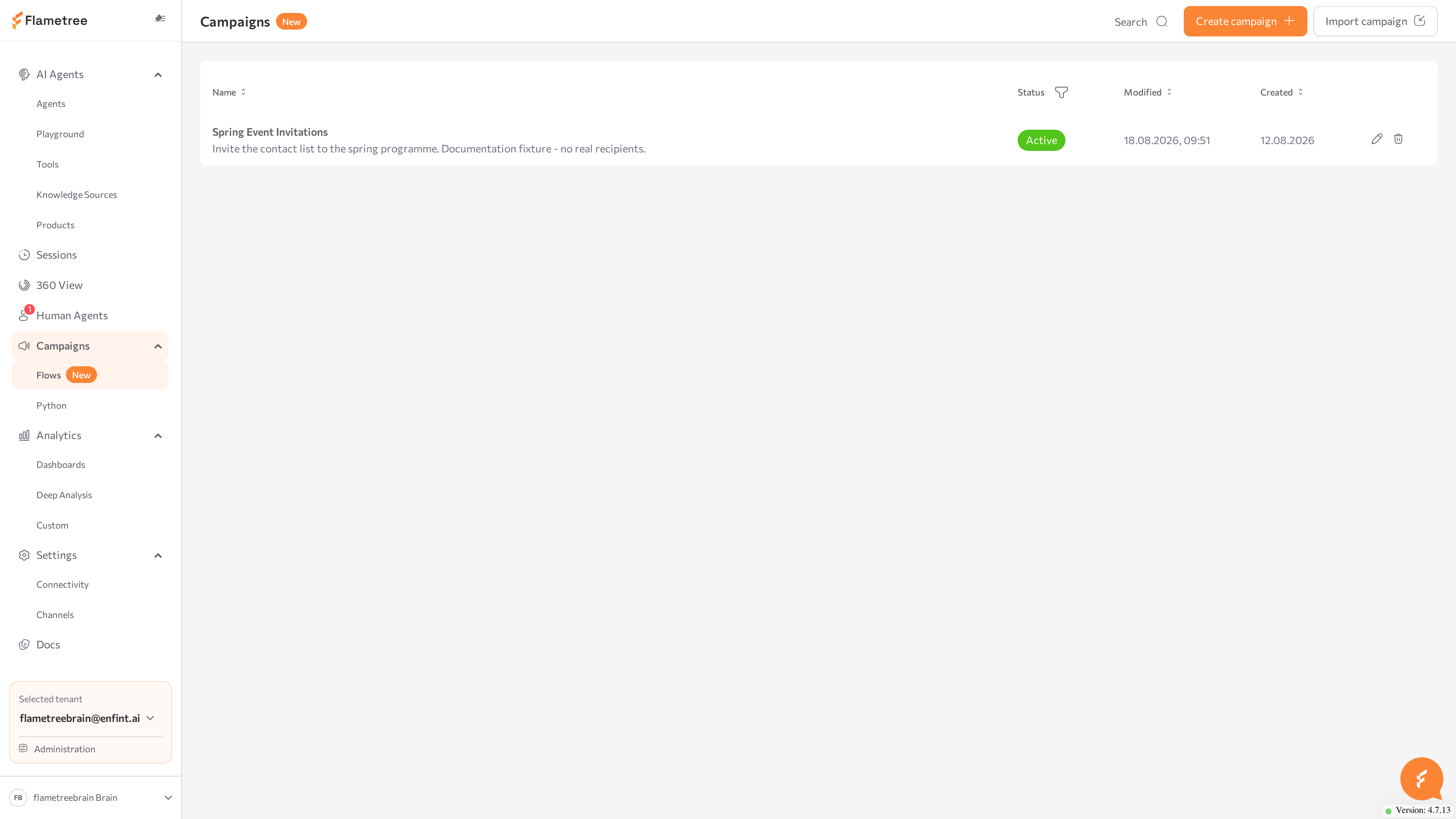
- In the left menu, go to Campaigns > Flows.
- Click Create campaign.
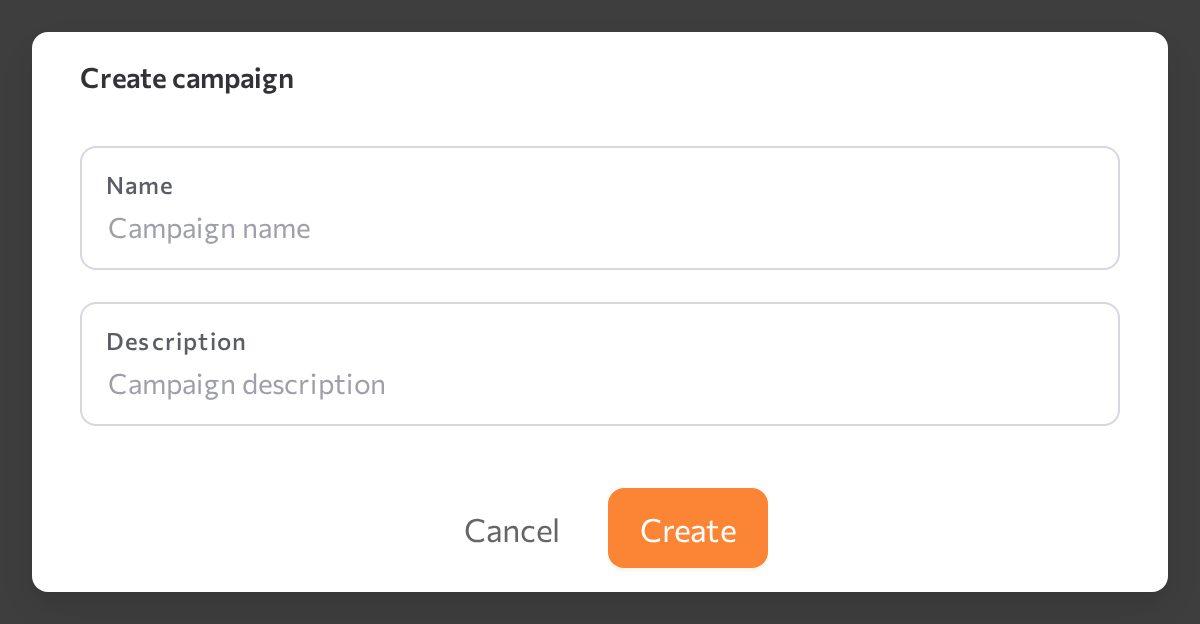
- In the Create campaign dialog, enter a Name (required, unique within your tenant) and an optional Description, shown under the name in the campaign list.
- Click Create.
The campaign appears in the list with status Inactive — nothing runs until you build a flow, activate it, and click Start. Double-click the row to open it.
In the campaign list you can:
- Filter by name or description with the search box, and by status with the Status column filter.
- Sort by the Modified and Created columns.
- Edit a campaign to change its Name and Description.
- Delete a campaign — the Delete Campaign dialog asks for confirmation, because deleting cannot be undone.
Start and stop a campaign
A campaign processes triggers and sends communications only while it is Active. You control this with the Start / Stop button in the campaign header.
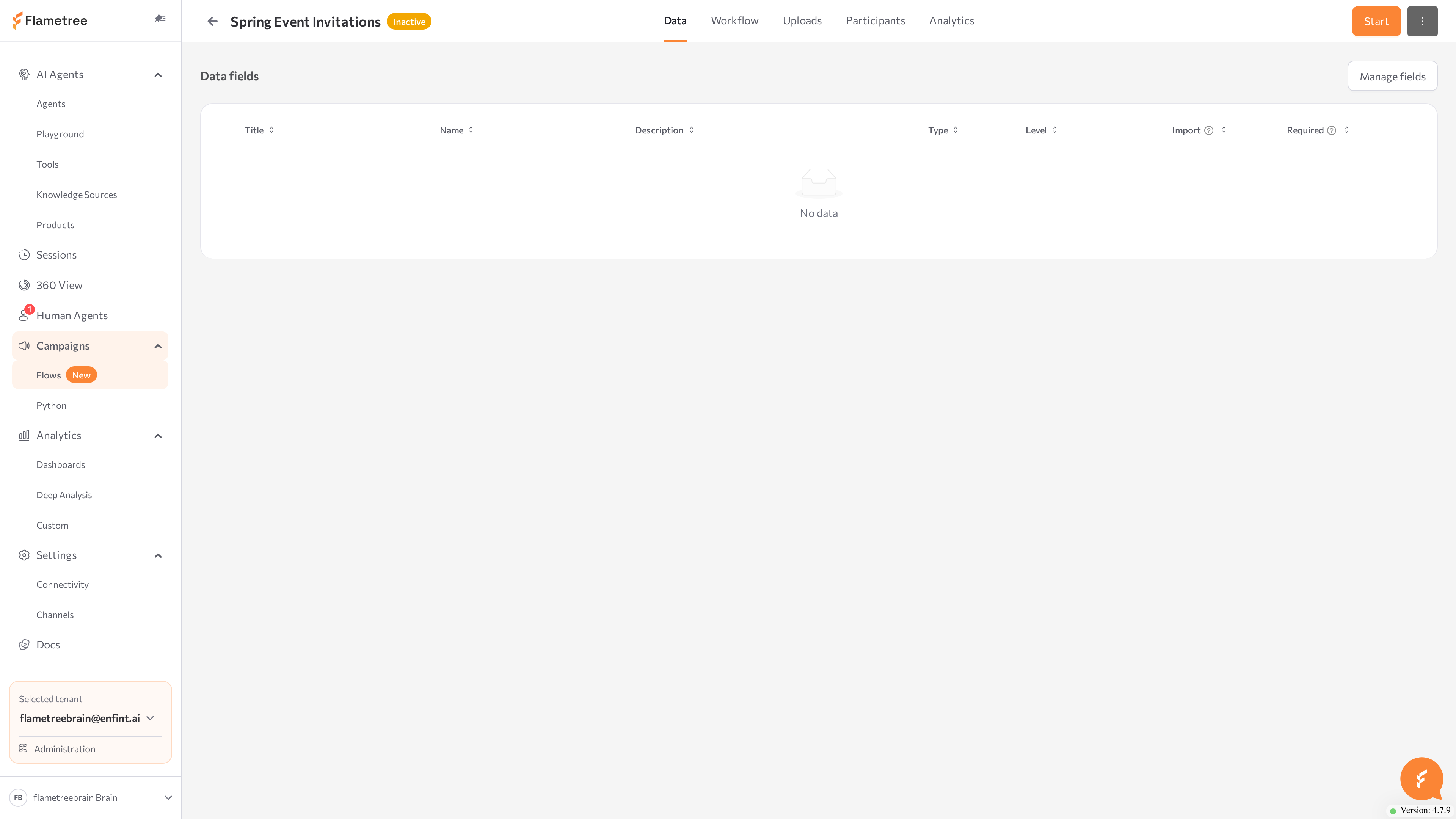
Start
- Open the campaign and make sure at least one flow is Active on the Workflow tab.
- Click Start in the header.
The status tag changes to Active. From this moment, the campaign starts processing new events through its active flows, communications are scheduled and sent according to the flow actions, active flows become read-only, and flows cannot be activated or deactivated until the campaign is stopped.
Stop
Click Stop in the header. The status returns to Inactive: no new triggers fire, no new communications are scheduled, and flows become editable again.
There is no separate pause action — Stop is also how you pause a campaign for editing. Click Start to resume.
If the status tag shows Error, open the campaign list and hover over the tag to read the message, fix the cause — often a channel or agent problem — then start the campaign again.
Rename and delete
- In the campaign header, open the ⋯ menu and choose Rename, or use Edit on the row in the campaign list to change both Name and Description. Names must stay unique.
- To change fields, flows, or data of an active campaign, click Stop first.
- To delete a campaign, use the delete action on its row in the campaign list and confirm. Deleting cannot be undone.
Export and import a campaign
Export packages a campaign into a zip archive so you can move it to another tenant; import recreates it there. The export also covers the resources the campaign depends on — its agents, channels, knowledge bases, integrations, and attribute definitions.
To export a campaign:
- Open the campaign and, in the header, open the ⋯ menu and choose Export campaign.
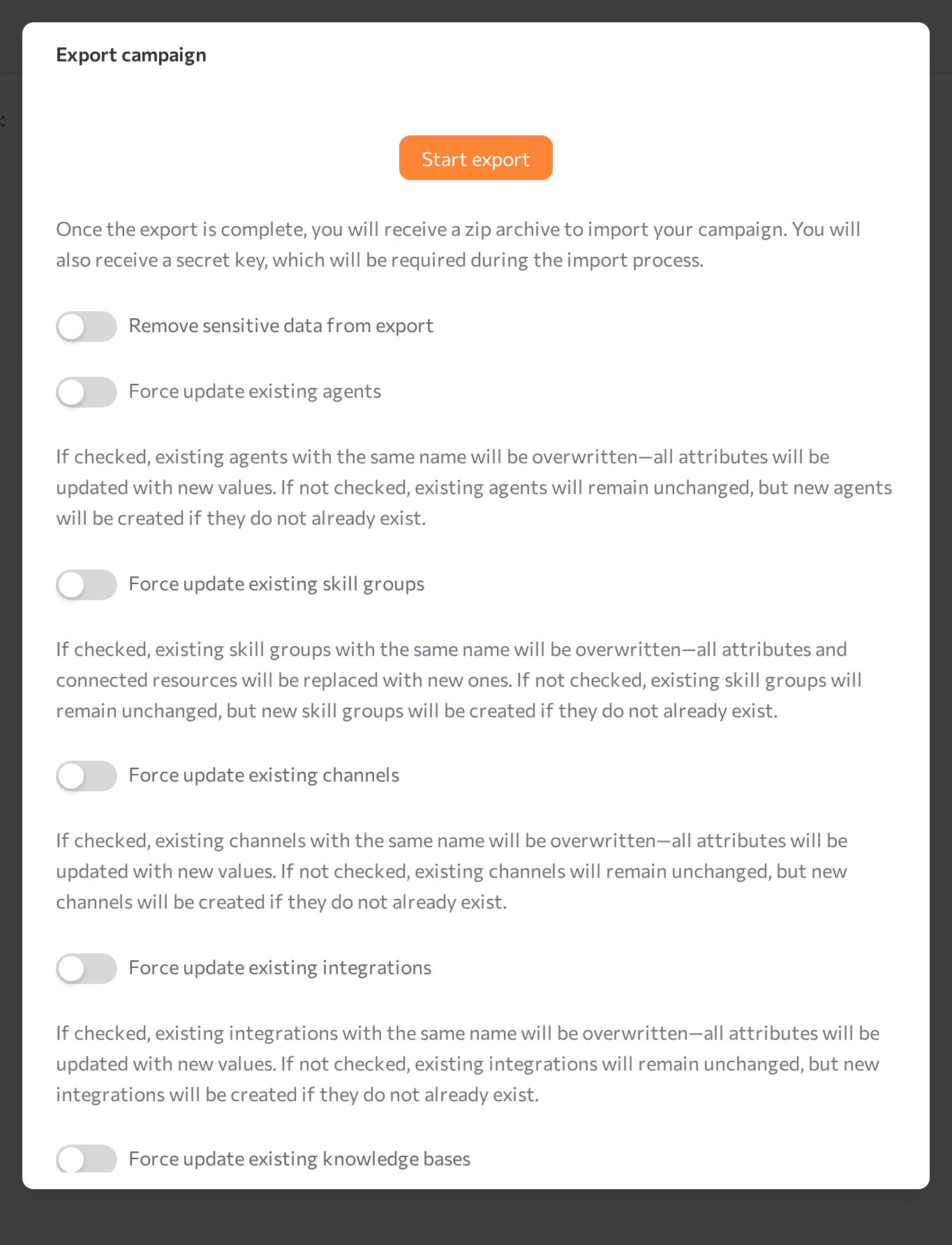
- In the Export campaign dialog, set the options you need before exporting:
- Remove sensitive data from export — leaves secrets such as channel credentials out of the archive.
- The Force update existing … switches — for agents, skill groups, channels, integrations, knowledge bases, and attribute definitions. When a switch is on, importing overwrites a resource of the same name in the target tenant; when it is off, existing resources are kept and only missing ones are created.
- Click Start export and wait — do not close the dialog while the export is in progress.
- When it finishes, the dialog shows a secret key. Use Copy to clipboard and save it securely; you need it to import the campaign. The zip archive downloads automatically.
To import a campaign:
- In the Campaigns > Flows list, click Import campaign.
- In the Import Campaign dialog, paste the Secret Key from the export and upload the zip archive under Upload ZIP file.
- Click Start Import. The imported campaign appears in the list.
Only zip archives produced by Export campaign can be imported, and the matching secret key is required. Without the key, the archive cannot be imported.
Troubleshoot campaign errors
Use these checks when a campaign shows Error or participants are not progressing through a flow.
If the status tag shows Error:
- Read the message. In the campaign list, hover over the Error tag to see what failed. The status carries the most recent error message for the campaign.
- Check the channel and agent. Errors most often come from a channel that is not running or an agent that is stopped or in Error. Confirm the channel in Settings > Channels and the agent on its page, then click Start on the campaign again.
If the campaign is Active but participants are not progressing:
- The flow that should run is not active. Only flows with an Active badge process events. Editing a flow's graph resets it to Inactive, so a flow you have changed will not run until you stop the campaign, activate the flow, and start the campaign again.
- A trigger does not match. Each trigger fires only for its own event — for example, Communication Ended fires when a communication finishes (Completed, NoResponse, or Failed), not while a conversation is in progress. Check that the participant's event matches a trigger in an active flow.
- A Field Check sent the participant down an unconnected Else. When a participant falls into an unconnected Else branch, no further nodes run for that participant in this flow. Connect the Else branch or adjust the condition.
- A To Another Flow target is inactive. Moving a participant to another flow takes effect only when the target flow is Active and contains a From Another Flow trigger.
- The Communication Hours window has not opened. A communication stays Planned until its From / To window allows sending. A large share of Planned communications on the Analytics tab usually means the window has not opened yet.
Common issues
- "Campaign name is required" or "A campaign named '…' already exists". Enter a name; campaign names are unique per tenant.
- Activation fails with "Fill in required fields for: …". The listed nodes have incomplete settings — open each one and fill in the required fields.
- Activation fails with a flow structure message. Check the flow against the validation rules: at least one trigger, at least one action, every trigger leads onward, no cycles, and every branch except an unconnected Else ends in an action.
- A trigger cannot be added — "… can be used only once per flow". That trigger type is already on the canvas; connect from the existing node instead.
- The workflow editor is read-only. The campaign is Active. Click Stop, edit, then Start again.
- An agent is missing from the Agent list in an action. The agent has no channel of the matching type attached. Attach the channel on the agent page first.
- A field does not appear in the Field Check Property list. The field must exist on the Data tab; for field-to-field comparison, the types must match.
- "You can only upload CSV files!" The file extension is not
.csv— save Excel sheets as CSV first. - "File must be smaller than 4GB!" Split the file into smaller parts.
- An upload is marked Failed. At least one row failed; the other rows are still imported. Download the errors report, fix the listed rows, and upload them again. Repeated type errors usually mean a Type mismatch on the Data tab.
- "Only ZIP files can be uploaded!" Import accepts only a zip archive produced by Export campaign — select the
.zipfile you exported. - The campaign shows Error, or participants are not progressing. See Troubleshoot campaign errors.
Related pages
- Settings > Channels — connect the channels campaigns send through
- Agents — create and manage the AI agents that handle conversations
- Simple mode — attach channels to an agent
- Sessions — read the conversations that communications start
- 360 View — the customer profiles behind Customer Profile fields
- Dashboards — portal-wide analytics
- Flow nodes — the full field reference for triggers, conditions, and actions
- Python campaigns — the code-based campaign builder
In this section
- Data — define the participant fields each campaign uses
- Workflow — build flows from triggers, conditions, and actions
- Uploads — import participants from a CSV file or the API
- Participants — review everyone in the campaign and their communications
- Analytics — track campaign performance and outcomes