Participants
Participants are the records that move through a campaign's flows — the campaign's central object. They usually come from CSV uploads or the API, and each one is then processed independently by the campaign's flows. The Participants tab is where you review them: verify an import, inspect a participant's field values, and follow their communications into sessions.
Participants tab
The Participants tab lists everyone added to the campaign.
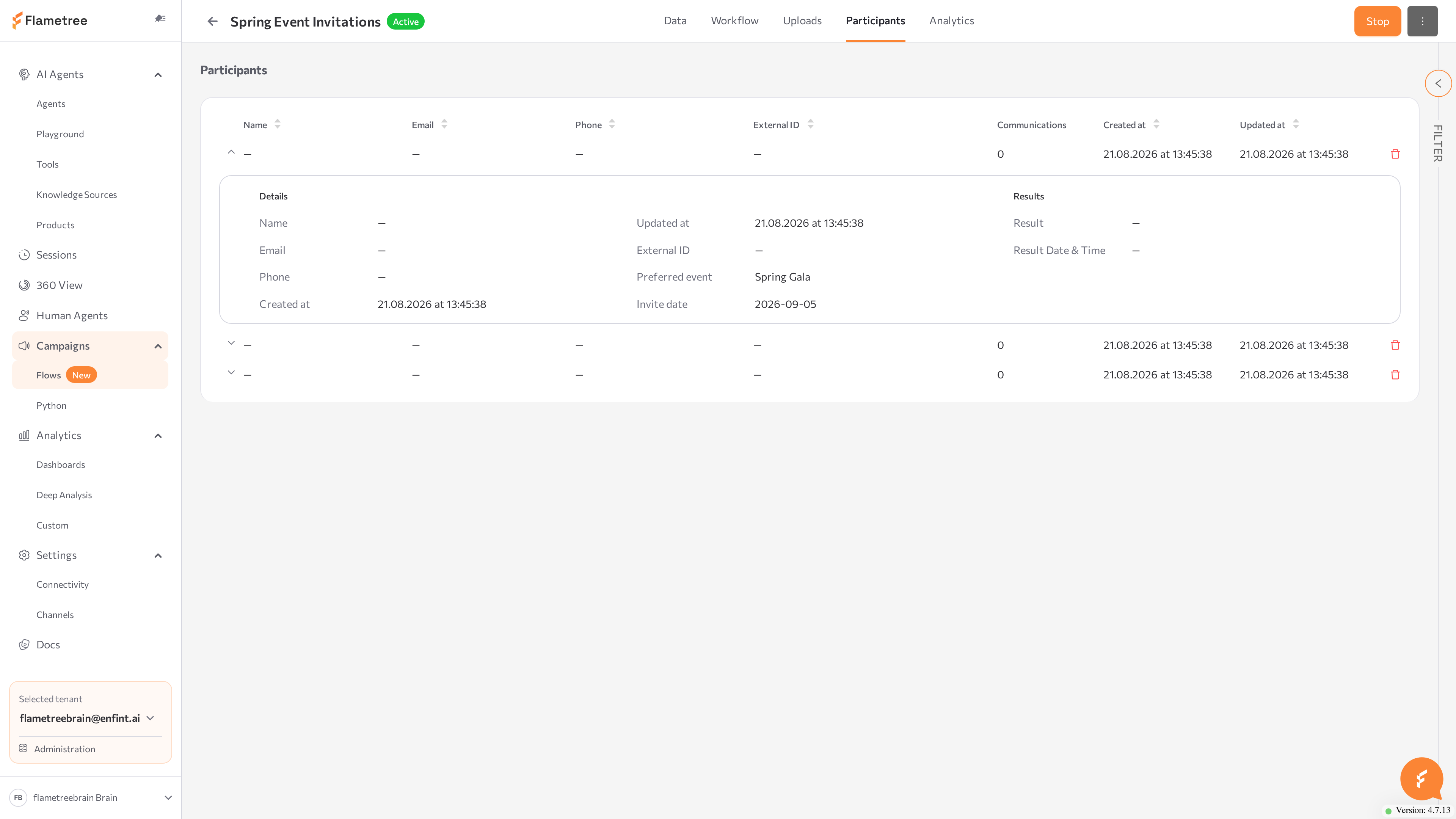
| Column | Meaning |
|---|---|
| Name, Email, Phone, External ID | Key identity fields. Sortable. |
| Communications | Number of communications for this participant. Click the number to open the list. |
| Created at / Updated at | When the participant was added and last changed. Sortable. |
- Click the arrow at the start of a row to expand it: Details shows the participant's fields — key identity fields first, then the rest in the order set on the Data tab, and Results shows the Result and Result Date & Time of the latest communication.
- Click the delete icon and confirm Delete participant? to remove a participant. This removes the participant record and its communication records; any linked sessions and their conversation history are kept.
- Open the Filter panel to filter by participant fields. Applied filters appear as chips above the table; remove a chip to drop that filter, or use Clear all. If you arrive from View participants from this upload, an Upload ID chip is already applied.
- Click column headers to sort; sorting applies across all pages.
Participant lifecycle
A participant is Active from the moment it's imported, and moves to another state as flows process it:
- Active — being processed by the campaign's flows.
- Paused — processing is temporarily suspended.
- Completed — finished the campaign.
- Error — could not be processed; check the participant's details.
Review a participant's communications
Click the count in the Communications column to open the Communications dialog:
| Column | Meaning |
|---|---|
| Name | The communication name from the flow action. |
| Status | Current status. Hover to see the status message. |
| Channel | The channel used. |
| Agent ID | The agent that handled it. |
| Scheduled at / Created at | Timing of the attempt. |
| Go to session | Opens the linked session in Sessions in a new tab once a conversation exists. |
Every communication starts Planned, then Started. From there, the statuses split into two kinds — what happened with the message, and how the communication ended — and which ones apply depends on the channel:
- What happened — an event as it's observed: Delivered, Read, Replied. Not every channel reports all three.
- How it ended — the outcome, not an event you'd see the moment it happens: Completed, NoResponse, Failed, Canceled, Skipped.
Email
- Delivered — the message was accepted by the recipient's mail server.
- Read — an open-tracking signal arrived. Treat this as an intermediate signal, not proof the person read the message: a communication can reach Read and still end in NoResponse.
- Replied — a real inbound reply arrived, matched to this communication by the email's
In-Reply-To/Referencesheaders. A communication with Replied never ends in NoResponse.
WhatsApp and Telegram
Delivered and Read reflect the delivery and read receipts the messenger provider reports for the message.
SIP (voice)
Delivered and Read don't apply to a call — a SIP communication moves from Started straight to one of the ending statuses.
These statuses drive two flow triggers: Completed, NoResponse, and Failed trigger the Communication Ended event; Delivered, Read, and Replied trigger Communication Updated.
Best practices
- Upload a small test file before importing a large audience, and check the imported rows on this tab.
- Keep External ID values stable across uploads — they're the first thing an upload matches on, so a changed External ID creates a duplicate instead of an update.
- Filter by Upload ID to verify what a specific import added.
- Review and fix failed rows before re-uploading — see Uploads.