Uploads
Uploads are how you fill a campaign with participants. The Uploads tab imports participants from a CSV file, shows the progress of each import, and helps you investigate rows that failed. To add participants from your own systems instead of a file, use the API — see Name and Title on the Data tab.
Uploads tab
The Uploads tab adds participants to the campaign from a file, shows upload progress, and helps you investigate failed rows.
Prepare the file first:
- Format: CSV — save Excel sheets as CSV first. One file at a time, up to 4 GB.
- Column headers must match the fields defined on the Data tab.
- Only fields with Import checked are read. Columns for required fields must be present and filled — rows missing them fail.
- Values must match the field type: parseable dates, valid emails, enumeration values from the allowed list.
Upload participants
- Open the campaign and go to the Uploads tab.
- Click Upload data. While another upload is running, the button is disabled with Please wait for the current upload to finish.
- In the Upload Data dialog, drag your file into the drop zone or click it to browse.
- Click Upload.
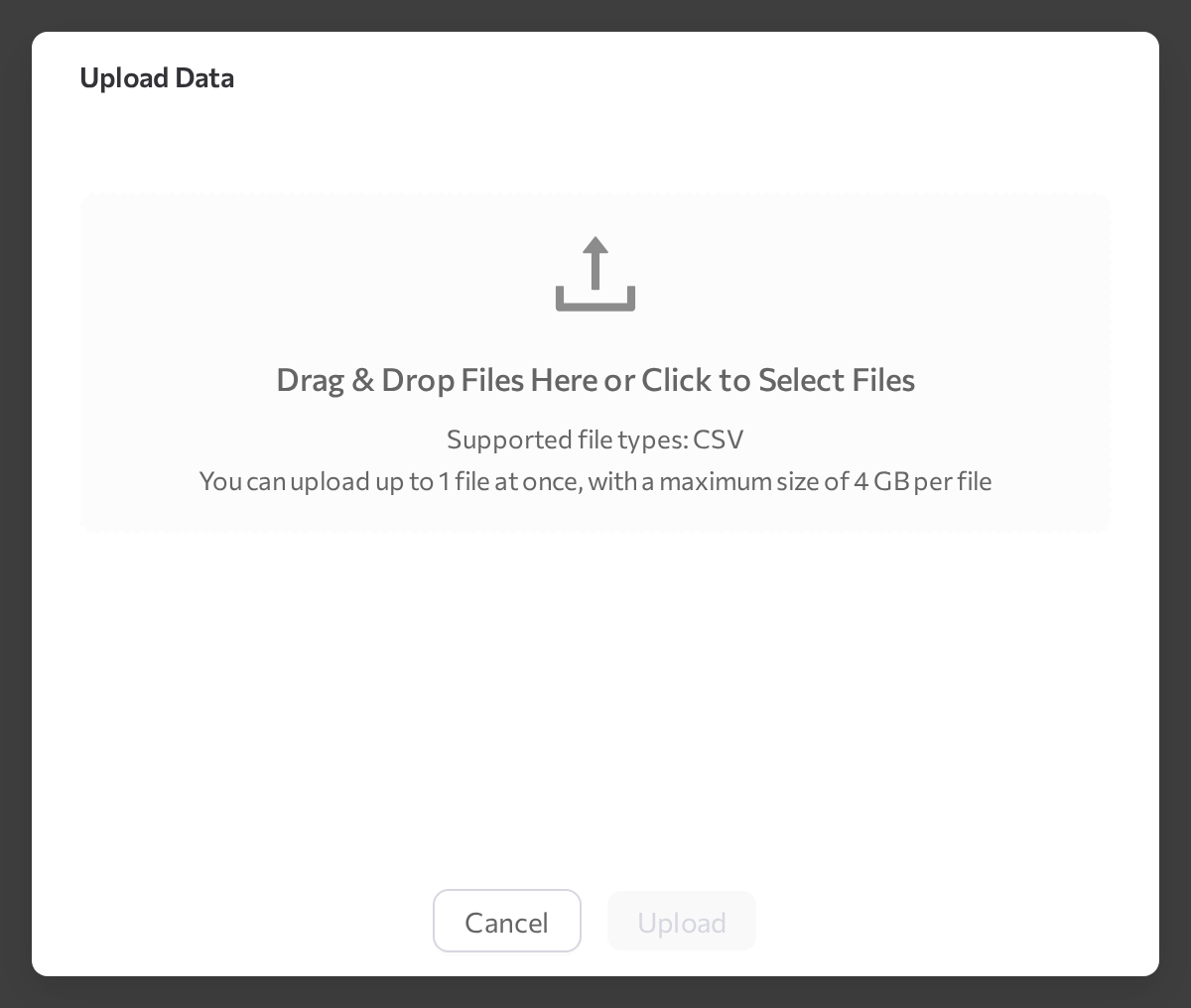
The new upload appears at the top of the table with a progress indicator, and the tab header shows Last upload and Total participants processed.
| Column | Meaning |
|---|---|
| Upload ID | Unique ID of the upload job. |
| Uploaded at | When the upload was started; shown once processing completes. |
| Participants: total / new / updated | Total rows in the file, participants created, and existing participants updated. |
| Status | Processing, Completed, or Failed. An upload is marked Failed if any row failed. |
Row actions:
- N Errors — appears when rows failed; downloads a report with the field, value, and error message for each failed row.
- View participants from this upload — opens the Participants tab filtered by this upload's ID.
- View upload details — opens Upload Details with full counters; the Errors row downloads the errors report.
How rows become participants
Each row either updates an existing participant or creates a new one. A row is matched to an existing participant by External ID first, then Email, then Phone. A matching row updates that participant, merging the new values into its existing fields; a row that matches no one creates a new participant. Created and updated participants fire the Participant Created and Participant Updated triggers, so an upload can set flows in motion.
Fix failed rows
Failed rows are skipped; all other rows are still imported. For each failed row, the errors report shows the row number, the offending field and value, and the reason — for example, a value that does not match the field type or a missing required field. Fix the rows in your source file and upload the corrected file again.
Common issues
- "You can only upload CSV files!" The file extension is not
.csv— save Excel sheets as CSV first. - "File must be smaller than 4GB!" Split the file into smaller parts.
- The button is disabled with "Please wait for the current upload to finish". Uploads run one at a time; wait for the current one to complete.
- An upload is marked Failed. At least one row failed; the other rows are still imported. Download the errors report, fix the listed rows, and upload them again. Repeated type errors usually mean a Type mismatch on the Data tab.
Related pages
- Data — define the fields participants are uploaded into
- Participants — review everyone in the campaign and their communications
- Workflow — the flows that act on participants