Workflow tab
The Workflow tab is where you build the logic of a campaign by connecting triggers, conditions, and actions into flows. It's both the editor and the campaign's engine: once the campaign runs, each participant progresses through the flows independently, driven by events and conditions.
Workflow tab
The Workflow tab is the visual editor where you build the campaign logic. A campaign can contain several flows; each flow is a set of connected trigger, condition, and action nodes on a canvas.
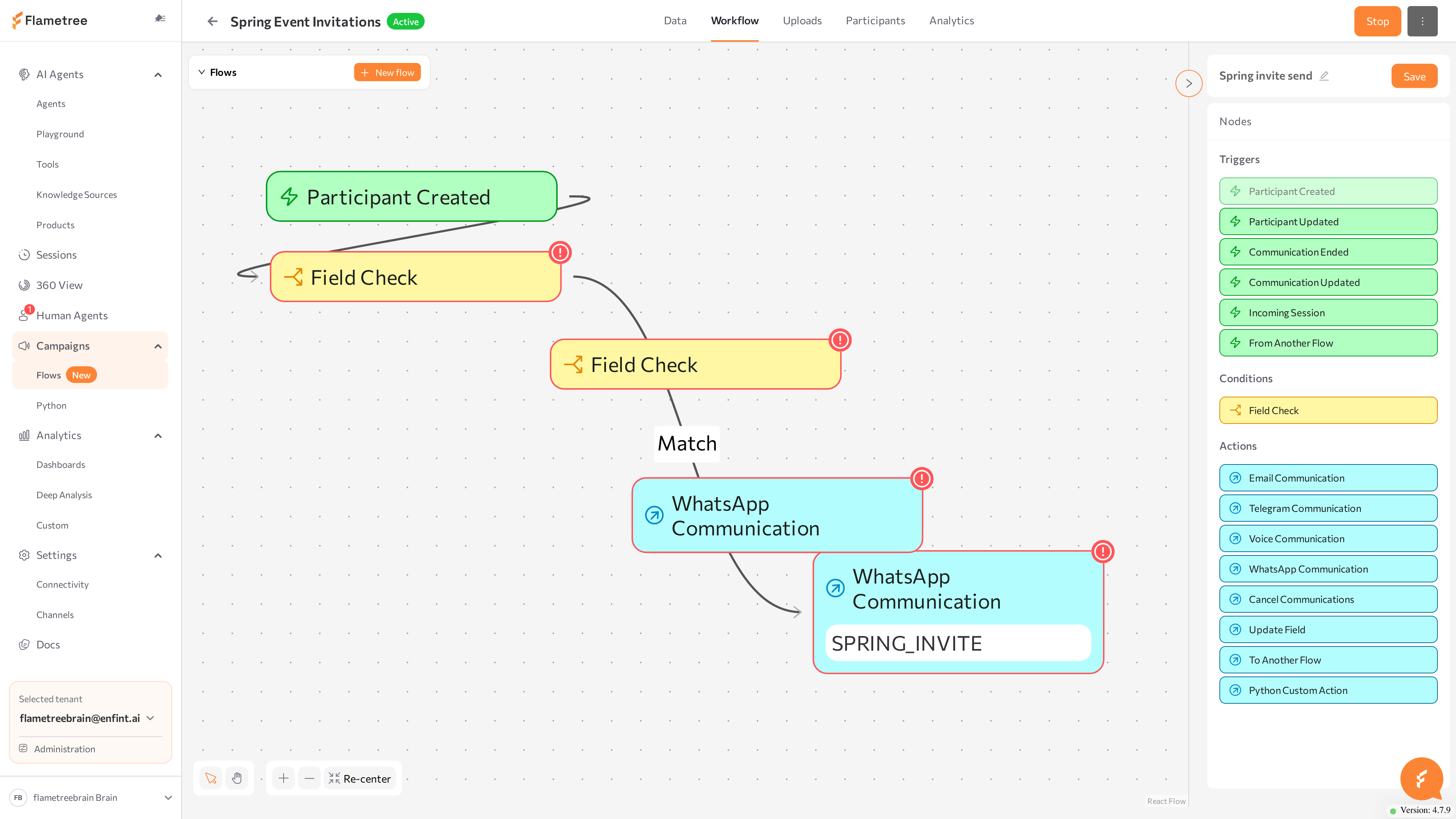
The screen has three areas:
- Canvas (center) — drag nodes here and connect them.
- Flows panel (top left) — the list of flows in this campaign.
- Settings & Nodes panel (right) — the flow name, the Save button, and the node palette grouped into Triggers, Conditions, and Actions. When you click a configurable node, this panel shows its settings instead.
Manage flows
- Click New flow in the Flows panel to create a flow with a default name. Rename it with the pencil icon next to the name in the right panel.
- Click a flow in the list to open it on the canvas; drag rows to arrange the list — the order is visual only and doesn't affect processing.
- Each flow shows a status badge — Active or Inactive. Only active flows process events while the campaign runs, and a campaign can have several active flows at once.
- Use the ⋯ menu on a flow row for Activate, Deactivate, and Delete (with a confirmation).
Build a flow
- Drag a node from the palette onto the canvas.
- Connect nodes by dragging from a node's output handle to the next node's input handle. Condition outputs are labeled Match and Else.
- Click a node to configure it in the right panel. The Field Check panel includes a How it works note that explains its two outputs.
- To remove a node or a connection, select it and press Delete or Backspace.
The editor saves automatically about three seconds after your last change; click Save in the Settings & Nodes panel to save immediately. Changes that would make an active flow invalid are not auto-saved — fix the validation errors first.
Activate a flow
A flow must pass validation before it can be activated. On Activate, Flametree checks that node settings are complete (Fill in required fields for: …) and that the structure is valid:
- The flow has at least one trigger node.
- Every trigger leads to at least one condition or action node.
- The flow contains at least one action node.
- The flow has no cycles.
- Every branch, except the Else branch of a condition, ends in an action node.
Editing while the campaign runs
While a campaign is Active, its active flows are read-only — you can't add, edit, connect, or delete nodes, and flows can't be activated or deactivated. To edit, click Stop on the campaign, make the changes, then Start it again.
How flows run
Participants don't move through a flow together as a batch. Each event — a participant is created, a communication ends, and so on — runs the matching flows for that one participant, following the connections from the trigger.
A single run doesn't wait. When a flow reaches a communication action, it creates the communication record and continues immediately to the next node; the run finishes in moments, well before the message is actually sent or answered. Nothing inside a flow pauses or delays a participant. Two things follow from this:
- To act on an outcome, use a trigger, not the next node. For example, react to a reply or a finished call with a Communication Ended trigger in the same or another flow, rather than expecting the flow to hold the participant until the communication completes.
- Send timing lives in the action, not the flow. A communication is sent inside its Communication Hours window and on its Communication Date and Time — the flow itself never blocks.
Triggers
Triggers are the entry points of a flow — green nodes that fire when something happens to a participant. When a trigger fires, the flow runs for that participant, following the connections from the trigger node.
A flow needs at least one trigger, and each trigger type can appear only once per flow — if it is already on the canvas, its palette entry is disabled. Triggers have no settings to fill in.
Six triggers are available:
- Participant Created
- Participant Updated
- Communication Ended
- Communication Updated
- Incoming Session
- From Another Flow
For exactly when each one fires — including which communication statuses count — see Flow nodes.
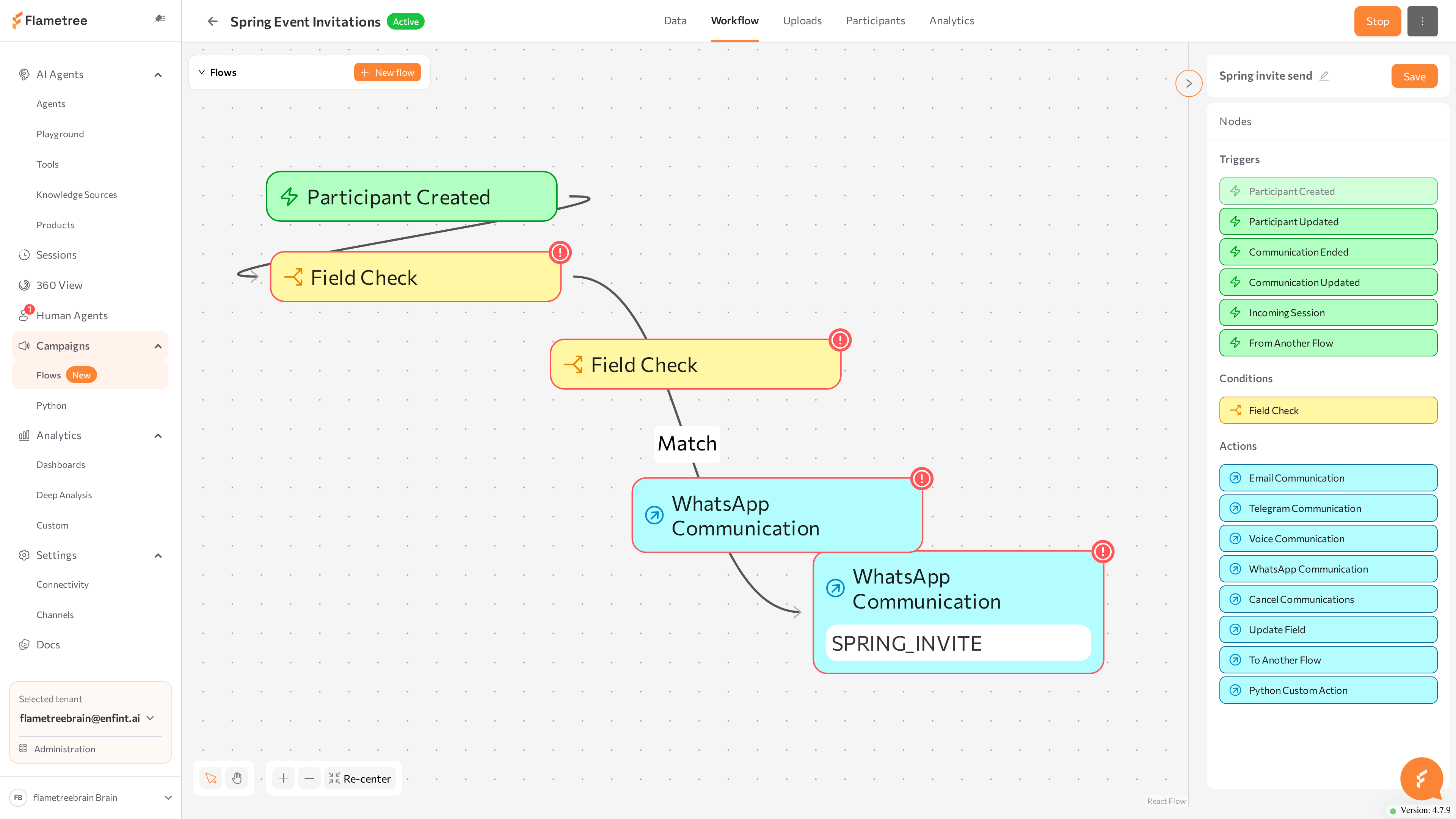
For example, to start outreach to every new contact, connect Participant Created to an optional Field Check and then to a communication action; every uploaded contact gets the first message. Other common patterns chain a follow-up off Communication Ended, or use Incoming Session → Cancel Communications so a customer who reaches out on their own stops receiving scheduled outreach.
Use Communication Ended rather than Communication Updated for "what next" logic: Ended fires once per communication with the final outcome, while Updated can fire several times while the conversation is in progress.
Triggers fire only while both the campaign and the flow are Active.
Conditions
Conditions are yellow Field Check nodes. A Field Check compares one field against a value and routes the participant down one of two branches:
- Match — the comparison is true.
- Else — any other result. The Else branch may stay unconnected; when a participant falls into an unconnected Else, no further nodes run for that participant in this flow.
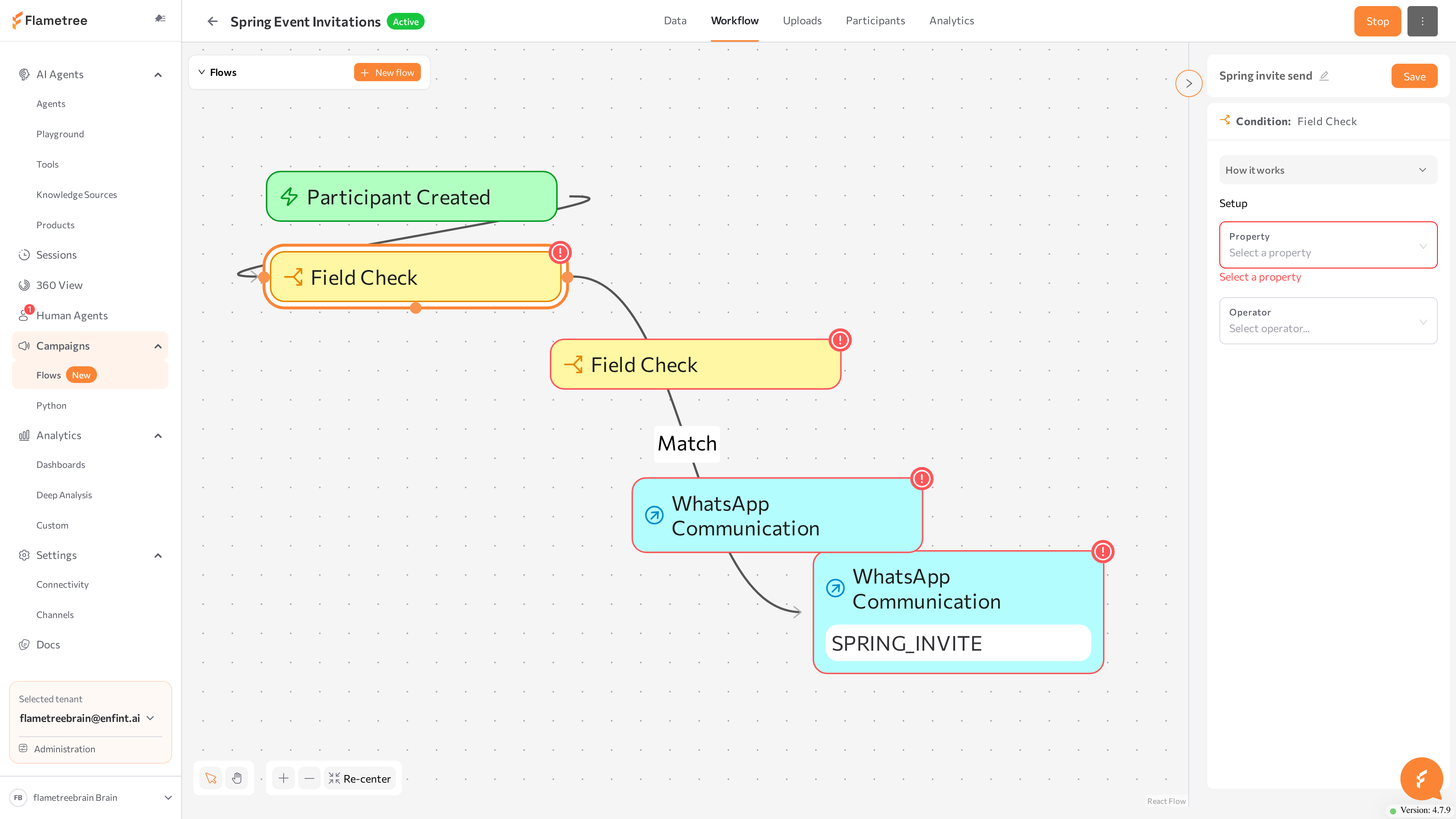
To configure a Field Check, click the node, pick the Property to check, pick an Operator, and enter the Value to compare against. The operators offered depend on the field type, and you can compare against a static value or — through the button — another field, Today with an offset, or a Python expression. For the full operator list by field type and the dynamic value sources, see Flow nodes.
For example, to branch on whether a customer still owes money, set Property to amount paid, Operator to is less than, and the value to the amount due field through the button: the Match branch then handles participants with an outstanding balance, and the Else branch handles the rest.
Actions
Actions are blue nodes — the steps that do something: send a message, start a call, update data, or move the participant. Every branch of a flow, except an unconnected Else, must end in an action. Click an action node to configure it in the right panel; required fields are checked when you activate the flow.
Eight actions are available:
- Communication actions — WhatsApp Communication, Telegram Communication, Email Communication, and Voice Communication create an outbound communication for the participant, which you can track on the Participants and Analytics tabs.
- Control actions — Cancel Communications, Update Field, To Another Flow, and Python Custom Action.
For every node's settings and required fields, see Flow nodes.
The Agent lists offer only agents that have a channel of the matching type attached. Connect the channel in Settings > Channels and attach it to the agent first.
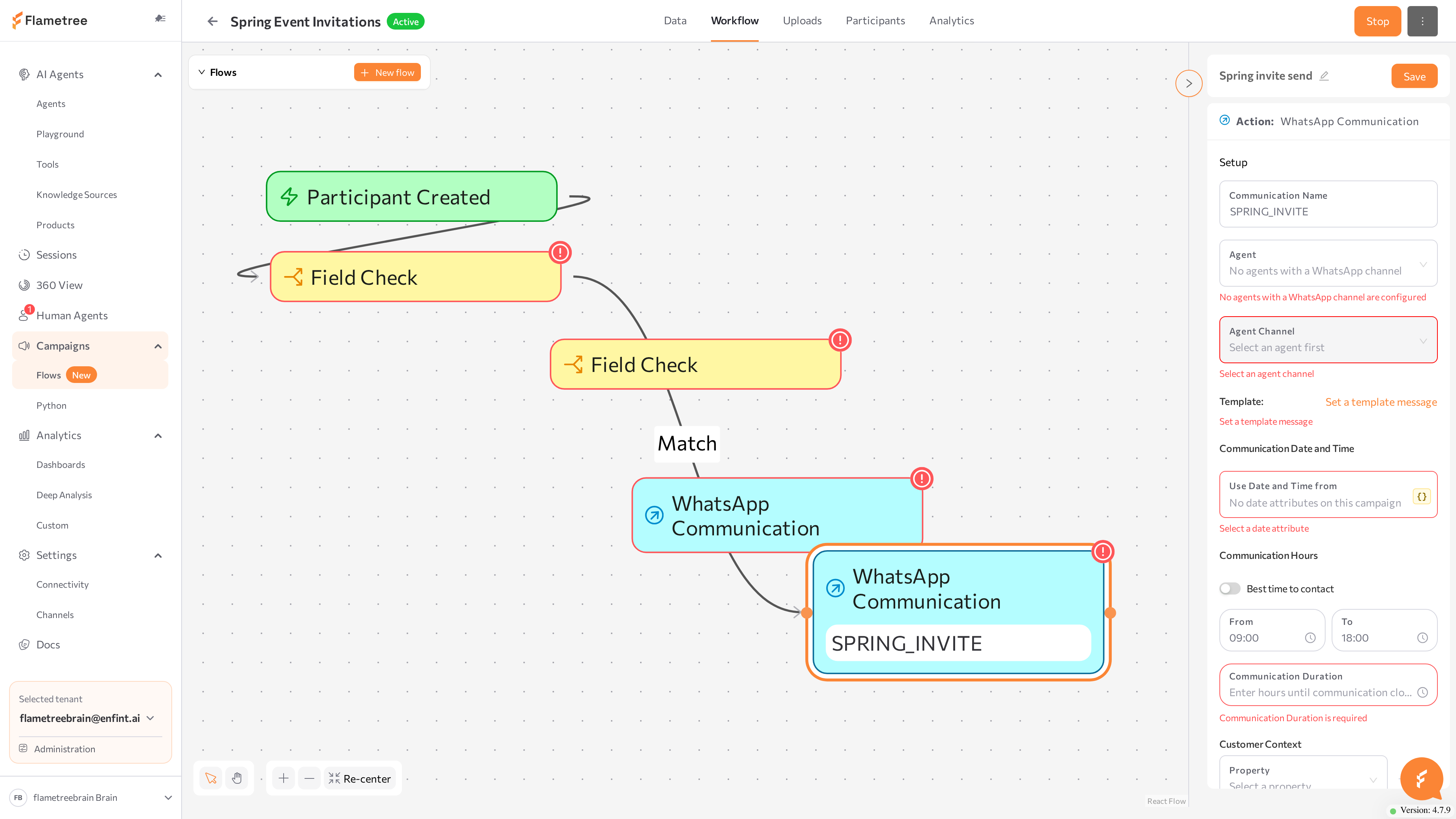
For example, to send the opening WhatsApp message, drop a WhatsApp Communication action, choose the Agent and Agent Channel, click Set a template message and pick an approved WhatsApp template, set the Communication Date and Time to Today, and set a Communication Hours window (or turn on Best time to contact). The action then creates a communication for each participant that reaches it.
Python custom action
The Python Custom Action node runs a custom Python script as a flow step, for cases the built-in nodes don't cover. Configure its script in the node panel — the field is listed in Flow nodes. This is a single node inside a visual flow; it is not the same as code-based Python campaigns, which are documented in Python campaigns.
Best practices
- Keep flows small and focused — one flow per business process is easier to read and to activate.
- Split large logic across several flows and move participants between them with To Another Flow, rather than building one deeply nested flow.
- Give communications meaningful Communication Names — they label both the node on the canvas and the participant's communications list.
Related pages
- Data — define the fields used in conditions and actions
- Participants — the participants flows act on
- Analytics — track the communications flows create
- Flow nodes — the full field reference for triggers, conditions, and actions