Human Agents
Human Agents is the operator workspace in Flametree: the inbox where conversations land when a human needs to take over from an AI agent. Here you read the full history, claim the conversation, reply to the customer in the channel they are already using, and resolve the session when the issue is handled — with AI-drafted replies in Copilot mode when you want them.
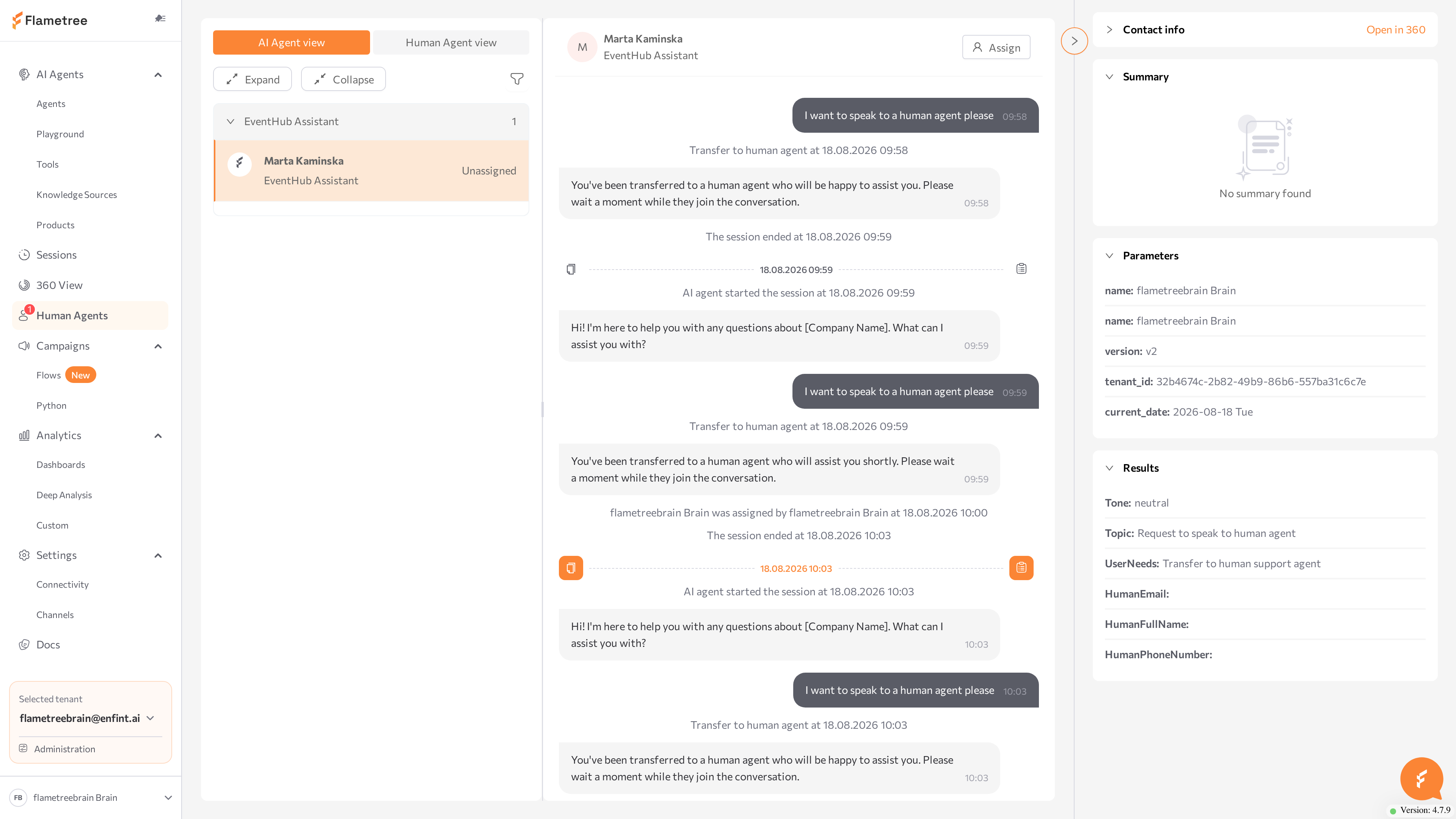
Use this screen to:
- Pick up conversations escalated by an AI agent.
- Reply to customers directly in web chat, WhatsApp, Telegram, email, and other connected channels — without leaving Flametree.
- Work with AI assistance: in Copilot mode the agent drafts replies that you edit and send.
- Review the full history and collected data of a conversation before answering.
Find your way around
Open the workspace from the left menu: click Human Agents. The menu item shows a badge with the number of conversations waiting in the workspace, and the same counter appears on the browser tab icon, so you notice new escalations while you work in another tab.
The screen has three parts:
- Conversations list (left) — every conversation that currently needs, or is receiving, human attention, grouped by AI agent or by human agent.
- Chat (center) — the message history of the selected conversation and your reply input. Until you select a conversation it reads Select a conversation from the left sidebar to start chatting.
- Information (right) — a collapsible panel with the customer's Contact info and the session's Summary, Parameters, and Results.
Every conversation in the workspace runs in one of two modes:
- Human agent mode — you write every reply yourself; the AI stays silent.
- Copilot mode — the AI drafts replies, and you review, edit, and send them.
Before you start
- You are signed in to the portal. What you see and can do in the workspace depends on your role — if an action such as assigning or resolving is missing or disabled for you, ask your administrator.
- Conversations appear here only after a handover: at least one AI agent has human handoff enabled, or teammates hand conversations over from the Sessions screen or 360 View.
Set up your seat
Two things make the workspace easier to staff. Both are set up outside this screen:
- Working hours. If you have the Tenant Operator role, your account may be limited to specific working hours — check with your administrator if you expect handoffs outside the hours you're seeing them.
- Notifications. Turn on browser notifications so you are alerted when a conversation is assigned to you or a customer replies, even when the portal is in a background tab. The Human Agents menu item also carries a badge with the number of waiting conversations, and a red dot marks the browser tab while you work elsewhere. See Notifications.
How conversations get here
A conversation enters the workspace when control passes from the AI agent to a human:
| Trigger | What happens |
|---|---|
| Automatic escalation | The agent's handoff conditions are met during the conversation, and the agent transfers it to a human. |
| Customer request | The customer asks to talk to a person, and the agent is configured to escalate on request. |
| Manual handover | A teammate clicks Hand over to the operator on the Sessions screen. The conversation arrives unassigned. |
| Takeover from 360 View | A teammate clicks Continue in Human Agent in 360 View. The conversation is assigned to the person who clicked it. |
When a handover happens, the AI agent stops sending automatic responses. The complete conversation history is preserved, and everything you send is logged in the same session, so a manager can later see exactly when the escalation happened and what followed.
Handoff conditions are part of each agent's configuration, set by whoever owns the agent — see Configure escalation on the agent below.
Conversations the AI completes on its own never appear in this workspace. Monitor those on the Sessions screen.
Configure escalation on the agent
Whether conversations reach you, and who they land on, is decided on the agent — not in this workspace. If escalations are not arriving, or arriving on the wrong person, ask the agent's owner to check these settings:
- Turn on handoff. In Simple mode, turn on Allow human handoff on the agent's Instructions tab and describe when to escalate in Handoff Conditions (for example, when the customer asks for a person or is upset). In Advanced mode, escalation is part of the agent's workflow, and the Immediate human handoff switch in the General card sends every conversation to a human from the first message.
- Set the default operator. In Advanced mode, the Default operator setting in the Advanced card names the portal users that this agent's handed-over conversations are assigned to by default, so escalations can arrive already assigned rather than waiting in the Unassigned group.
Common issues
- No message input at the bottom of the chat. The conversation is unassigned. Claim it: Assign > Me.
- The Assign or Resolve action is missing or disabled. Your role lacks the required permission. Ask your administrator.
- A conversation is not in the list. It was resolved, or it never escalated. Find the session on the Sessions screen.
- Sending fails. Check the conversation card for Agent not running or Channel not running tags, start the agent or channel, and retry.
- A conversation card shows Agent not running or Channel not running, and you can't start it. Starting agents and channels needs configuration access, which the operator role does not have. Ask a Tenant Admin to start the agent in AI Agents or the channel in Settings > Channels. The conversation history is preserved until then.
- A WhatsApp reply is blocked. More than 24 hours have passed since the customer's last message. Click Continue with template and send an approved template — see WhatsApp.
- No Copilot drafts appear. Confirm the Copilot switch is on and the AI agent is running (no Agent not running tag).
- No escalations reach your workspace. The agent may not have handoff turned on, or its conditions are too narrow. Ask the agent's owner to review Configure escalation on the agent.
- You miss new conversations. Turn on browser notifications and watch the menu badge and tab dot — see Notifications.
- The history looks incomplete. Keep scrolling up — earlier sessions load as you scroll.
- Resolved by mistake. A resolved session cannot be reopened. Wait for the customer's next message, which starts a new session, or start a new conversation from 360 View.
- The customer is escalated again right after you resolve. The agent's handoff conditions match again — for example, the customer keeps asking for a human. Review the agent's handoff conditions.
Related pages
- Sessions — monitor AI-handled sessions and hand them over to an operator
- 360 View — the complete customer profile; take over or start conversations from there
- Create an Agent in Simple Mode — turn on Allow human handoff and define handoff conditions
- Create an Agent in Advanced Mode — workflow escalation, Immediate human handoff, and the default operator
- Manage users and roles — add operator accounts and assign roles
- Notifications — browser notifications and the tab badge for waiting conversations
- Settings > Channels — start, stop, and troubleshoot channel connections
- WhatsApp — the 24-hour messaging window and templates
- Intercom — handoff driven from the Intercom Inbox
- Agents — start and stop AI agents
In this section
- Handle conversations — find, open, read, and assign escalated conversations.
- Reply with Copilot — send messages and work with Copilot draft suggestions.
- Resolve — close a session and return control to the AI agent.