Create an agent in Advanced mode
Advanced mode is part of the classic agent editor. Agents you create today open on Configure an agent instead, with a visual Workflow tab replacing this page's YAML editor and Capabilities replacing tool groups. This page still applies to every agent that hasn't moved to the new page — its header shows a Legacy badge. See Move a legacy agent to the current page to bring one forward.
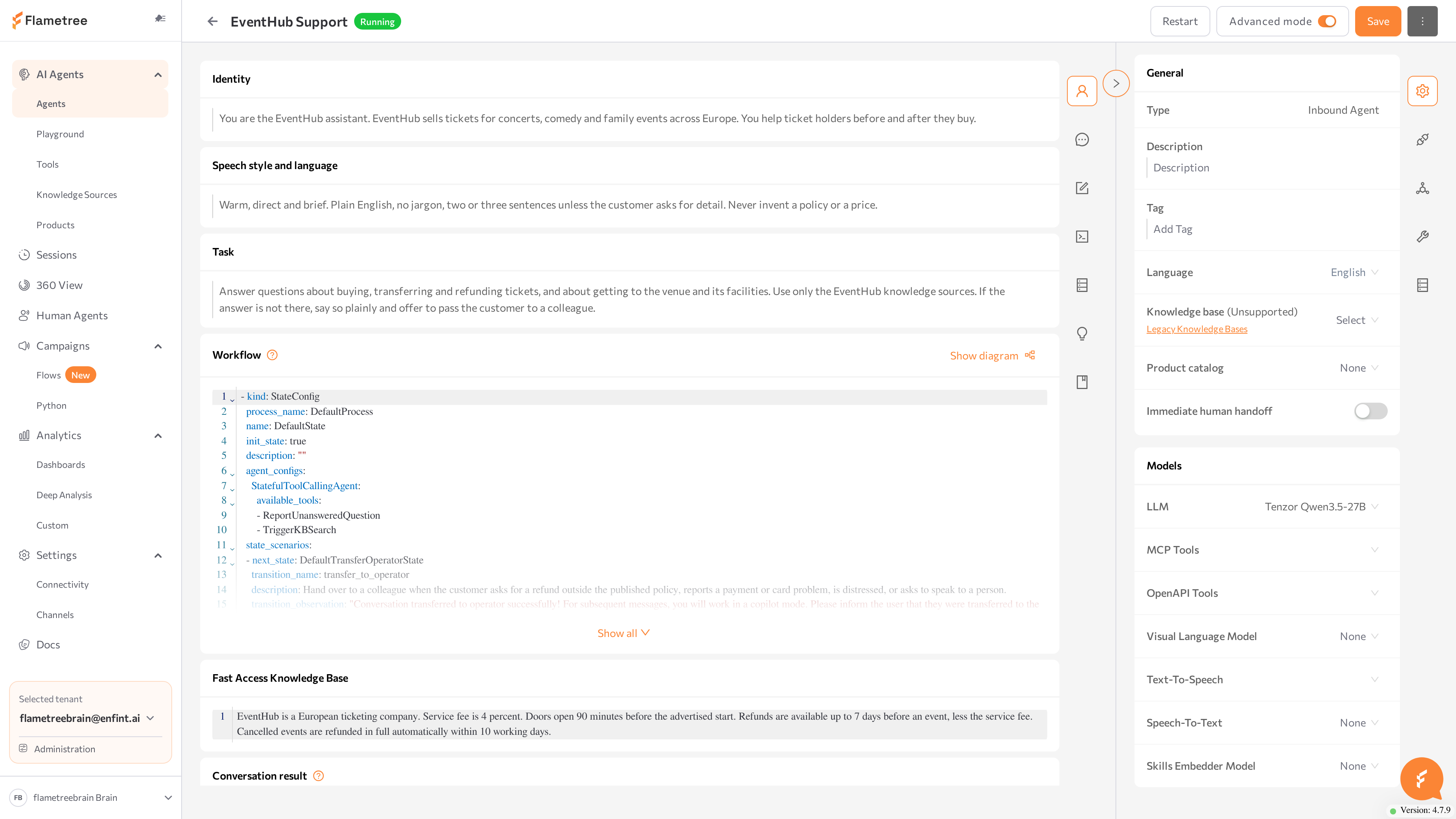
Advanced mode is the full-control view of the classic agent page in Flametree. Instead of the four guided tabs of Simple mode, you edit the agent's configuration directly: the raw prompt sections, a state-based workflow in YAML, the conversation result schema, attached tools, AI models, channels, and runtime settings.
Use Advanced mode when you need:
- A multi-step conversation flow with controlled states and transitions.
- Tools — actions the agent can perform beyond replying, such as calling your systems.
- A specific LLM, or speech models for a voice agent.
- Settings Simple mode does not expose: session limits, environment variables, webhooks, and more.
Both modes configure the same agent. You can switch between them at any time with the Advanced mode toggle in the upper-right corner of the agent page.
Before you start
- You are signed in to the portal with a role that can edit agents.
- An agent exists — see Agents. This page describes an Inbound Agent; other agent types show a subset of the same sections (for example, a Call Analytics agent has only the Conversation result section).
- An LLM connection exists in Settings > Connectivity — without a selected LLM the agent cannot run.
In Advanced mode, saving does not restart the agent. After you click Save, restart the agent yourself: click Stop agent, wait for Stopped, then click Start agent. There is no separate restart action. Until you restart, the live agent keeps running with its previous configuration.
Switch between modes
- Open the agent from AI Agents > Agents.
- Click the Advanced mode toggle in the upper-right corner. The same toggle switches back to Simple mode.
If you have unsaved changes, a Switch to advanced mode (or Switch to simple mode) dialog warns that changes cannot be carried over without saving. Choose Save and switch, Switch without saving (your edits are discarded), or Cancel.
Some configurations made in Advanced mode — most commonly a custom workflow — cannot be displayed back in Simple mode. The affected Simple mode sections become read-only or unavailable, while the agent itself keeps working. See Simple mode for how each section behaves.
Find your way around
The page has two scrollable columns, each with a vertical icon bar for jumping between sections. The right column is the collapsible Settings panel — click its label to collapse or expand it.
The main column contains the prompt and logic sections:
| Section | What you configure |
|---|---|
| Identity | Who the agent is: name, role, and organization. |
| Speech style and language | Tone, formality, and the languages the agent uses. |
| Task | The agent's objective and boundaries. |
| Workflow | The conversation flow as YAML states and transitions. |
| Fast Access Knowledge Base | Markdown reference content included in the agent's prompt. |
| Conversation result | The data fields the agent collects, defined in YAML. |
| Analytics | The deep analysis configuration for this agent's sessions. |
| Tool Groups | The tool groups attached to this agent. |
The Settings panel on the right contains:
| Card | What you configure |
|---|---|
| General | Read-only agent type, plus Description, Tag, Language, the legacy Knowledge base selector, Product catalog, and the Immediate human handoff switch. |
| Models | The LLM and other model connections the agent uses. |
| Web widget | The chat widget for your website. |
| Communication channels | The channel connections attached to this agent. |
| Advanced | Agent ID and token, default operator, session limits, Show RAG sources, environment variables, push notifications, and Copilot working hours. |
| Database | A database connection for agents that query SQL data. |
The page header shows the agent name and status tag and holds the Advanced mode toggle, the Start agent / Stop agent button, the Save button, and a three-dot menu with Rename, Playground (while the agent is running), Show Logs, Show reports, Delete, Export agent, and Copy agent.
Unlike Simple mode, Advanced mode has no built-in test chat on the page. Test the agent on the Playground page instead.
Common issues
- The agent still behaves the old way after saving. Advanced mode does not restart the agent on save. Click Stop agent, wait for Stopped, then Start agent.
- The agent does not start or cannot begin conversations. Check that each process marks its starting state with
init_state: true(if none is marked, the first state in the YAML is used) and that an LLM is selected in Models. Then check the logs from the three-dot menu (Show Logs). - The agent stops replying in one state (legacy workflows). In workflows that use the older
available_tools: SingleStatefulOutboundAgent:format, a state withoutSendChatMessagecannot send messages. Workflows in the neweragent_configs:format don't useSendChatMessage. - The agent repeats the same message. Two transitions overlap, or the flow loops between similar states without an exit condition. Make transition descriptions distinct and add a fallback transition.
- An attached tool is never used. The tool group is attached, but the tool is not listed in
available_toolsof the state where you expect it. - An environment variable has no effect. Variable changes require a restart — and a secret value cannot be unmasked, only replaced.
- The Language select in the General card is disabled. It shows "To choose an agent language, please select a translator integration first." — add a translator connection in Settings > Connectivity.
- Simple mode sections are read-only after your edits. Expected: configurations such as a custom workflow cannot be displayed in Simple mode. Continue editing in Advanced mode.
- The Inbound switch on a channel is disabled. Check the connection's checkbox first — the switch applies only to attached connections.
Related pages
- Configure an agent — the current agent page, for agents created today
- Simple mode — the guided view of the same agent (also legacy)
- Agents — create, start, stop, and export agents
- Playground — test the agent without connecting a channel
- Tools — create and manage tool groups
- Knowledge Sources — the shared knowledge library
- Settings > Connectivity — LLM and model connections
- Settings > Channels — channel connections the agent attaches
- Deep Analysis — metrics calculated from the Analytics section
- Sessions — review conversations, results, and trace logs
In this section
- Prompts — write the Identity, Speech style, and Task sections
- Workflow — define the conversation flow as YAML states and transitions
- Conversation results — define the data fields the agent collects
- Knowledge and tools — add knowledge, attach tools, and set up deep analysis
- Models — select AI models and attach a product catalog
- Channels — attach messaging, voice, and web widget channels
- Advanced settings — IDs, limits, environment variables, webhooks, and working hours