Adjust advanced settings
Part of the classic, legacy agent editor. Agents created today use the Settings tab of Configure an agent instead — see Advanced mode for details.
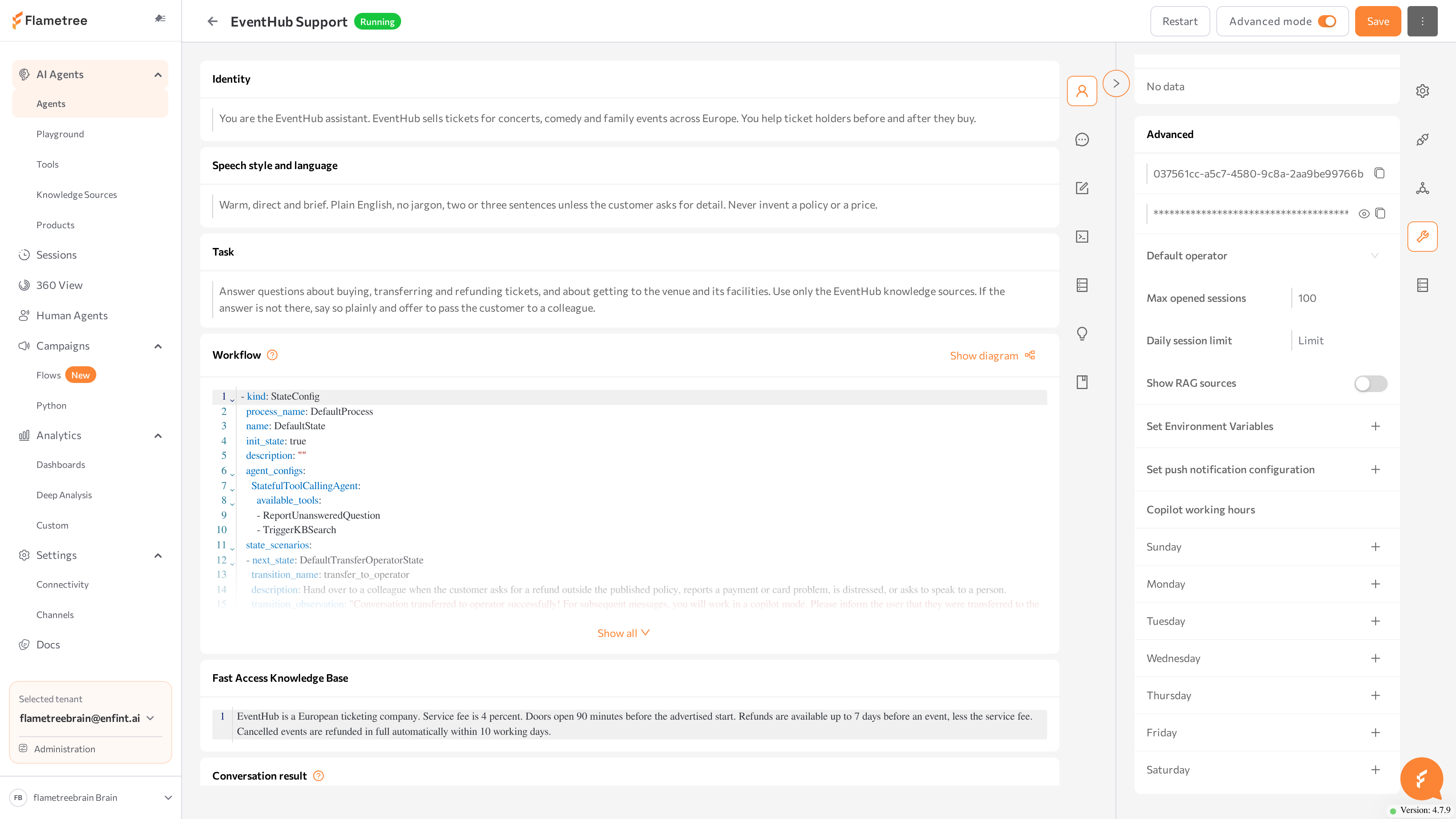
The Advanced card collects the agent's runtime settings. This page covers the agent ID and token, operators and limits, environment variables, push notifications, and Copilot working hours.
Adjust advanced settings
The Advanced card collects the agent's runtime settings.
Agent ID and token
The first two rows are the agent's ID and its API token. The token is masked — click the eye icon to reveal it; both rows have a copy button. Use them to call the agent through the API: the ID identifies the agent, and the token goes into the Authorization: Bearer header.
The token grants API access to the agent. Share it only with systems that need it.
Operators, limits, and sources
| Setting | What it does |
|---|---|
| Default operator | The portal users that this agent's handed-over sessions are assigned to by default. Type to search by name. |
| Max opened sessions | The maximum number of simultaneously open sessions (minimum 1). For voice agents this limits parallel calls. |
| Daily session limit | Caps how many sessions the agent starts per day. When the limit is reached, new session starts are blocked. |
| Show RAG sources | When on, replies based on knowledge search include the sources the answer came from. |
Set environment variables
Environment variables fine-tune optional behaviors — greeting phrases, session timeouts, channel-specific options — without changing the main configuration.
- In the Advanced card, click the + button next to Set Environment Variables.
- In the Set Environment Variables window, click Add variable and fill in Key and Value. For example, the key
START_PHRASEwith the valueHello! How can I help you today?sets the agent's welcome message. For the variables the platform supports, see Environment variables. - Check Secret to mask the value. A value saved as secret cannot be revealed again in the portal — to change it, enter a new value.
- Click Save in the window, then Save on the agent page, and restart the agent. Variable changes take effect only after a restart.
Set push notification configuration
The agent can send webhook notifications to your system when selected events occur.
- Click the + button next to Set push notification configuration.
- In the Push Notification Configuration window, turn Enabled on and enter the URL to call.
- Under Headers, add the HTTP headers your endpoint requires (name, value, optional Secret). Click Add Header for more rows.
- In Events, select at least one event to be notified about.
- Click Save in the window, then Save on the agent page.
Copilot working hours
Copilot working hours defines a weekly schedule for the agent's copilot work — the mode in which the agent drafts replies for human agents instead of answering customers directly (see Human Agents). For each day of the week, click + to add one or more time ranges with a start and end time; use the delete icon to remove a range.
Related pages
- Advanced mode overview — the full agent page and how to navigate it
- Prompts — the welcome message uses the
START_PHRASEvariable - Environment variables — the variables the platform supports
- Human Agents — how copilot working hours fit in