Attach channels
Part of the classic, legacy agent editor. Agents created today use the Channels tab of Configure an agent instead — see Advanced mode for details.
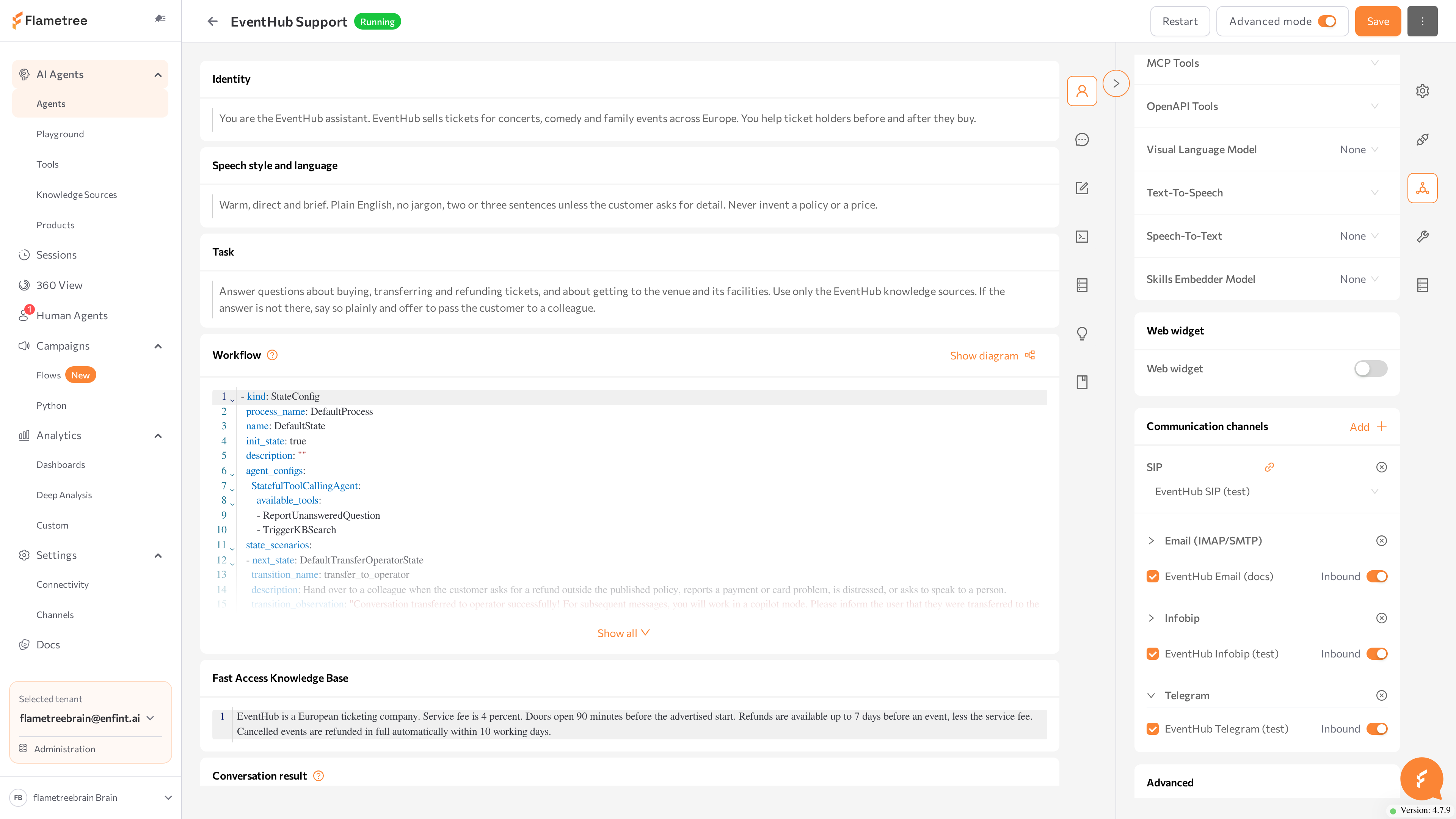
In Advanced mode, the agent's channels live in the Web widget and Communication channels cards. This page covers attaching channel connections and enabling the web widget.
Attach channels
In Advanced mode, the agent's channels live in two cards of the Settings panel: Web widget and Communication channels. Channel connections — bot tokens, numbers, mail accounts — are created and managed in Settings > Channels; the agent page only attaches existing connections to this agent.
Attach a messaging or voice channel
- Create and start the channel connection in Settings > Channels, if it does not exist yet.
- On the agent page, scroll to Communication channels and click Add. The menu lists your channel types — Telegram, WhatsApp, Email (IMAP/SMTP), Sip, and others, depending on what is connected in your tenant.
- Select the channel type. A block appears listing every connection of that type; check the connections to attach to this agent.
- For each attached connection, set the Inbound switch: when it is on, the agent answers incoming messages on that connection. The switch is available only for connections you have checked.
- Click Save, then restart the agent.
A connection can serve only one inbound agent at a time — one Telegram bot or one WhatsApp number answers as exactly one agent. Outbound conversations, where the agent writes first, are started from Campaigns.
The Add menu also lists legacy integrations configured per agent. They are hidden unless you turn on Show deprecated at the top of the menu and are marked DEPRECATED — use channel connections from Settings > Channels for new setups. An attached integration row can show a link icon that opens the Integration URLs window with values such as webhook addresses.
To detach a channel type from the agent, click the cross icon on its block (Delete channel). This detaches the connections from this agent; the connections themselves remain in Settings > Channels.
Set up the web widget
The Web widget card enables the chat widget on your website. Turn the Web widget switch on, then configure Display name, Show floating chat button, Primary color, the icon URLs, and Floating button size. The Html code row shows the embed snippet with a copy button, and the Open demo page button opens a hosted demo page to try the widget without touching your site. The widget itself is documented under Settings > Channels > Web Widget.
Related pages
- Advanced mode overview — the full agent page and how to navigate it
- Settings > Channels — create and manage channel connections
- Campaigns — start outbound conversations