Knowledge Sources
Knowledge Sources is the shared knowledge library of your tenant: you create a source once — a FAQ, a plain text, a website, a file, or a YouTube video — and connect it to any number of AI agents. Agents search their connected sources before generating a response, and when you update a source, every connected agent uses the new content.
To open the library, go to AI Agents > Knowledge Sources in the left menu. The page itself is titled Sources.
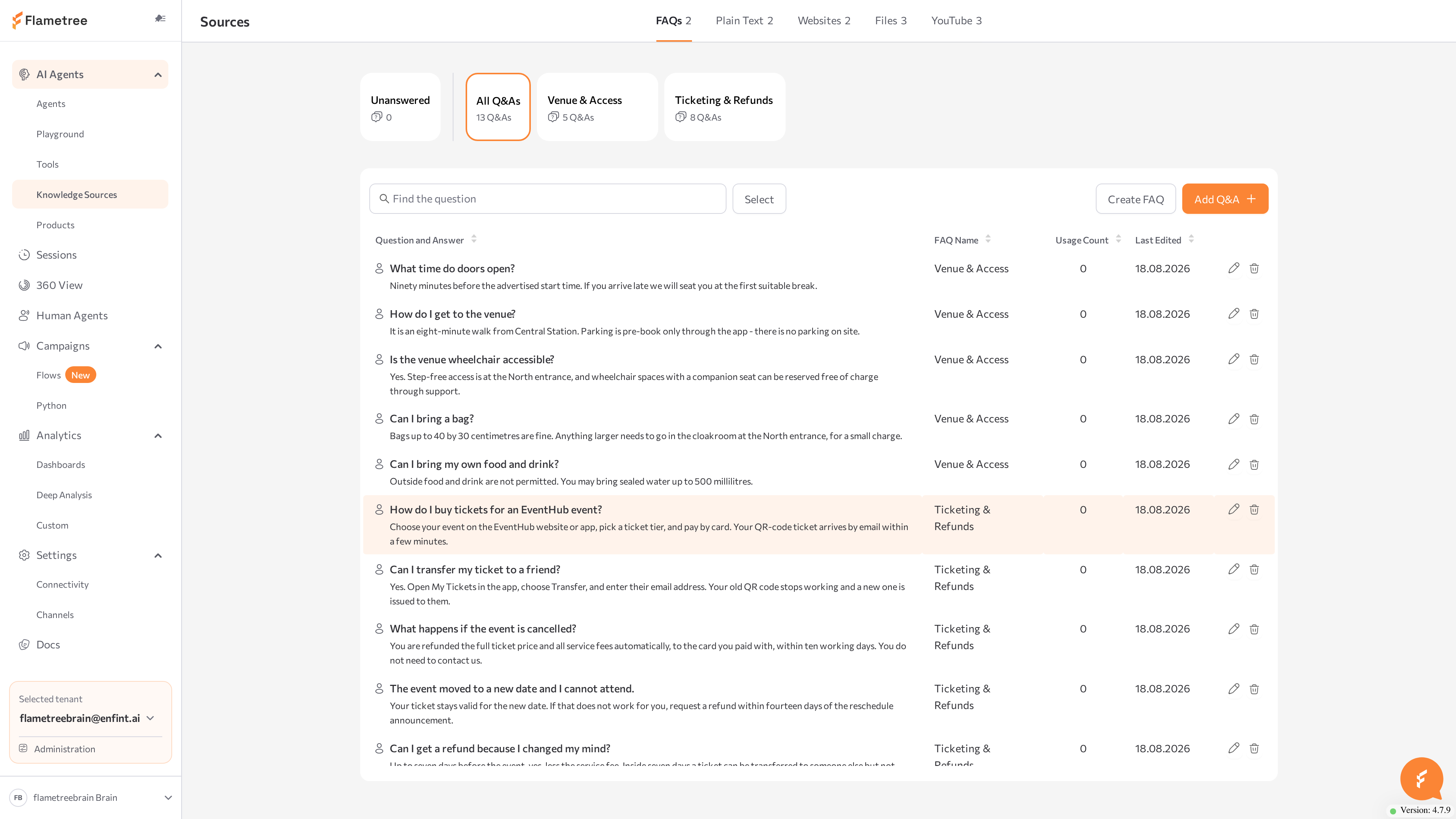
Use this page to:
- Give agents reference knowledge to answer customer questions.
- Update knowledge in one place for all agents that share it.
- See which sources are connected to which agents, and which are unused.
- Review questions your agents could not answer and turn them into new Q&As.
The library shows every source in the tenant. Each agent also has its own Knowledge Sources tab in Simple mode, which shows only what is connected to that agent — see Create an Agent in Simple Mode. You can connect and disconnect sources from either side.
Before you start
- You are signed in to the portal with a role that can edit agents — what you can do on this page depends on your role.
- You have content ready to add: approved answers, text to paste, public URLs, documents, or public YouTube links.
- To connect sources to an agent, the agent must exist and have been saved at least once — see Agents.
Source types
Each source type has its own tab. The number next to a tab shows how many sources of that type exist in your tenant — for FAQs, the number of FAQs.
| Tab | What it holds | Best for | Limits |
|---|---|---|---|
| FAQs | Question-and-answer (Q&A) pairs grouped into named FAQs | Predictable, repeated questions that need an exact, approved answer | — |
| Plain Text | A named block of free-form text | Policies, facts, and short instructions you can paste directly | 50,000 characters per source |
| Websites | Links to public web pages | Content that already lives online: landing pages, help centers, blog posts | Public URLs only |
| Files | Uploaded documents | Existing documents you don't want to retype | PDF, DOCX, TXT, MD, XLSX, CSV, HTML; 100 MB per file |
| YouTube | Public YouTube videos or channels, transcribed automatically | Lectures, demos, training videos | Duration limited per deployment |
All source tables share the same core columns: Status, Usage Count (how many times the source was used in agent answers), Connected Agents (or Not connected), and a date column — Last Edited, Last Editing, Last Updated, Uploaded, or Added, depending on the type.
Once sources exist, connect them to agents, re-index and track their usage, or migrate a legacy Knowledge Base.
Common issues
- An agent ignores a connected source. Check that the source's status is Ready — re-index if it shows Modified or Error — and that the source is connected to that specific agent. For FAQs, also check the Vector Search setting in the Manage FAQs window.
- You can't create a FAQ with the name you want. A FAQ with this name already exists — FAQ names are unique. Pick a different name, or edit the existing FAQ.
- Your text doesn't fit in a Plain Text source. The limit is 50,000 characters. Split the text into several sources, or save it as a document and upload it on the Files tab.
- A file upload is rejected. Check the format (PDF, DOCX, TXT, MD, XLSX, CSV, HTML) and the size (under 100 MB).
- Auto-generate finds few or wrong pairs. Restructure the document into explicit question-and-answer pairs and upload it again. If you see This file has already been uploaded, a FAQ named after this file already exists — rename the file or edit the existing FAQ.
- A source is stuck on Modified. Re-indexing after an edit is manual — click Index on the source.
- A website source shows Error. Pages that require a login or block automated access can't be fetched. Fix access, then click Index.
- Answers use an outdated version of a web page. Website sources are not re-fetched automatically — click Index after the page changes.
- A YouTube source shows Error. Private, age-restricted, or region-locked videos can't be transcribed. Hover over the badge for details, fix the issue or pick another video, then click Index.
- A FAQ has no Index action. FAQs don't need one — Q&A pairs are indexed as soon as you add or edit them. A FAQ that is still processing shows Indexing... on its card.
- Usage Count shows Not available. On the agent page, usage is not tracked for Q&As in a FAQ connected with Vector Search disabled. Enable Vector Search in the Manage FAQs window; the change applies to new sessions.
Related pages
- Create an Agent in Simple Mode — the agent's Knowledge Sources tab, including Core information
- Agents — create and manage agents
- Playground — test how an agent answers from its sources
- Sessions — review the conversation behind an unanswered question
- Knowledge Sources migration guide — move a legacy Knowledge Base to Knowledge Sources