Create an Agent with a Wizard
The wizard creates a working AI agent in Flametree from a ready-made template. You answer a few questions about your business, optionally upload knowledge files, and the wizard generates a configured inbound agent. No coding is required, and the whole setup takes about 15 minutes.
Use the wizard when you want a quick start from a template. If you prefer full control over every setting from the beginning, create the agent on the Agents screen instead and configure it in Simple mode or Advanced mode.
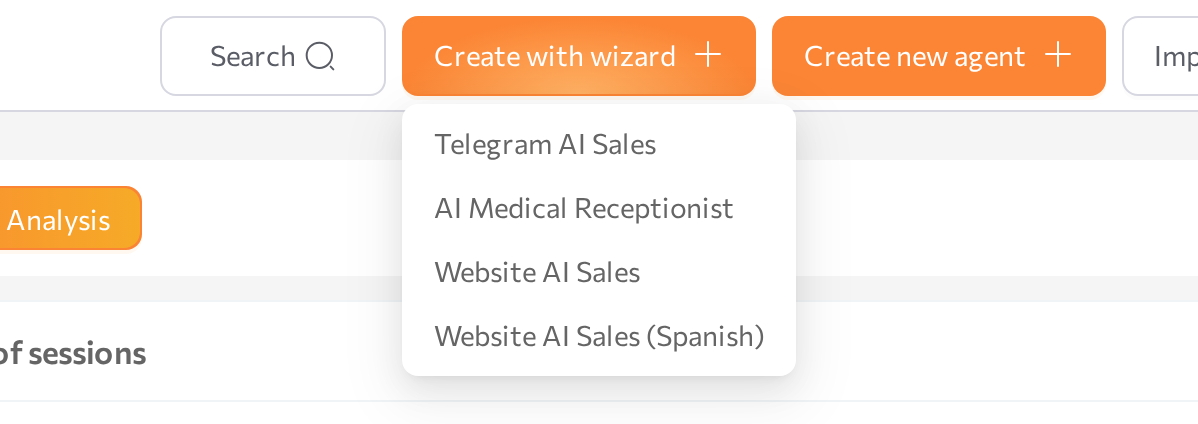
Wizard templates
Each template produces an agent for a specific scenario and channel. The exact list depends on your deployment — these flows are typically available:
- Website AI Sales — a sales agent for your website. It engages visitors, answers questions about your products and services, and captures lead details. This template is covered step by step in the Website AI Sales walkthrough.
- Telegram AI Sales — the same sales setup for customers who write to you in Telegram. See the Telegram AI Sales walkthrough.
Your deployment may offer additional templates or only some of these. The steps for any template you don't see here follow the same pattern: answer the prompts, review the configuration, and create the agent.
How the flows differ
| Setup focus | Website AI Sales | Telegram AI Sales |
|---|---|---|
| Identity and context | Business context — your company, products, services | Business context — your company, products, services |
| Knowledge base formats | ||
| Conversation results | Customer details to collect, plus a lead email | Customer details to collect, plus a lead email |
| Channel | Web | Telegram bot |
| Where to test | Playground | Playground or Telegram |
Before you start
- You are signed in to the portal with a role that allows creating agents — see Roles and permissions. The Create with wizard button is hidden if your role does not allow it or if no wizard templates are installed for your deployment.
- For Telegram-based templates: a Telegram bot token from @BotFather.
- Optional, for Website AI Sales: your website URL and a PDF file with FAQs or product information.
Start the wizard
- In the left menu, go to AI AGENTS > Agents.
- Click Create with wizard in the upper-right corner and select a template from the dropdown.
- The wizard intro page opens with a short description of what the agent will do. Click Start.
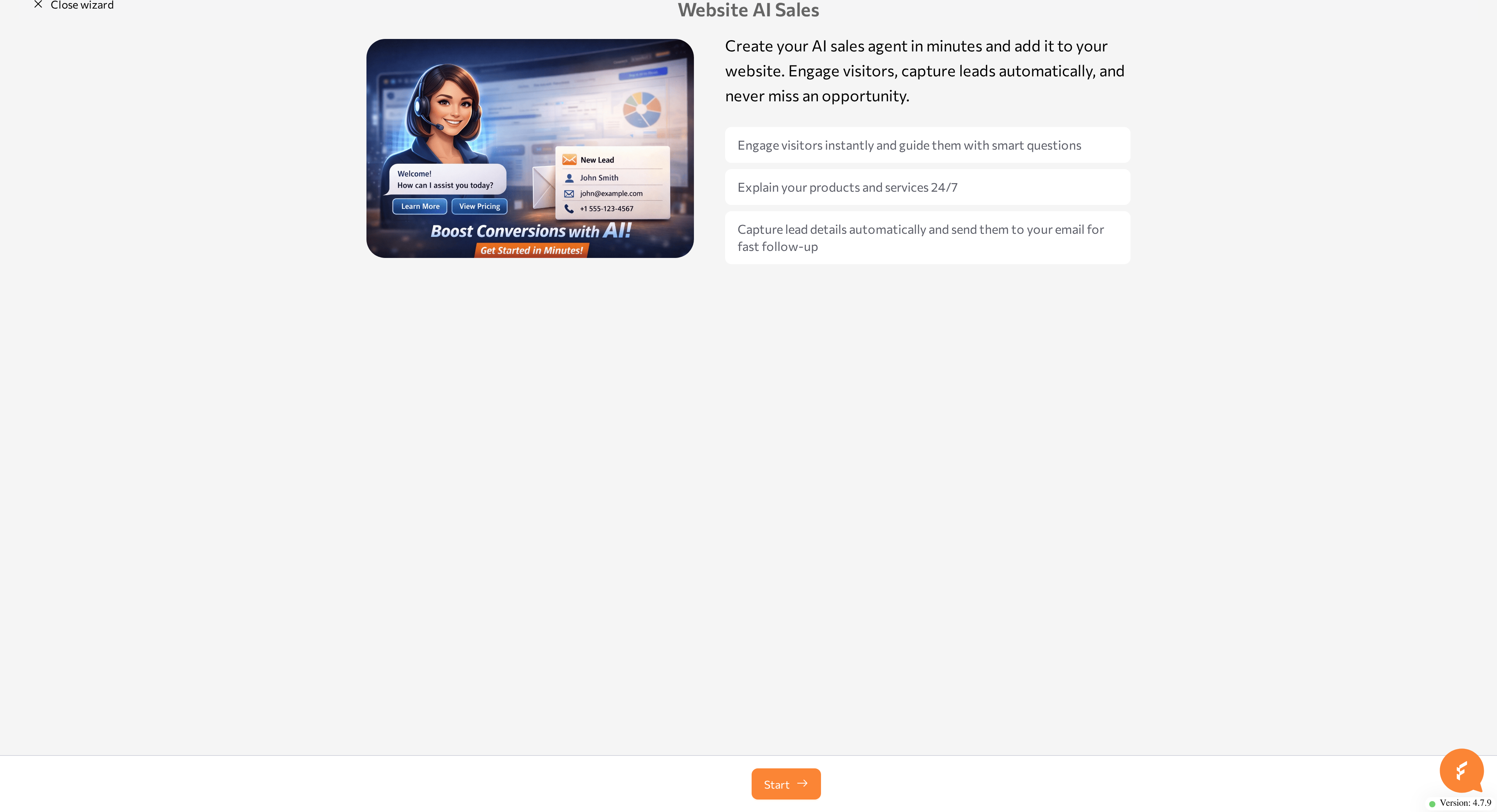
Navigate the wizard
Every template uses the same controls:
- Next moves to the next step. The button reads Skip when the current step is optional and empty.
- Previous step returns to the previous step. Your entries are kept.
- The stepper dots at the top show your progress. Click an earlier dot to jump back to that step.
- Close wizard exits to the Agents list. If you have unsaved changes, the portal asks you to confirm: You have unsaved changes. Are you sure you want to leave?
All templates also end the same way: a Handling your data stage that generates the agent configuration, then a Review configuration page where you check and edit the result before creating the agent.
Required fields are marked in the form. If you try to continue with an empty required field, the wizard shows Field is required.
Common issues
- There is no Create with wizard button. Either your role does not allow creating agents, or no wizard templates are installed for your deployment. Contact your administrator.
- The Review button stays disabled. A file is still uploading — wait until the upload message disappears, then continue.
- The wizard shows Incorrect Telegram token format. Copy the token exactly as @BotFather sent it — digits, a colon, and a long character string, with no extra spaces.
- Validation fails during Handling your data. The wizard shows the error details. Click Back to wizard, correct the input, and try again.
- Creation fails. The agent appears in the Agents list with the Error status. Check your answers — for example, the lead email address — and run the wizard again.
- A Telegram agent ends with the Error status. The Telegram channel could not start — for example, the token was revoked in @BotFather. Check the token under
/mybotsin @BotFather and run the wizard again — see Telegram for connection troubleshooting. - The agent gives generic answers. Add more detail to the business description, provide your website URL, or upload a richer PDF, then update the agent's knowledge sources on its page.
Related pages
- Agents — the agent list, where wizard-created agents appear
- Simple mode — review and edit a wizard-created agent
- Playground — test the agent before going live
- Knowledge sources — expand what the agent knows
- Web Widget — put a website agent on your site
- Telegram — connections for Telegram-based agents
- Agent statuses — what Creating and Error mean