Website AI Sales walkthrough
The steps below follow the Website AI Sales template.
Type your own content at each step, or copy the examples from this page to try the wizard with sample data.
Step 1: Choose your AI agent's name
Enter the agent's name in the AI Agent name field — for example, "Emma" or "WebSales Pro". This field is required. The agent uses the name to introduce itself to customers, and the name appears in the agent list.
Click Next.
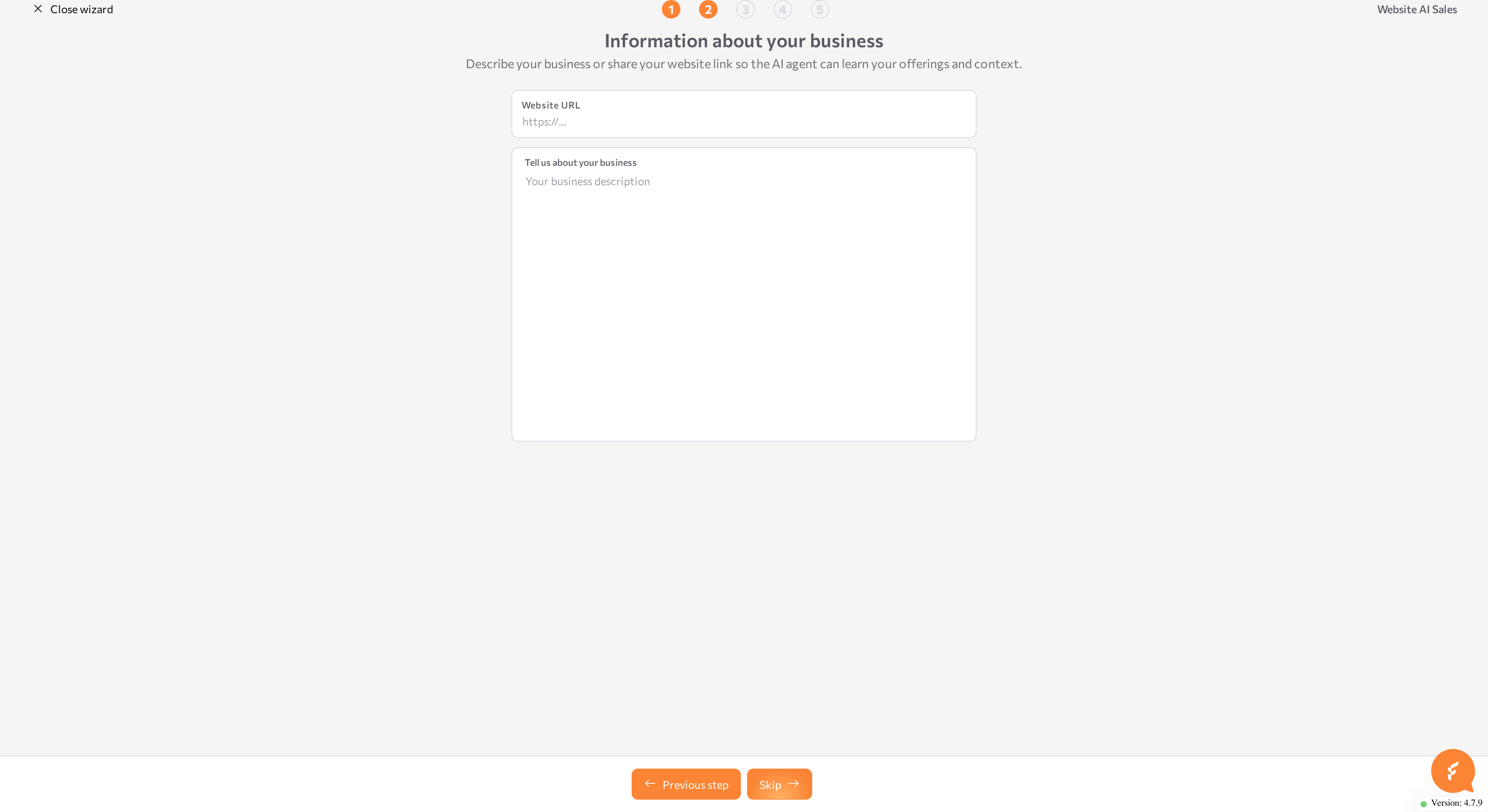
Step 2: Information about your business
Tell the agent what your business does. Both fields are optional, but the more context you give, the better the agent's answers:
- Website URL — a link to your website. The wizard reviews the site content and adds it to the agent as a website knowledge source, so the agent stays grounded in your real offering.
- Tell us about your business — a free-text description of your products, services, and how you work.
Example description:
I provide professional wardrobe analysis and styling services to help people
build a functional, cohesive, and comfortable wardrobe that fits their lifestyle.

My work focuses on understanding the client's daily routine, preferences, body
proportions, and goals. Instead of following trends, I help identify what truly
works for each person and how to combine existing items effectively.

The service includes a detailed wardrobe review, practical recommendations on
what to keep, what to remove, and what is missing, as well as guidance on
creating versatile outfits.
Click Next (the button reads Skip if you leave both fields empty).
Step 3: Personalize Your AI Agent
Define how the agent should sound in the Personalize your AI agent field. The field is required and comes prefilled with a starting point you can edit:
AI Agent tone of voice: Friendly
Greeting language: English
Starting phrase: "Hi! How can I help you?"
Describe the tone of voice, the greeting language, and, if you want one, a starting phrase.
Not sure about the starting phrase? Leave the default — the wizard composes a welcome message for you, and you can edit it on the review page.
Click Next.
Step 4: AI Agent Knowledge Base
Upload FAQs or product information so the agent can answer customer questions accurately. This step is optional.
- Click Choose PDF file.
- Click Click to upload file and select a PDF from your device, or drag and drop the file into the upload area.
- Wait for the upload to finish. While the file is uploading, the portal shows Upload in progress. Please wait until your files finish uploading.
You can add one PDF file in this step; to replace it, delete the uploaded file and add another. The maximum file size is 4 GB.
Click Next (or Skip if you have nothing to upload).
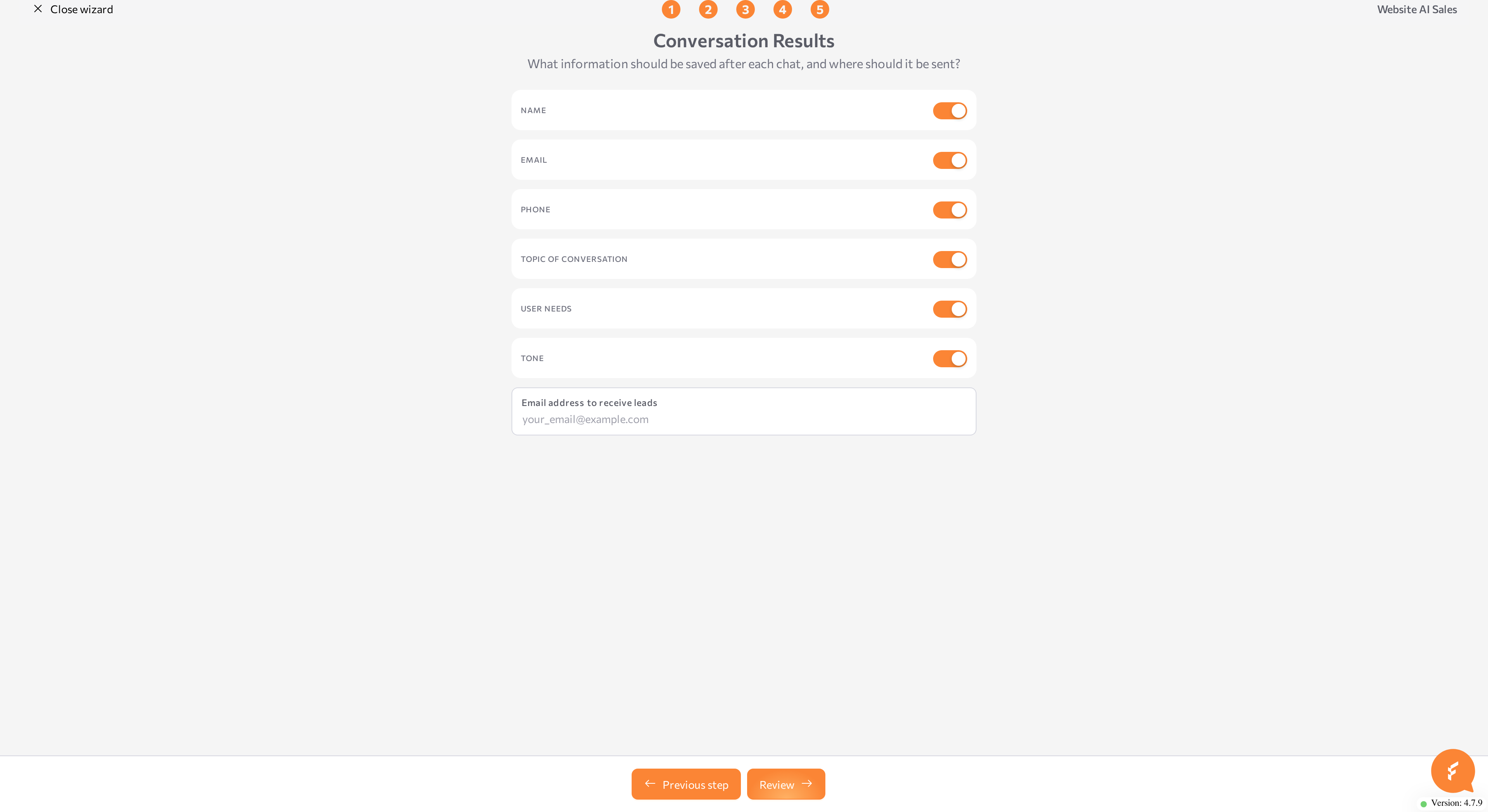
Step 5: Conversation Results
Choose which customer details the agent should save after each chat. The following toggles are all on by default — switch off the ones you do not need:
- Name
- Phone
- Topic of conversation
- User needs
- Tone
Then enter the Email address to receive leads — the address where collected lead details are sent. This field is required.
After launch, the collected values also appear with each conversation in Sessions, in the session results.
Click Review.
Step 6: Review and create
The wizard first shows Handling your data while it generates the agent configuration. This can take a couple of minutes; status messages such as "Shaping Agent Identity" and "Scanning Knowledge Base" mark the progress.
On the Review configuration page, check the generated settings. You can edit each of them directly:
- Agent name
- Welcome message
- Identity
- Speech style
- Task
If you uploaded a file or provided a website URL, the Sources section lists the agent's knowledge sources. To change the knowledge base or any earlier answer, click Back to wizard.
When the settings look right, click Create AI-agent. The agent is created and its page opens, where you can review and refine the configuration. On a mobile device, the Playground opens instead, with the new agent preselected.
If you return to the Agents list while creation is still in progress, the agent shows the Creating status until it is ready — see Agent statuses.
If creation fails, the agent appears in the Agents list with the Error status. Check your answers — for example, the lead email address — and run the wizard again.
Related pages
- Wizard overview
- After the wizard — refine the new agent
- Web Widget — put the website agent on your site