Configure the workflow
Part of the classic, legacy agent editor. Agents created today configure their flow visually on the Workflow tab of Configure an agent instead — see Advanced mode for details.
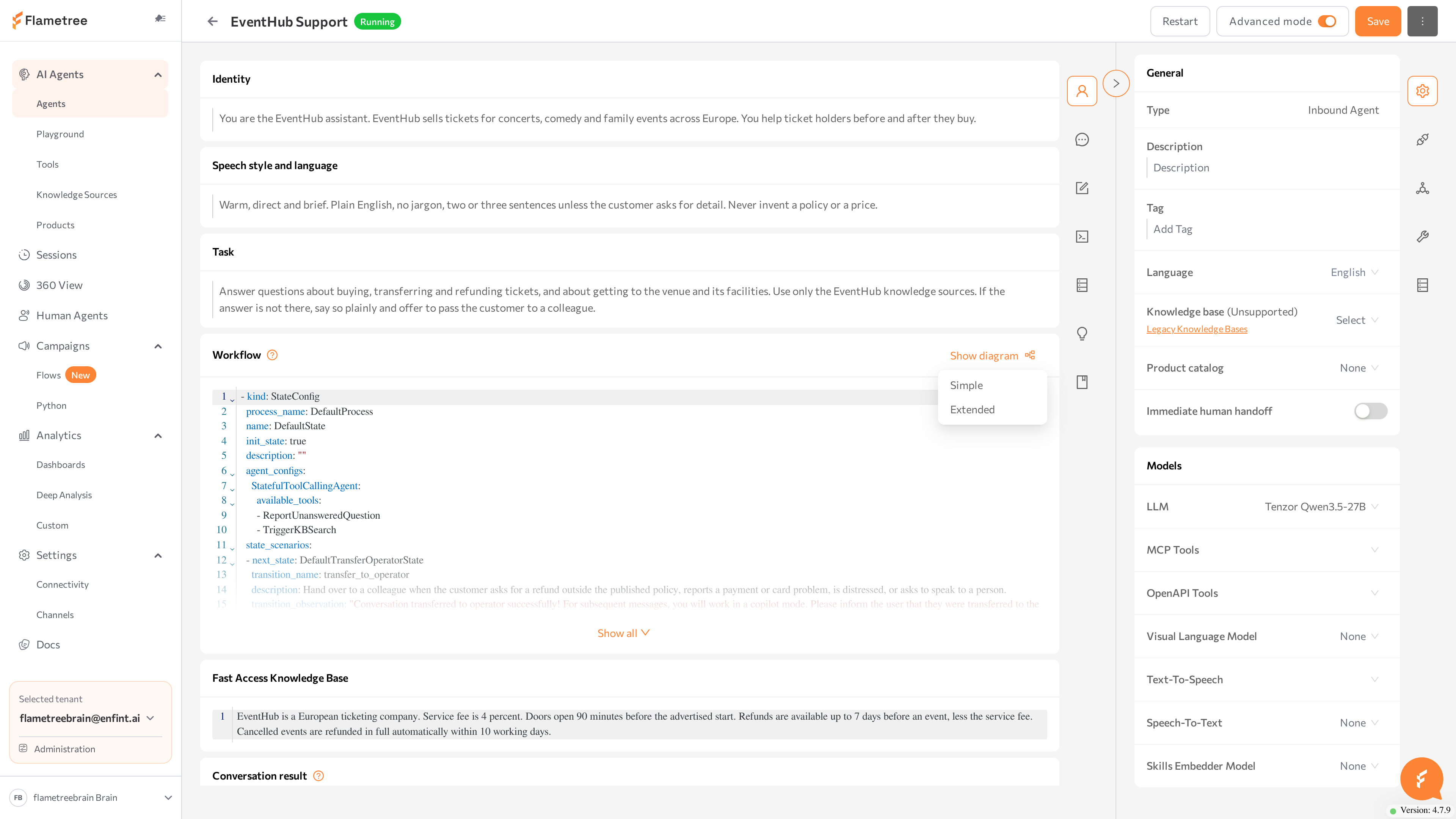
The Workflow section defines the conversation flow as a state machine in YAML. This page covers states, transitions, the diagram preview, and how to test changes.
Configure the workflow
The Workflow section defines the conversation flow as a state machine in YAML. Each state is one phase of the conversation with its own instructions and tools; the agent operates in exactly one state at a time and moves between states through transitions.
New agents come with a default workflow that supports the Simple mode features. Customize the workflow when you need:
- A strict multi-step process — for example, verify identity before discussing an account.
- Different instructions or tools at different stages of the conversation.
- Controlled escalation paths, such as a transfer to a human after repeated failures.
Fewer states make the agent more flexible; more states make it more predictable. Start with one or two states and add more only when needed.
The ? icon in the Workflow section header opens the formatting reference for the YAML syntax.
Define states
Each state is one list item in the YAML:
- process_name: SupportProcess
  name: Greeting
  kind: StateConfig
  init_state: true

  description: |
    - Greet the human
    - Ask how you can help
    - Determine human intent

  agent_configs:
    StatefulToolCallingAgent:
      available_tools:
        - TriggerKBSearch

  state_scenarios:
    - next_state: Answer
      transition_name: human_question_received
      description: "human asks a question"

- process_name: SupportProcess
  name: Answer
  kind: StateConfig
  final_state: true

  description: |
    - Answer the human's question
    - Ask if additional help is needed
    - End the conversation

  agent_configs:
    StatefulToolCallingAgent:
      available_tools:
        - TriggerKBSearch
        - ReportUnansweredQuestion
| Field | What it does | Required |
|---|---|---|
process_name | Groups related states into a process. Usually one workflow contains one process. | No — when omitted, the state joins the default Main process |
name | Unique state name. Use descriptive names such as Verification or Collection. | Yes |
kind | Always StateConfig. | Yes |
init_state | Marks the starting state. | Starting state only |
final_state | Marks a state where the conversation can end. | Optional |
description | The instructions the agent follows in this state: steps, guidelines, and example dialogues. | Yes |
agent_configs | Settings per agent class. For agents created in the portal, the class is StatefulToolCallingAgent; its available_tools list holds the tools the agent can call in this state. | Current format (legacy workflows use available_tools instead — see the note below) |
Mark exactly one state per process with init_state: true. If none is marked, the first state in the YAML becomes the starting state; if several are marked, the last one wins. With a single process, that means one marked state in the workflow.
The agent sends its replies directly — you don't add a send-message tool to the state. Tools in available_tools extend what the agent can do in that state, such as searching knowledge sources or recording an unanswered question.
Agents created before planning agents were introduced use an older shape: available_tools keyed by the agent class SingleStatefulOutboundAgent, with the built-in SendChatMessage tool listed in every state where the agent talks — without it, those agents cannot send messages. Both formats remain valid. Keep the format your agent already uses.
A good description has three parts: numbered steps to follow, important guidelines (including limitations), and example dialogues for both successful and problematic turns. Avoid conflicting instructions, and give each state one clear goal.
Define transitions
Transitions in state_scenarios describe when the agent moves to another state:
state_scenarios:
  - next_state: Collection
    transition_name: verify_identity
    description: "Move to collection after confirming identity"

  - next_state: ScheduleReminder
    transition_name: begin_schedule_reminder
    description: "Schedule a reminder if human is busy"
| Field | What it does | Required |
|---|---|---|
next_state | The state to move to. Must reference an existing state name. | Yes |
transition_name | A name for the transition — it appears in trace logs and helps you debug the flow. When omitted, logs show the next_state name instead. | No |
description | The condition that triggers this transition. | Yes |
attached_tools | Additional tools available during the transition. | No |
transition_observation | A note recorded about the outcome of the transition. | No |
Make conditions distinct: if two transitions can apply in the same situation, the agent may pick the wrong one or loop between states. Include a fallback transition for unclear replies and an escalation path for customers who ask for a person.
Preview the workflow as a diagram
To check the structure visually:
- In the Workflow section header, click Show diagram.
- Select Simple for a compact diagram or Extended for a more detailed one.
- The diagram opens in a window — drag to pan and scroll to zoom.
- Click Export as SVG to download the diagram.
Test workflow changes
- Click Save.
- Restart the agent: Stop agent, wait for Stopped, then Start agent.
- Open the Playground and walk through your scenarios: the main path, an off-topic question, and each transition.
- If a transition misfires, open the session's trace logs from Sessions and search for the
transition_nameto see what the model received and decided.
Related pages
- Advanced mode overview — the full agent page and how to navigate it
- Prompts — the Identity, Speech style, and Task sections
- Knowledge and tools — attach the tools that states can use
- Playground — walk through workflow scenarios
- Sessions — review trace logs for transitions