Find customers
Search the customer database with quick or advanced filters, save filters for reuse, and choose which fields appear as columns.
Search for customers
By default you can filter by these customer fields: Name, Phone, Email, WhatsApp, Telegram, Telegram ID, Product, Language, Company, Job Title, Company Site, LinkedIN, Age, Gender — plus any custom fields defined in Field settings.
Use quick filters
- Type a value into the filter input under a column header. Text fields match partial values; date fields open a date-range picker.
- Press Enter. The counter in the header updates to the number of matches.
Hover over a quick-filter input to open a small popover with a Not empty checkbox. Select it to show only customers that have a value in that field.
Build an advanced filter with AND and OR
Click Advanced filters on the right edge of the screen to expand the panel. While the panel contains at least one condition, the quick filters under the column headers are hidden.
Conditions are organized into groups:
- Conditions inside one group must all match — they are joined with AND.
- Separate groups are alternatives — they are joined with OR.
To build a filter:
- Click the dashed + button to add a condition. A field picker opens — use Search in contact properties to find the field, then click it.
- Pick an operation and enter a value. Available operations depend on the field type:
- Text: EQUAL, NOT_EQUAL, IN, NOT_IN, CONTAINS (default), NOT_CONTAINS
- Number: the text operations plus MORE_THAN, LESS_THAN, MORE_THAN_OR_EQUAL, LESS_THAN_OR_EQUAL, BETWEEN
- Date: MORE_THAN, LESS_THAN, BETWEEN (default)
- To add an AND condition, click the + button inside the same group. To add an OR alternative, click the + button below the last group.
- Click Apply.
Each condition except dates also offers a Not empty checkbox. Use the copy icon on a group to duplicate it, the delete icon to remove it, and Clear all to reset every value.
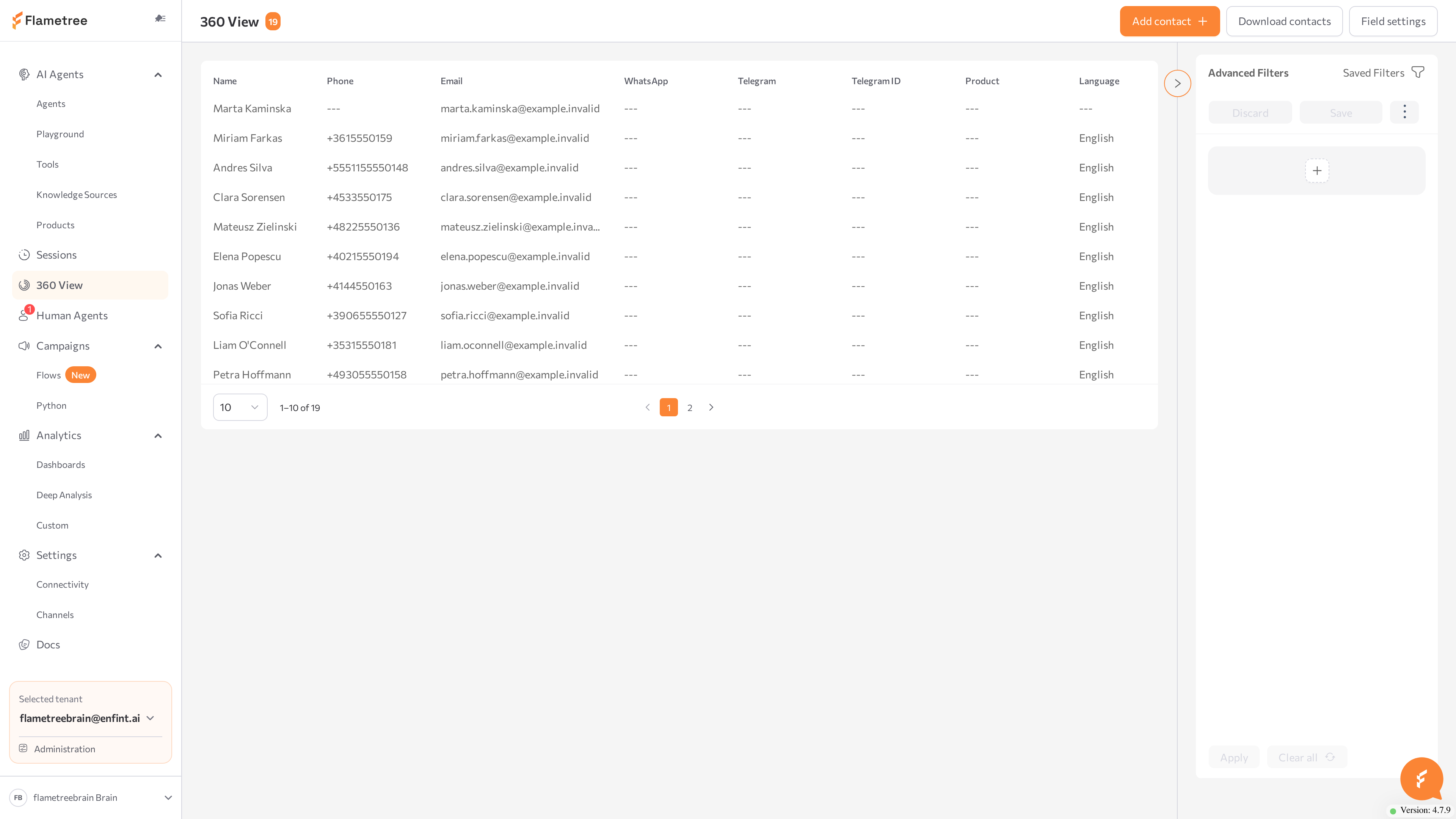
The table shows the matching customers. Page through results with the pager at the bottom; the page-size selector offers 10, 30, 50, or 100 rows per page (default 10).
Save and reuse filters
- Build a filter and click Save.
- Enter a name and confirm.
- To reuse it later, click Saved Filters at the top of the panel and select the filter by name.
With a saved filter selected, the ⋮ menu offers Rename, Duplicate, and Delete. Discard drops your unsaved changes and restores the stored conditions.
360 View has no separate "Segments" element. To build a reusable customer segment, save an advanced filter — or download the matching customers with Download contacts (see Export customers).
Configure list columns
The columns of the customer table — and the fields shown in every customer profile — are defined in Field settings. You can hide columns, reorder them, and add custom fields for data that matters to your business.
Click Field settings in the top-right corner of the customer list. The window lists every field:
| Column | Meaning |
|---|---|
| Field Title | The label shown as the column header and in the customer profile. |
| Field Name | The technical name. Cannot be changed after the field is created. |
| Description | What the field stores. AI agents can use this description when filling the field during conversations. |
| Field Type | String, Number, or Datetime. Controls which filter operations are available. |
| Visible | Whether the column appears in the table and the profile. |
System (built-in) fields can be reordered and hidden but not deleted. Custom fields can be edited and deleted.
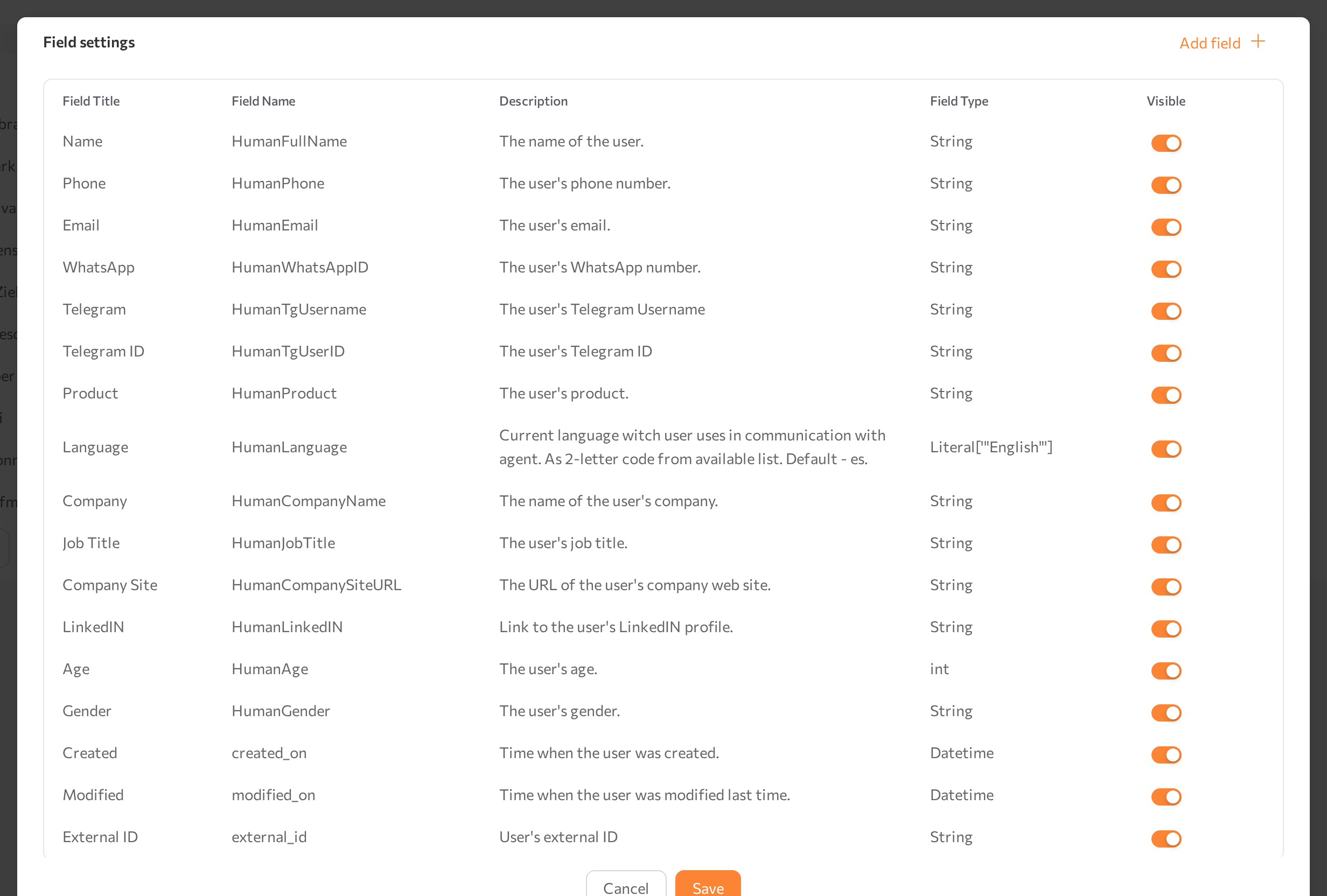
Add a custom field
- Click Add field.
- Fill in Field Title, Field Name, Description (optional), and Field Type.
- Click the check icon in the row to confirm, then click Save.
Reorder and hide columns
- Drag a row up or down to change the column order.
- Switch Visible off for columns you do not need.
- Click Save.
The customer table immediately shows the new column set and order. Hidden fields disappear from the table and from customer profiles, but their data is kept.
Related pages
- 360 View — overview of the customer database
- Add, edit & export — create profiles by hand and download a filtered list
- Customer profile — read a single customer's details and history