Customer profile
Open a customer's profile to read their contact details, campaign participation, products, and complete communication history, then drill into individual sessions.
Open a customer profile
- Find the customer with quick or advanced filters.
- Double-click the customer's row. A single click only highlights the row.
The profile opens on the Summary tab, with the customer's name in the header and two tabs:
- Summary — contact details, campaign participation, and products.
- Communications — the full conversation history.
The header also contains the Start conversation button (disabled when the customer has no reachable channel) and a back arrow that returns you to the customer list with your filters preserved. The URL contains the customer ID, so you can share the link with teammates who have portal access.
Read customer information
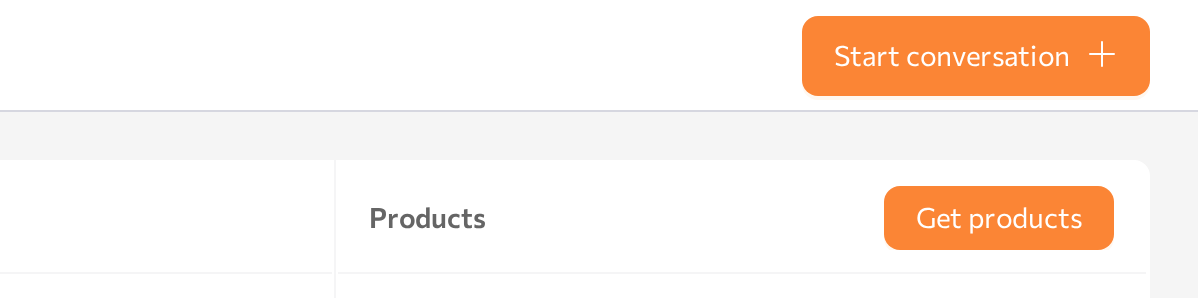
The Summary tab shows three cards.
Contact info
The left card lists the customer's fields — only fields with values are shown. Values come from campaign uploads, conversations, and the automatic feeds described in How customer data is enriched.
- Click Edit to correct field values manually — see Add or edit a customer manually.
- If your role allows it, click Delete to remove the profile. The confirmation shows how many sessions and communications are linked to the customer. Deleting is permanent.
An agent with Pass contact data to the agent turned on receives these fields at the start of a session with this customer — see Pass contact data to the agent.
Campaigns Summary
The middle card lists each campaign the customer took part in. Expand a campaign to see:
- A short text summary of the customer's interaction in this campaign.
- Status: the customer's progress in the campaign — for example
pending,active, orcompleted. - Stage: the campaign stage the customer is currently in.
- Loaded: when the customer was added to the campaign.
- Last communication: date and time of the most recent message.
- Channel icons and a communications counter. Click the counter to jump straight to this campaign's chat on the Communications tab.
Each campaign keeps its own data for the customer — values are not merged across campaigns. The same person uploaded to two campaigns is one customer profile, but their per-campaign status, stage, and results stay separate.
Products
The right card shows products linked to the customer through campaigns. Expand a product to see its attributes and the campaign it came from. If your tenant is connected to an external product system, Get products fetches the customer's current products on demand.
Session parameters and conversation results are recorded per conversation, not on the Summary tab — you read them in the Details panel of the Communications tab (see Open session details).
Review communications and sessions
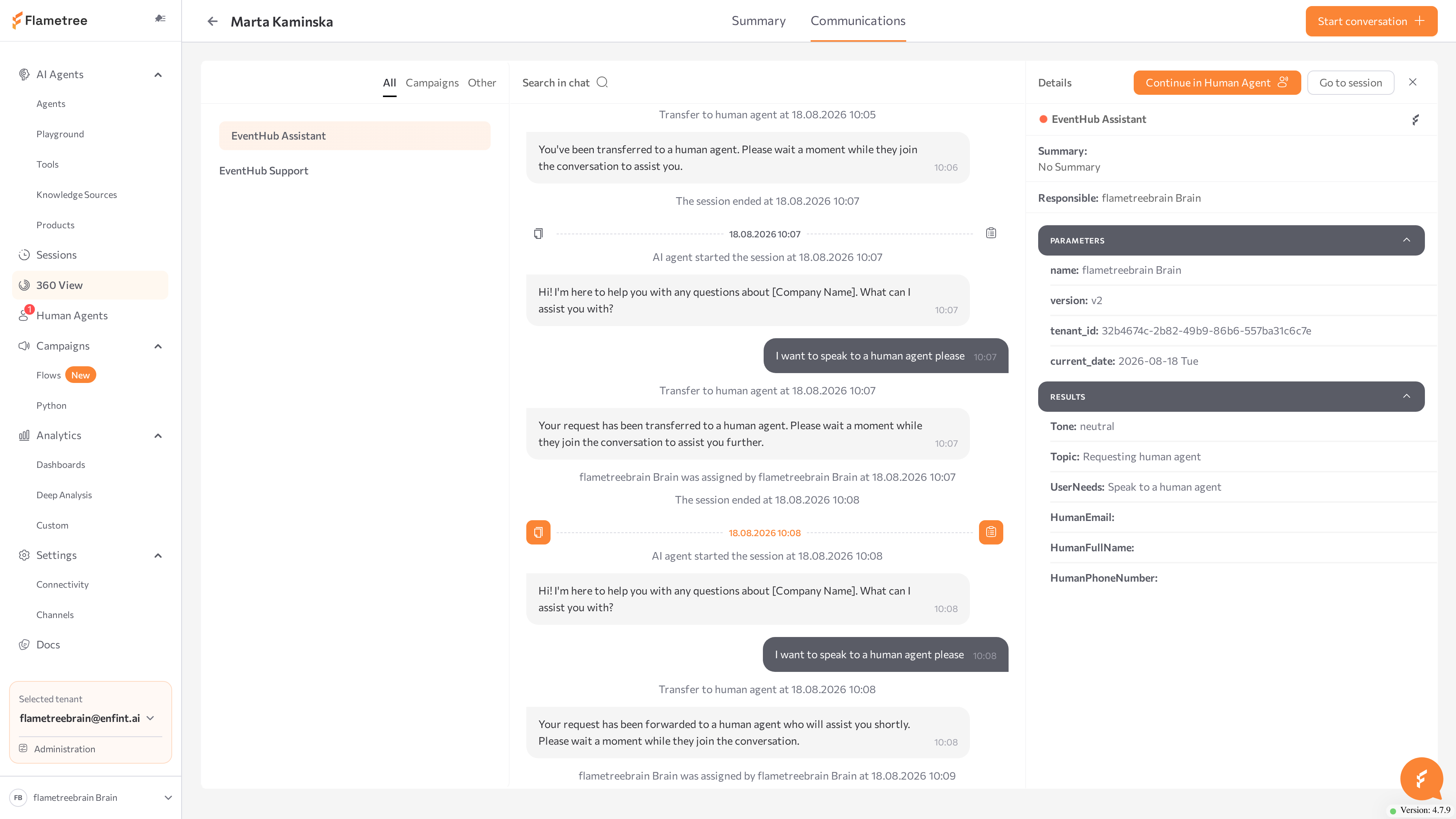
The Communications tab shows every conversation with the customer — across all channels and campaigns — as one continuous, scrollable chat.
| Panel | Content |
|---|---|
| Left — campaign list | All campaigns the customer interacted with. The selected campaign is highlighted. |
| Middle — chat | All communications of the selected campaign merged into one chat: messenger texts, emails, web-widget messages, and call transcripts. |
| Right — Details | Information about the communication currently in view: agent, channel, summary, parameters, and results. |
A communication is one conversation episode in one channel. Behind it is a session — the underlying record with logs, parameters, results, and status. 360 View has no separate sessions list: you review a customer's sessions here, on the Communications tab.
Filter the campaign list
Use the tabs above the campaign list:
- All — every campaign.
- Campaigns — outbound campaigns you created.
- Other — inbound activity that is not tied to a campaign, including the virtual Customer Service campaign.
Read the chat
- Select a campaign on the left. The chat loads with the latest communication at the bottom.
- Scroll up to load earlier communications. Grey dividers with timestamps separate individual communications.
- As you scroll, the Details panel on the right updates to match the communication on screen. A pulsing dot next to the agent name means the conversation is still active.
Search inside the chat
- Type a word or phrase into Search in chat above the chat.
- Matches are highlighted. Use the arrows next to the field to jump between matches — the chat scrolls to each one automatically.
Open session details
The Details panel gives you the structured facts of the conversation in view:
- Header card — the agent's name, the customer's phone or email used in this channel, and the channel icon. A pulsing dot marks an active conversation.
- Summary: — a short description of what the conversation was about and how it ended.
- Responsible: — who handled the conversation: the AI agent or a named human operator.
- PARAMETERS — technical values at session start, such as the date, language, or campaign stage. Shown for this session only. Empty state: No parameters found.
- RESULTS — the conversation result fields collected during the session. Fields appear only if they are defined in the agent's configuration and were filled during the dialog. Empty state: No results found.
To open the full session record, click Go to session in the Details header. The session opens on the Sessions screen in a new browser tab — with raw logs, audio for voice calls, and session-level actions — and your place in 360 View is preserved. See Sessions.
The X icon in the Details header hides the panel and widens the chat.
Related pages
- 360 View — overview of the customer database
- Find customers — locate the customer whose profile you want to open
- Conversations — start or take over a conversation from the profile
- Sessions — full session records: logs, statuses, and audio