Add, edit, and export customers
Maintain customer profiles manually and export a filtered list when you need it outside the portal.
Add or edit a customer manually
Profiles are created automatically, but you can also maintain them by hand — for example, to register a customer before their first campaign or conversation, or to correct a wrong phone number.
Add a customer
- Click Add contact in the top-right corner of the customer list.
- Fill in the fields you know — at least one field needs a value. Inputs follow the field type; date fields open a date picker.
- Click Create.
The new customer's profile opens. The profile behaves like any other: you can edit it, export it, or start a conversation once it has a reachable channel.
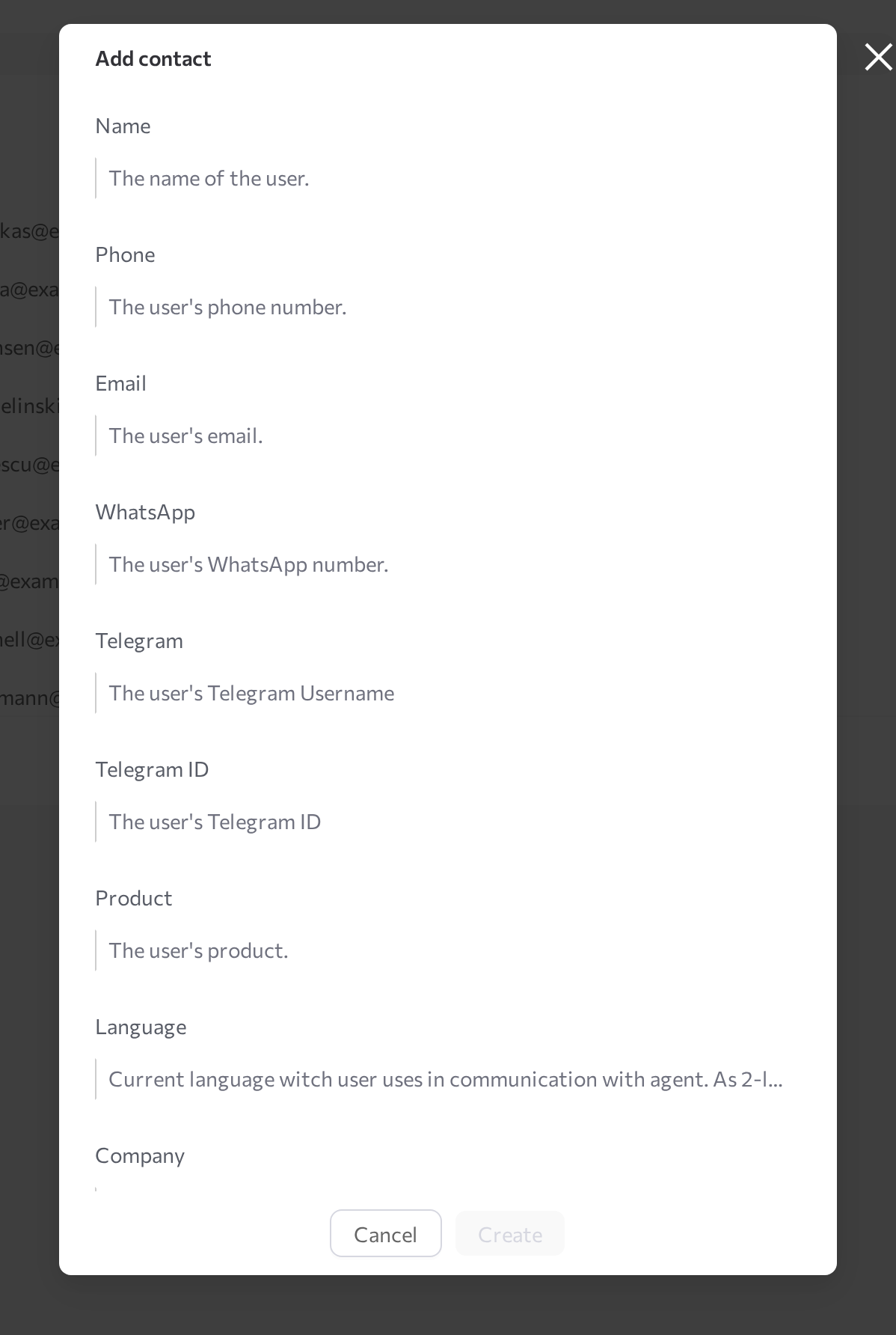
Edit a customer
- Open the customer profile. On the Summary tab, click Edit in the Contact info card.
- Change the values and click Save.
Both dialogs offer every visible customer field except the system fields External ID, Created, and Modified, which cannot be filled in manually. Fields hidden in Field settings are not offered. Closing a dialog with unsaved changes asks for confirmation.
Export customers
Download the filtered customer list as a file — typically to build a retargeting audience, for example customers whose previous communication was unsuccessful, and upload it to a follow-up campaign.
- Filter the list with quick or advanced filters. The export contains exactly the customers that match.
- In Field settings, make the columns you want in the file visible — the export includes only visible columns.
- Click Download contacts in the top-right corner.
The portal downloads a CSV file named contacts.csv with one row per customer; the column headers repeat the column titles of the table.
Related pages
- 360 View — overview of the customer database
- Find customers — filter the list and configure columns before exporting
- Customer profile — read and edit a single customer's profile