Step 6: Setting Up Knowledge Base
(See the Knowledge Base section for more details)
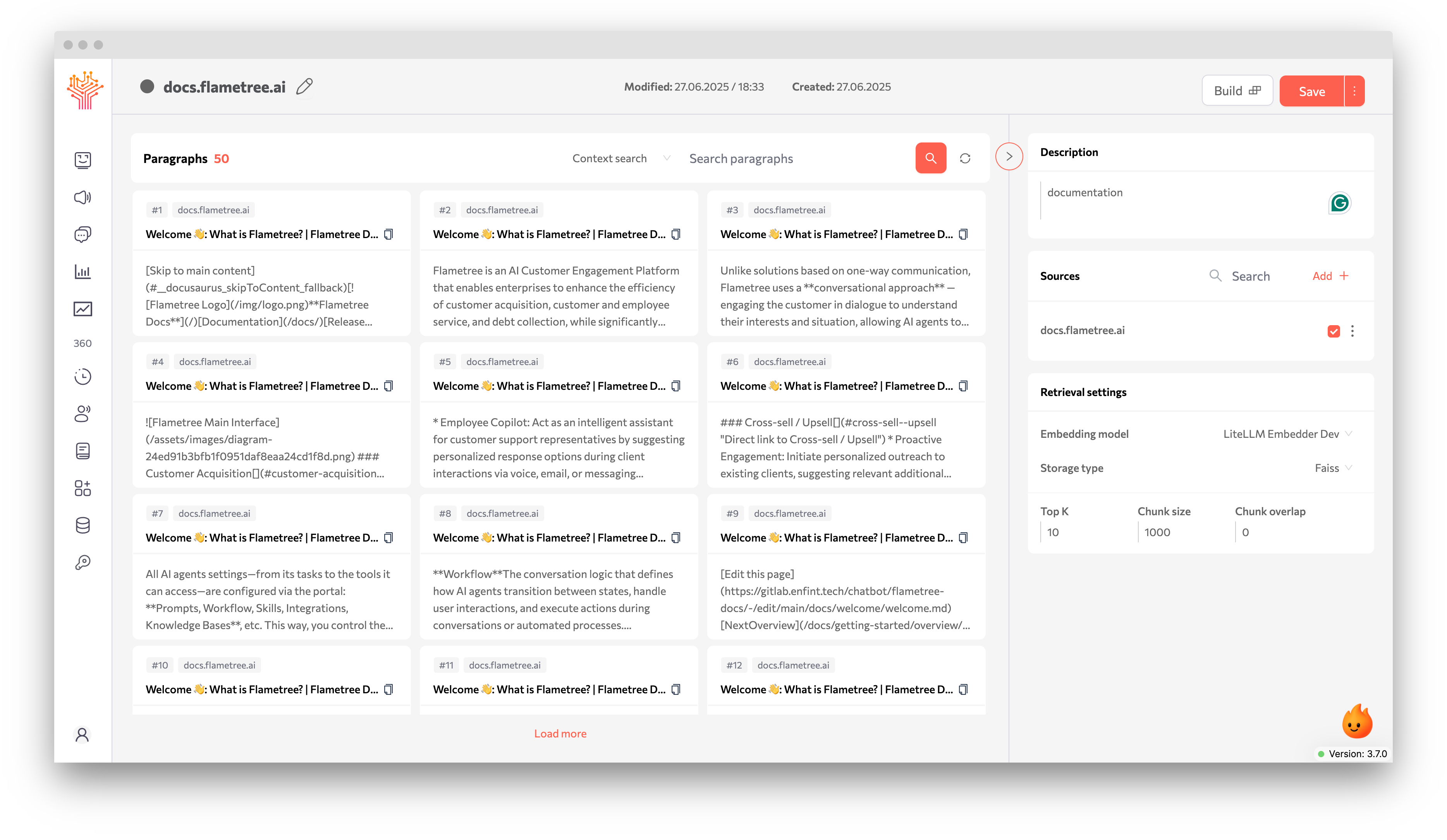
A Knowledge Base is a data source the AI agent uses to answer questions — including prices, specs, availability, etc.
What's the difference between Fast Access KB and regular Knowledge Base?
| Feature | Fast Access KB | Regular Knowledge Base |
|---|---|---|
| Size Limit | ~10,000 characters | No strict limit |
| Search Method | Embedded in prompt | Vector search (RAG) |
| Tool Required | No | Yes (SingleSearchFAQ) |
| Use Case | FAQs, quick reference | Large documents, dynamic content |
Quick Setup Steps
- Go to Knowledge Bases → Create Knowledge Base
- In the Description field, enter a name (for example, “Price List”)
- Go to the Sources tab and click “Add +”
- Choose the type of source. For a quick start, uploading a file is enough. Flametree supports PDF, TXT, MD, JSON, Word, Excel formats.
- Click Build — your knowledge base is ready.
How to fix "Modified" status in Knowledge Base?
Click the Build button on the Knowledge Base card. This status indicates changes haven't been applied yet. After building, restart your agent to use the updated KB.
Supported File Formats
| Format | Use Case | Notes |
|---|---|---|
| Documents, manuals, reports | Full text extraction | |
| DOCX | Word documents | Formatting preserved |
| TXT | Plain text files | UTF-8 recommended |
| MD | Markdown documentation | Ideal for structured content |
| XLSX | Spreadsheets, data tables | Data extraction supported |
| HTML | Web pages, articles | Clean HTML preferred |
| JSONL | Structured data | JSON Lines format |
The AI agent can now search and use data from this knowledge base.
For more, see the Knowledge Base section.