Read a session
Open a session to read its full message history and review the data behind the conversation.
Read a session
The Chat panel shows the complete message history exactly as the conversation happened. Conversations are displayed the same way in Sessions, 360 View, and the Human Agents workspace, so you read them the same way everywhere.
Who said what
Each message bubble is styled by its author:
- Customer messages — dark bubbles aligned to one side: everything the customer typed or said.
- AI messages — light bubbles from the AI agent. For web sessions, customer reactions (such as thumbs up or down) appear under AI messages.
- Human agent messages — bubbles with the human agent's name in bold at the top, so you can always tell a person's answer from an AI answer.
- Draft from Copilot — AI-suggested replies with a dashed border and the label Draft from Copilot. Drafts are never sent to the customer: in copilot mode, the human agent can copy a draft (a copy button appears next to the label), edit it, and send it.
- Private note — internal notes with a dashed border and the label Private note. Customers never see them.
Messages render Markdown: links are clickable, images display inline, and lists and code blocks keep their structure.
Timestamps and delivery status
Every message shows its send time in your tenant timezone. Some messages also show a delivery status icon — hover over it to see the exact time (UTC) and, when available, a delivery note from the channel provider.
System markers
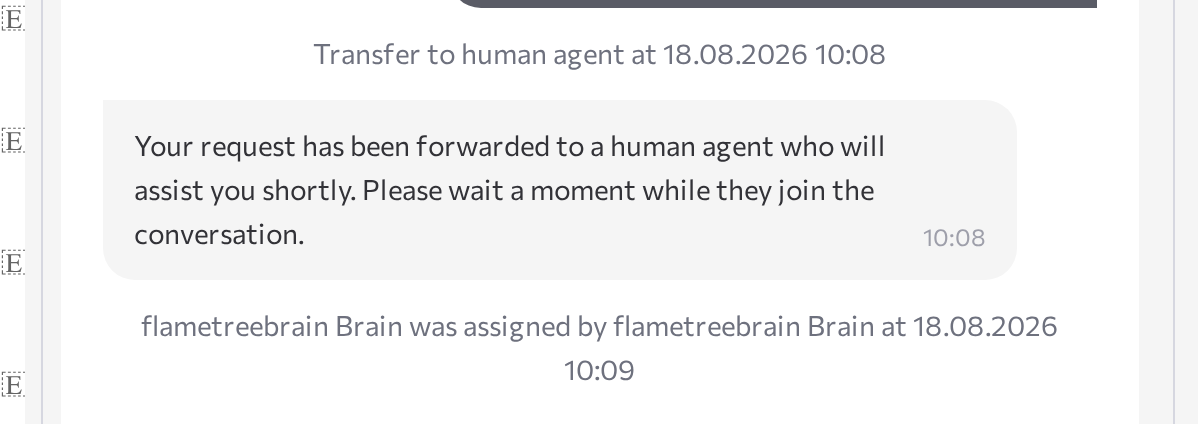
Centered gray lines in the conversation mark key session events:
<initiator>started the session at<date and time>— who opened the session: Client, AI agent, or the name of the human agent who started an outbound conversation.- Transfer to human agent at
<date and time>— the moment the session left AI control. <name>was assigned by<name>at<date and time>(or Human agent<name>assigned at<date and time>) — a specific human agent was assigned.- The session was resolved by
<name>at<date and time>— a human agent resolved the session.
When the chat contains several sessions of the same customer (for example, in 360 View), a header with the start time separates each conversation. Click a header to jump to that session.
Attachments and special messages
- Images display inline as previews; click an image to view it full size.
- Files (documents, audio, and other non-image types) appear as attachment cards you can download.
- Voice sessions can include an audio recording, playable inline or available for download — see Play back a voice session recording.
- WhatsApp template — the first message of an outbound WhatsApp conversation carries a WhatsApp template badge, because WhatsApp only allows pre-approved templates to start a conversation.
- Quick replies — button options the agent offered to the customer appear under the message.
Review parameters and results
The Parameters & results panel on the right shows the structured data behind the selected conversation: who the customer is, what context the session started with, and what the agent collected. The panel has three blocks.
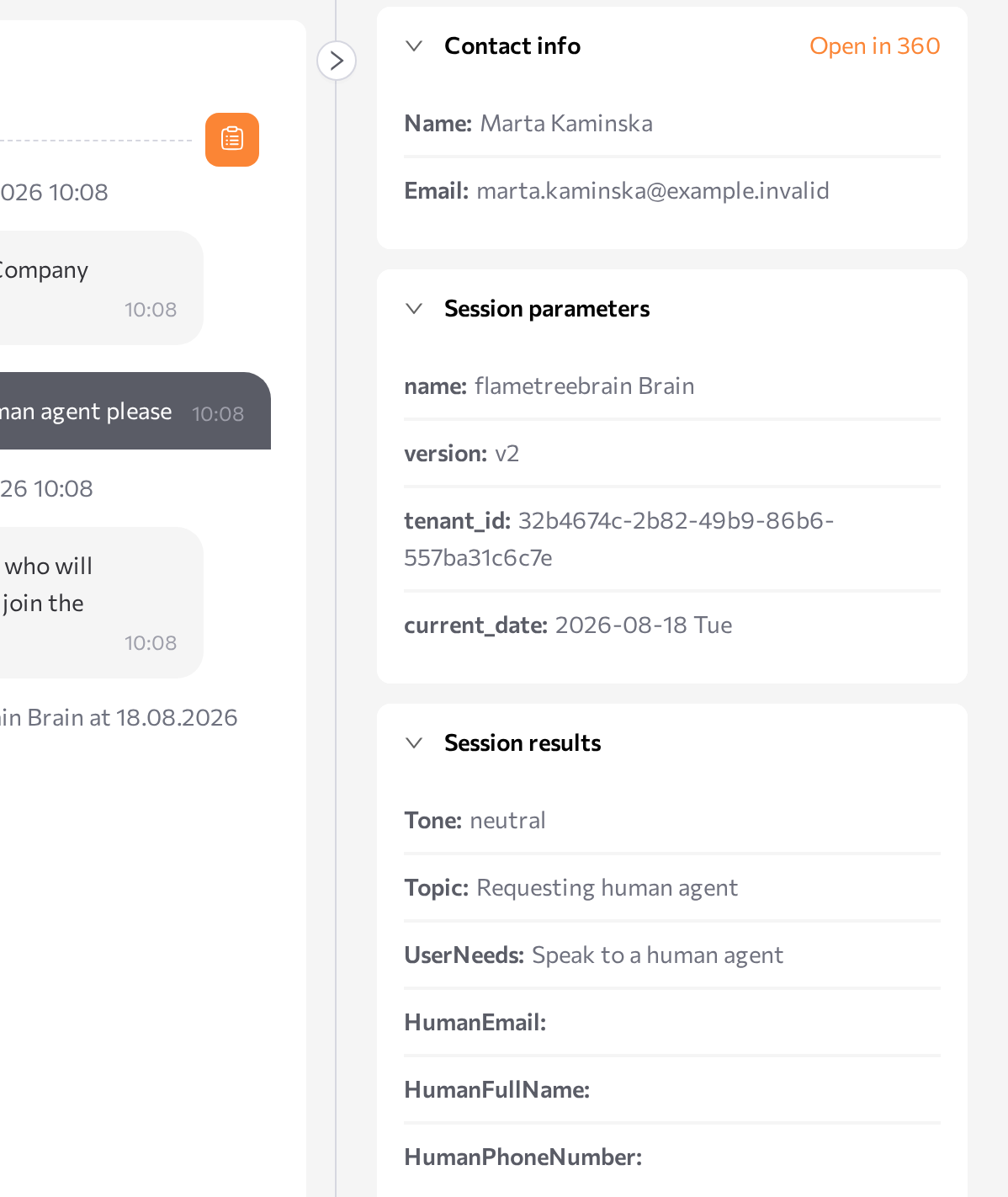
Contact info
The customer's identity, taken from the customer profile: Name, Email, Phone, Telegram, WhatsApp, and LinkedIn. Fields without a value show ---. If the session is not linked to a customer profile, the block shows No contact info found.
The Open in 360 link in the block header opens the full customer profile — see Open the customer in 360 View.
Session parameters
The context the session started with. Typical entries:
- Parameters passed by the web widget or your website (for example, a customer ID, page, or plan).
- UTM tags and campaign parameters for sessions started by a campaign.
- Basic customer fields such as name, email, or phone, when the channel provides them.
utm_source: google
utm_campaign: spring_promo
customer_id: 12345
plan: Premium
If the session started without parameters, the block shows No parameters found.
Session parameters are also available to the agent during the conversation, so you can use them to personalize behavior. This block is where you confirm what the agent actually received.
Session results
The values the agent collected according to its conversation results configuration — one entry per configured field. To define which fields an agent collects, see the Conversation Results tab in Simple mode.
Human Name: John Smith
Phone Number: +1-555-0123
Promise to Pay: promised
Payment Date: 2026-02-15
If nothing was collected yet, the block shows No results found. Results can fill in while the session is still active — reopen the session to refresh.
Play back a voice session recording
Voice sessions that have a stored call recording show an inline audio player at the top of the chat — play and pause the recording and seek to any point without leaving the session. The same player appears in Customer 360 when you open the conversation from there.
Voice sessions also show one more button under the chat, next to Logs — hover over it to see Download sip audio, for when you need the file itself.
- Select the voice session.
- Use the player at the top of the chat to listen, or click the download button under the chat to save the recording.
The downloaded recording is saved as a WAV file named with the session ID. If the download fails, the message Error downloading sip audio appears — try again.
Copy a session's messages
To copy the full message history of the selected session to your clipboard, click the copy button at the top of the Chat panel (tooltip Copy session text). Each message is copied with its timestamp and author. A Session copied to clipboard notification confirms it; if the session has no messages, the portal shows Nothing to copy.
Related pages
- Find a session — filter the table to the conversation you want to read
- Logs and traces — see which tools ran and what the model received
- Act on a session — hand over to an operator or open the customer in 360 View
- Simple mode — configure the conversation results shown here