Instagram (advanced setup)
This page covers the manual way to connect Instagram — you create your own Meta app, paste the credentials into the channel form, and subscribe the webhook yourself. It is the Advanced mode of the Instagram connector.
Most people don't need this. The simple way is to sign in with Meta, which collects the same credentials and subscribes the webhook for you. Use this page only when:
- The Login with Meta button is disabled with the message "Meta App ID and App Secret are not configured on the server" — your deployment has no shared Meta app, so you must bring your own.
- You already run your own Meta app and want to connect its Instagram account directly.
The account requirements and the channel's behavior are the same however you connect — see the main Instagram page for what the channel does and does not handle.
Before you start
- An Instagram business account. Personal accounts are not supported by Meta's API.
- A Facebook Page linked to the Instagram account.
- In the Instagram app, allow message access for the API: Settings > Privacy > Messages > Allow Access to Messages.
- An account in the portal with permission to edit settings.
Set up the Meta side
Create the credentials in the Meta developer console — keep Meta's Instagram Platform documentation at hand for the console details:
- Go to developers.facebook.com and create a Meta app of the Business type (or open an existing one).
- Add the Instagram product to the app and generate an access token for your Instagram business account.
- From App Settings > Basic, note the App ID and App secret.
- Note the ID of your Instagram business account.
- Switch the app to Live mode in App Settings > Basic before real customers use the channel.
Create the connection
-
Go to Settings > Channels, select Instagram in the list, and click Add.
-
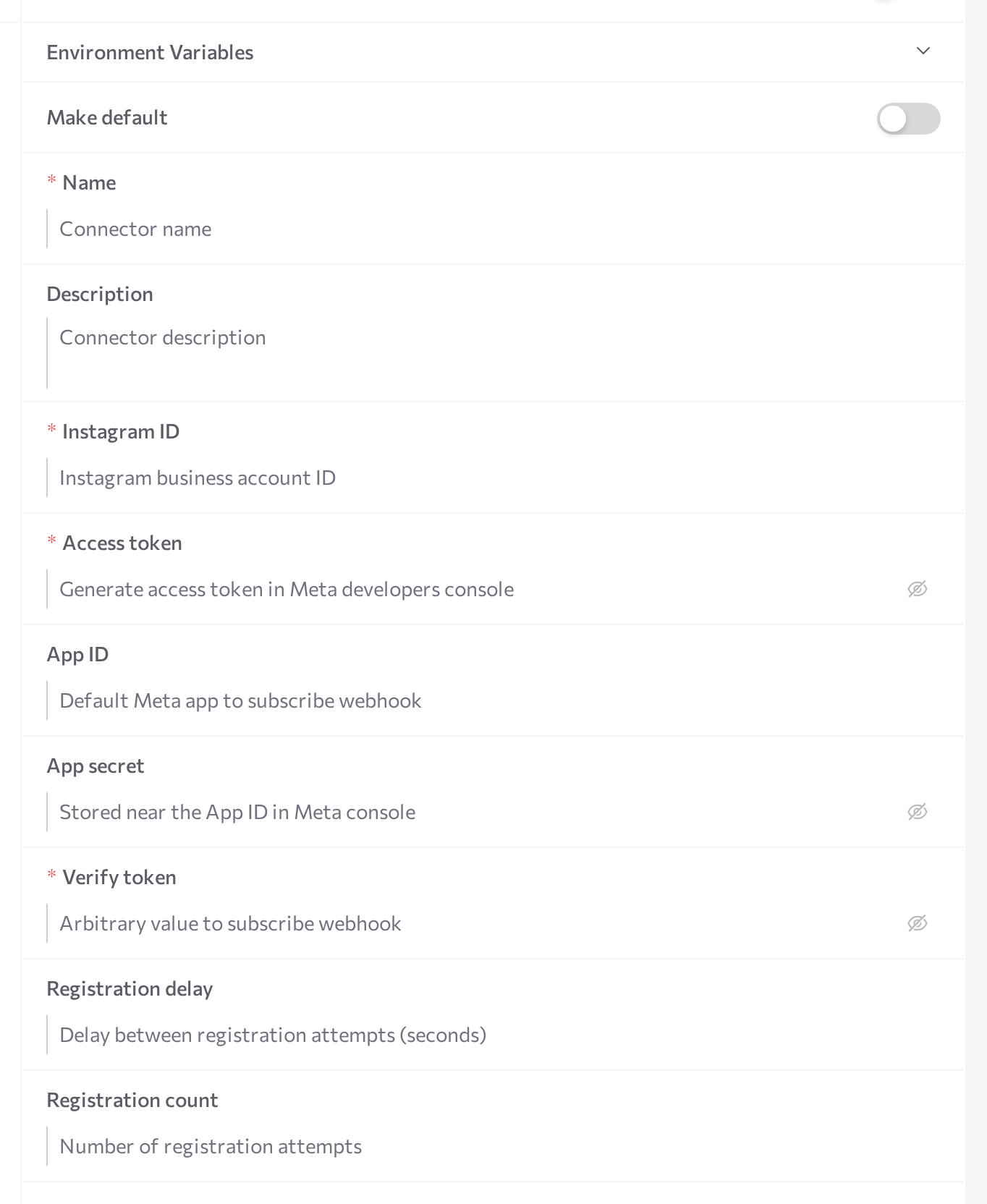
Turn the Advanced mode switch on. The credential fields appear.
-
Fill in the form:
Field Required Description Name Yes An internal name shown across the portal. Description No Internal reference. Instagram ID Yes The ID of the Instagram business account. Access token Yes The access token generated in the Meta developer console. Stored as a secret and displayed masked. App ID No The ID of your Meta app. Leave it empty to use the Meta app configured on the server. App secret No The app secret from App Settings > Basic. The channel uses it to check the signature of incoming events. Leave it empty to use the Meta app configured on the server. Verify token Yes Any value you make up yourself (for example, my_ig_webhook_2026). Works like a shared password — you enter the same value in the Meta app webhook settings.Registration delay, Registration count No Webhook registration retry settings. Leave them empty — you subscribe the webhook in the Meta app dashboard instead (see below). -
Click Save.
-
Click Start in the panel header. On startup the channel checks the account against the Instagram API — if the Instagram ID or Access token is wrong, the status turns red (ERROR); hover over the dot for the message and click Logs for details.
Subscribe the webhook in the Meta app
The channel does not register its webhook with Meta automatically. Subscribe it in the Meta app dashboard so that messages reach the channel:
- Find the callback URL. In Settings > Channels, select the connection and expand Access Information — it shows an API Documentation link of the form
https://<portal host>/channel/<connection ID>/docs. The callback URL is the same address with/docsreplaced by/webhook. - Make sure the channel is RUNNING — Meta calls the URL to verify it the moment you save the subscription.
- In the Meta app dashboard, open Webhooks, select Instagram, and edit the subscription. Enter the callback URL and, as the verify token, the exact value of the connection's Verify token field.
- Subscribe to the messages field.
Common issues
- The channel goes to ERROR on Start. The startup check against the Instagram API failed — the Instagram ID is wrong or the Access token is invalid or expired. Click Logs for the error message, fix the values (paste the new token over the masked value), click Save, then Start.
- Meta cannot verify the callback URL. The verify token entered in the Meta app does not match the connection's Verify token field, the callback URL is wrong, or the channel was not RUNNING when Meta sent the verification request. Fix the mismatch and verify again.
- The channel is RUNNING but the agent never receives messages. The webhook subscription is missing or incomplete — confirm the Meta app subscribes to the Instagram messages field with the correct callback URL. Also check that Allow Access to Messages is enabled in the Instagram app settings, the Facebook Page is linked to the Instagram account, and the Meta app is in Live mode rather than Development mode.
- Logs show signature verification failures. Events arrive from a Meta app whose secret does not match the connection's App secret. Make sure the App secret belongs to the same Meta app that delivers the webhooks.
Related pages
- Instagram — connect by signing in with Meta, plus what the channel handles
- Channels overview — create, start, stop, and monitor channel connections
- Facebook (advanced setup) — the other Meta messaging channel, set up by hand
- Sessions — monitor Instagram conversations