Facebook Messenger
The Facebook Messenger channel connects a Flametree agent to a Facebook Page. Customers write to the Page in Messenger, the agent answers as the Page, and every conversation appears in Sessions like any other channel.
You don't need a Meta developer account or any technical setup. You sign in with the Facebook account that manages your Page, grant access, and the portal collects the credentials and connects the webhook for you.
Use this channel to:
- Answer customers where they already find your business — on its Facebook Page.
- Run an inbound bot that handles questions on the Page around the clock.
A Messenger conversation starts with the customer. The channel answers people who write to the Page; it does not start conversations with people who have not, and Facebook Messenger is not available as a campaign channel.
Before you start
- A Facebook Page for the agent to answer as. Create one at facebook.com/pages/create if you do not have one yet.
- The Facebook account that manages the Page (an admin), to sign in with.
- An account in the portal with permission to edit settings.
You do not need to create a Meta developer app, generate tokens, or configure webhooks — the portal handles all of that.
Connect Facebook Messenger
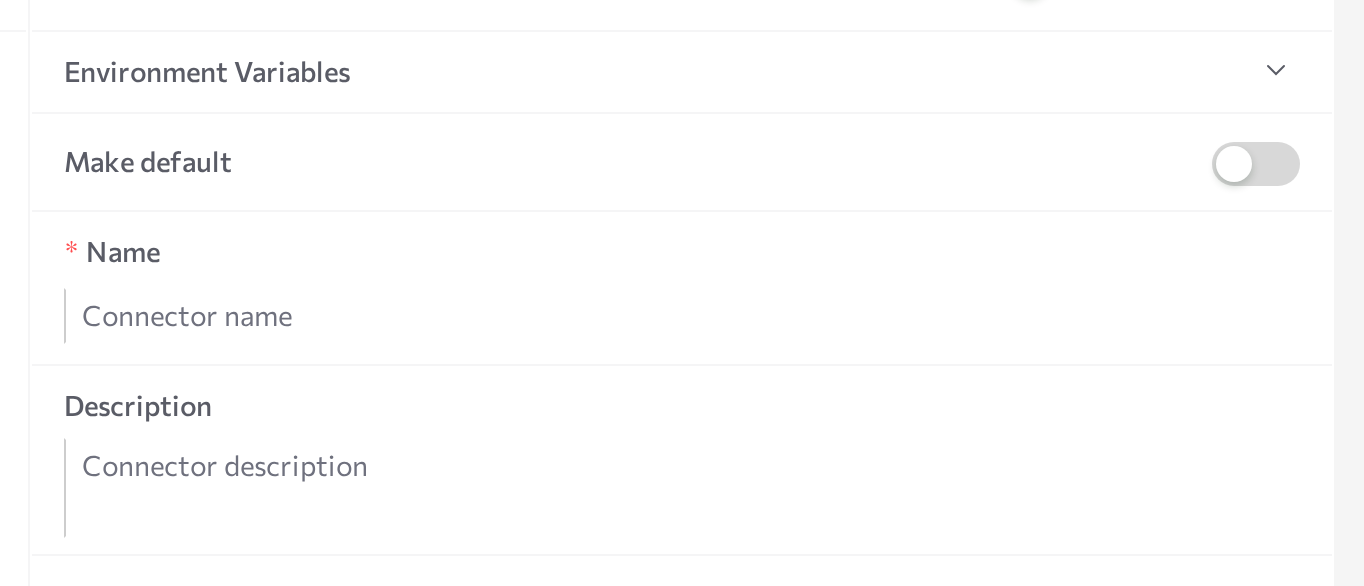
- Go to Settings > Channels, select Facebook in the channel list, and click Add. The New connector form opens on the right.
- Leave the Advanced mode switch off and click Login with Meta. A window titled Facebook Login for Business opens.
- Sign in to the Facebook account that manages your Page, then follow the screens: click Continue, and when Meta asks which assets to share, select the Page you want the agent to answer as. Review the access on the last screen and click Confirm.
- The window closes and the portal finds the Page, connects the webhook, fills in the credentials, and saves the connection under a suggested name such as Facebook: Your Page.
- Select the new connection in the list and click Start in the panel header. The status dot turns purple (STARTING), then green (RUNNING).
For the general mechanics of the screen — status dots, Logs, editing credentials, stopping and restarting — see the Channels overview.
If the Login with Meta button is disabled with the message "Meta App ID and App Secret are not configured on the server", your deployment has no shared Meta app, so you connect with your own. Turn on Advanced mode and follow Facebook Messenger (advanced setup).
Attach to an agent
A running channel does nothing on its own — attach the connection to the agent that should answer the Page's messages.
- Open AI Agents and select the agent.
- Find the Communication channels card and click Add.
- Pick Facebook from the dropdown and tick the checkbox next to your connection.
- Enable the Inbound switch so the agent answers incoming messages. With Inbound off, the agent can only send outbound messages through the channel.
- Save the agent, then restart it (Stop agent, then Start agent).
After the agent restarts, new messages to the Page open sessions for this agent.
Only one agent should handle inbound traffic from a Page — otherwise several agents would answer the same customer message. To put several inbound agents on Messenger, create a separate connection with its own Page for each.
With Show deprecated on, the dropdown also lists a legacy Facebook Messenger DEPRECATED integration that was configured directly on the agent. Do not use it for new setups — use the channel connection described on this page. See Deprecated channels.
Test the channel
- From a Facebook account other than the Page, open the Page and send it a message in Messenger.
- Check that the message shows as seen and the agent replies as the Page according to its instructions.
- Open Sessions in the portal and confirm the conversation appears there with the Facebook channel icon.
Conversations on this channel are text-based. The agent receives and answers text messages; images, voice messages, and files sent by customers are not processed, so a message that is only an attachment gets no reply. When an agent reply includes images — for example, product cards — the channel sends it as a Messenger carousel of up to 10 cards, with any text before and after the cards as separate messages. See Supported channels for the capability comparison.
Meta also applies its Messenger platform policies to replies, including the 24-hour standard messaging window — see Meta's Messenger Platform documentation for the current rules.
Common issues
- The channel goes to ERROR on Start. The access token saved during sign-in has expired or been revoked. Open the connection and reconnect with Login with Meta, then Start. Click Logs for the exact message.
- The channel is RUNNING but the agent stays silent. The connection is not attached to the agent, Inbound is off, or the agent was not restarted after attaching.
- A customer sends a photo or voice message and gets no reply. The channel processes text only. Ask the customer to type the question.
- You cannot enable Inbound for the connection on a second agent. Expected — one agent handles inbound traffic per connection. Create another Page and a separate connection for the other agent.
- The Login with Meta button is disabled. The deployment has no shared Meta app. Use Facebook Messenger (advanced setup) with your own Meta app.
Related pages
- Facebook Messenger (advanced setup) — connect with your own Meta app by entering credentials manually
- Channels overview — create, start, stop, and monitor channel connections
- Instagram — the other Meta messaging channel, set up in a similar way
- WhatsApp — Meta business messaging with templates and campaigns
- Deprecated channels — the legacy Facebook Messenger integration type
- Supported channels — capability comparison across channels
- Sessions — monitor the Page's conversations