Collect conversation results
Part of the classic, legacy agent editor. Agents created today use Configure an agent instead — see Simple mode for details.
The Conversation Results tab defines what information your agent captures from conversations automatically. The agent recognizes this data as it appears in the conversation — it won't ask for it directly unless you instruct it to in the Instructions tab. Use conversation results to qualify leads, route follow-ups, and analyze sessions.
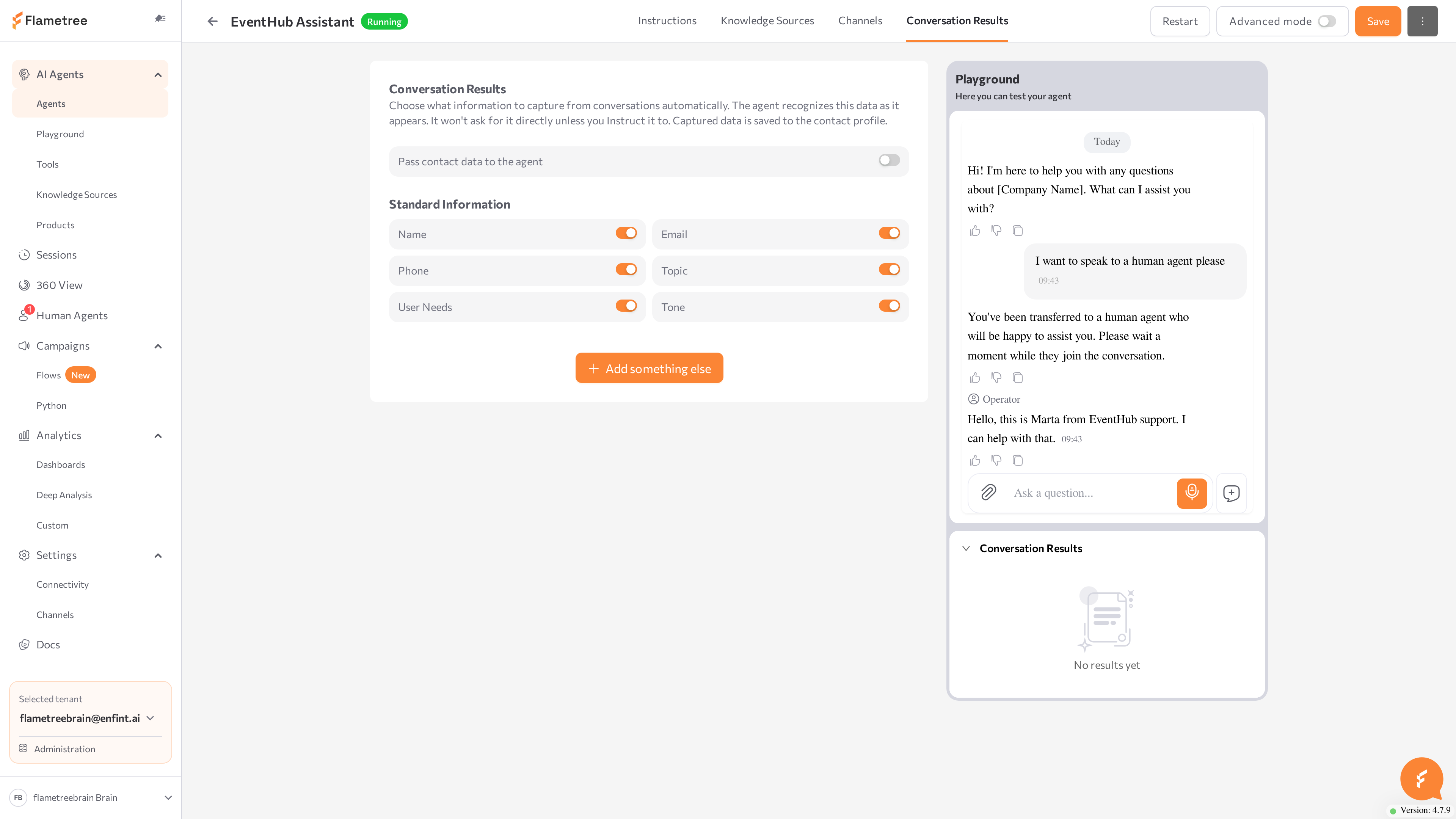
Pass contact data to the agent
Turn on Pass contact data to the agent, above the Standard Information fields, to give the agent the customer's existing profile data — name, email, phone, and other contact fields on record, plus any custom profile fields — as soon as a session starts. This lets the agent use what you already know about the customer instead of asking for it again.
This option is available in Simple mode. It draws on the customer's 360 View profile, so it only has an effect when the session is linked to a customer profile.
Turn on Standard Information fields
Toggle on the predefined fields you want to collect:
| Field | What the agent captures |
|---|---|
| Name | The customer's name. |
| The customer's email address. | |
| Phone | The customer's contact phone number. |
| Topic | The main subject of the conversation — for example, "product return" or "pricing inquiry". |
| User Needs | What the customer is trying to accomplish — for example, "get a refund" or "fix a login issue". |
| Tone | The overall emotional tone: positive, negative, or neutral. |
Add a custom field
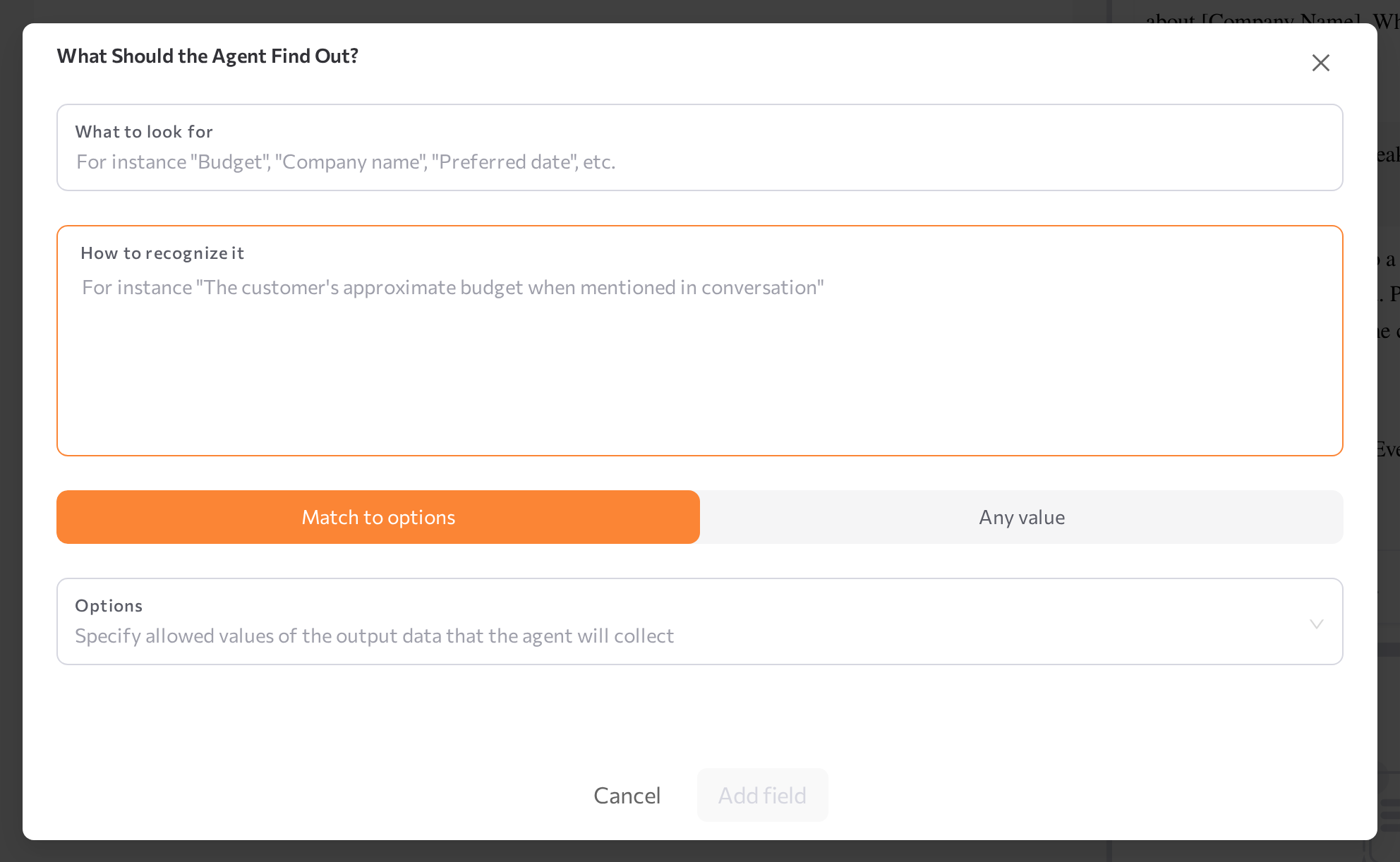
- Click Add something else.
- In the What Should the Agent Find Out? window, fill in:
- What to look for — the field name, for instance "Budget", "Company name", "Preferred date".
- How to recognize it — a description that tells the agent what to capture, for instance "The customer's approximate budget when mentioned in conversation".
- Choose how the value is captured:
- Match to options — the agent captures only values from the list you specify in Options. Use this when you expect a limited set of answers, for example Request type: New application, Support, Complaint.
- Any value — the agent captures whatever the customer provides. Use this for open-ended inputs such as names, locations, or free-text answers.
- Click Add field.
- Click Save on the agent page to apply the changes.
To change a field later, use the edit (pencil) and delete (bin) icons on the field row. Deleting asks for confirmation.
If a value must end up in a report or an integration with exact spelling, prefer Match to options — free-text answers vary ("about 1k", "1000-ish") and are harder to aggregate.
Collected results appear in two places:
- Playground — while you test, the Conversation Results panel under the chat fills in live as the agent recognizes data.
- 360 View — after a session ends, the session's results show all collected field values. See 360 View.
Related pages
- Simple mode overview
- Playground panel — watch results fill in as you test
- 360 View — review collected conversation results per session