Connect knowledge to the agent
Part of the classic, legacy agent editor. Agents created today use Configure an agent instead — see Simple mode for details.
The Knowledge Sources tab defines what your agent knows. This content is searched before the agent generates a response. Connect at least one knowledge source so the agent can answer questions about your business. This page covers connecting sources to an agent; for the tenant-wide source library and source management in depth, see Knowledge Sources.
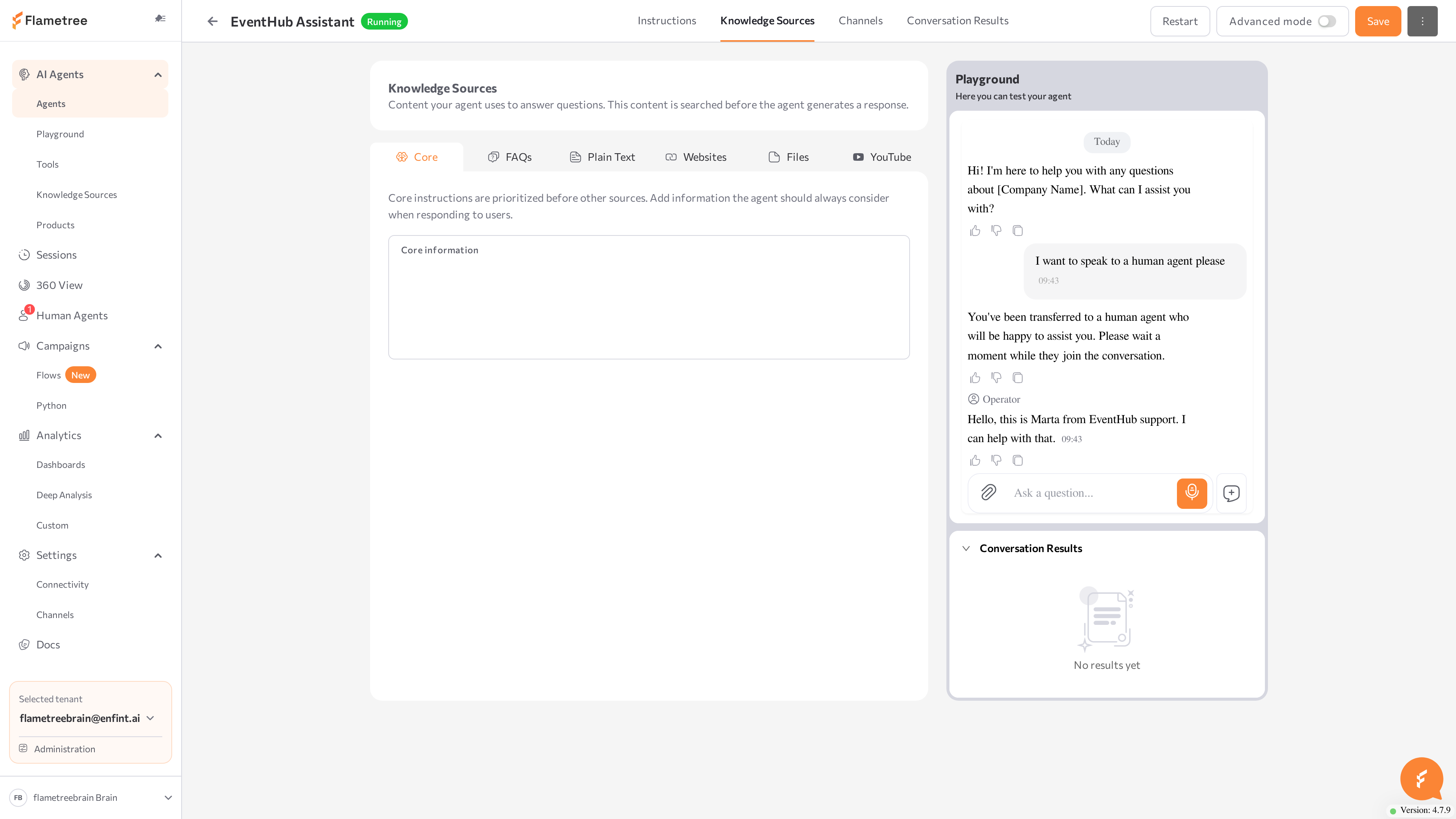
The tab contains six sub-tabs. The number next to a sub-tab shows how many sources of that type are connected to this agent.
- Core — Information the agent always considers, checked before any other source. Lives only on the agent page.
- FAQs — Question-and-answer pairs the agent uses as ready-made answers. Best for predictable, repeated questions.
- Plain Text — Free-form reference text, searched in relevant chunks. Limit: 50,000 characters per source.
- Websites — Links to public web pages. The agent extracts and uses their content.
- Files — Uploaded documents: PDF, DOCX, TXT, MD, XLSX, CSV, HTML. Limit: 100 MB per file.
- YouTube — Links to public YouTube videos or channels. The agent uses the transcripts.
Add core information
- Open the Core sub-tab.
- Enter the facts the agent should always consider when responding — short, stable, high-priority information.
- Click Save.
EventHub hosts short online learning events such as webinars and workshops.
Events usually last 60–90 minutes and are held online via Zoom. Each event has a limited number of seats (100 participants).
Registration requires name and email address. After registration, participants receive a confirmation email with the event link.
Participation in events is free, but registration is required.
Keep Core short — it is part of every reply. Put longer content into Plain Text or Files, where it is retrieved only when relevant.
Connect an existing source
Knowledge sources are shared across your tenant. If sources of a given type already exist, the empty sub-tab offers a Connect button (for example, Connect FAQ, Connect text, Connect website, Connect file, Connect video).
- Open the sub-tab and click the Connect button (or Manage if sources are already connected).
- In the window that opens, search, or filter by All, Connected, or Not connected.
- Toggle the sources you want this agent to use.
- Save your selection.
Connecting a source does not copy it: edit the source once and the change applies to every agent it is connected to.
For each connected FAQ you can choose how the agent uses it:
- Enabled (Search) — the agent retrieves only the most relevant Q&As when needed. Works for any size. Usage is tracked.
- Disabled (Prompt) — the agent sees all Q&As at once. Faster, but usage is not tracked. Best for small collections.
Changes apply to new sessions.
Create a new source from the agent page
If no source of the type exists yet, or you want a new one, use the create button on the sub-tab: Create FAQ, Create new text, Add new website, Add new file, or Add new video. Sources created here are automatically connected to the agent and also appear in the tenant-wide library at AI Agents > Knowledge Sources.
Example Q&A pairs you can add to an FAQ for a first test:
Question: What happens if an event is already full?
Answer: If an event reaches the limit of 100 participants, you can join the waiting list. If a spot becomes available, you will receive an email invitation to register.

Question: What if I register but cannot attend the event?
Answer: If you cannot attend the live session, you will automatically receive a recording of the event by email within 24 hours.
Check source statuses
Each source shows a status badge:
| Status | Meaning |
|---|---|
| Ready | Indexed and in use by the agent. |
| Indexing | Content is being processed. You can stop indexing with the stop action. |
| Pending | Queued for indexing. |
| Modified | The source has changed. Re-index to bring the agent up to date. |
| Error | Indexing failed. Hover over the badge to see the error message. |
Use the Index action (refresh icon) on a source to re-index it manually.
You don't have to restart the agent after adding or editing a source. Changes apply once the source is indexed and Ready.
If this agent uses a knowledge base that was modified in Advanced mode, the tab shows Unsupported Knowledge Base and editing here is disabled. Configure it on the knowledge base page instead, or migrate it — see the Knowledge Sources migration guide.
Related pages
- Simple mode overview
- Knowledge Sources — the tenant-wide source library
- Knowledge Sources migration guide