Website Sales Agent
In this tutorial you build a website sales agent in Flametree from a ready-made template. The wizard generates the agent from a few answers about your business, the agent recommends your paid offerings and captures lead details, and you embed it on your site with the chat widget.
The example company is EventHub, a fictional business that runs online events such as webinars and workshops — here it sells paid masterclasses and on-demand courses, and the agent recommends the right one and collects each visitor's contact details. By the end you have:
- A sales agent created with the Website AI Sales wizard template.
- An optional product catalog the agent recommends from.
- The chat widget embedded on your site.
- Lead details captured as conversation results — reviewed in Sessions and 360 View, and counted on a dashboard.
Plan 30–45 minutes. Each stage gives only the steps you need and links to the page that covers that screen in full.
This tutorial builds a sales agent with the wizard. For a support agent built by hand in Simple mode, with knowledge sources and human handoff, see Inbound Customer Service Agent.
Before you start
- You are signed in to the portal with a role that allows creating agents — see Sign up and sign in. The Create with wizard button is hidden if your role does not allow it or if no wizard templates are installed for your deployment.
- Optional, for richer answers: your website URL and a PDF with product information or FAQs.
- Optional, to use a product catalog: the Products section enabled for your deployment.
- An email address where collected leads should be sent — the wizard requires it.
Stage 1: Create the agent with the wizard
The wizard generates a configured inbound sales agent from your answers.
- In the left menu, go to AI AGENTS > Agents.
- Click Create with wizard in the upper-right corner and select Website AI Sales from the dropdown.
- On the intro page, click Start, then work through the steps — the wizard keeps your entries when you move between them:
- Choose your AI agent's name — enter the required AI Agent name, for example
Emma. The agent uses it to introduce itself. - Information about your business — add your Website URL (the wizard adds the site as a knowledge source) and a free-text description of EventHub's events and paid offerings in Tell us about your business.
- Personalize Your AI Agent — edit the prefilled tone, greeting language, and starting phrase.
- AI Agent Knowledge Base — optionally upload one PDF with product information or FAQs, or click Skip.
- Conversation Results — keep the lead details you want (the Name, Email, Phone, Topic of conversation, User needs, and Tone toggles are all on by default), then enter the required Email address to receive leads. Click Review.
- Choose your AI agent's name — enter the required AI Agent name, for example
- The wizard shows Handling your data while it generates the configuration, then opens the Review configuration page. Check and, if needed, edit the Agent name, Welcome message, Identity, Speech style, and Task, and review the Sources section.
- Click Create AI-agent. The agent's page opens.
The full step-by-step template, field by field: Wizard. If the agent shows Creating in the list, wait until it is ready — see Agent statuses.
Stage 2: Review and refine the agent
The wizard creates the agent in Simple mode, so you can read and adjust everything it generated.
- Open the Instructions tab and check the generated Identity & Role, Speech Style & Tone, Primary Task, and Welcome message. Tighten the Primary Task for sales — for example, tell the agent to recommend a matching offering and ask for the visitor's contact details before sharing a purchase link.
- Open the Knowledge Sources tab and confirm the website and any PDF you added show the Ready status. Add FAQs or core facts about EventHub's offerings if answers are thin.
- Click Save in the upper-right corner.
Click Save after you change any tab. Saving applies the changes to the live agent and restarts it automatically.
Every field on the agent page: Simple mode.
Stage 3: Set up the product catalog
A product catalog gives the agent a structured list of what EventHub sells, so it recommends the right offering and shares its price and purchase link.
The Website AI Sales template does not draft a catalog for you, so you create it here.
- Go to AI Agents > Products and click Create product catalog. Enter a Catalog Name and click Save.
- Click the catalog's URL to open the catalog editor in a new browser tab, and accept the workspace invitation sent to your portal email — see Get access to the catalog editor.
- Replace the example row with EventHub's offerings, one product per row. Fill in Name, Brief Description, Description, Category, Price, Link, and set Active to
True. For example, aProductivity Masterclasswebinar at$29 one-time. - Connect the catalog to the agent: on the agent page, switch the Advanced mode toggle, find the Product catalog field in the General card of the Settings panel, select your catalog, and click Save. Then restart the agent — click Stop agent, wait for Stopped, and click Start agent.
Connecting a catalog supplies the product data; the agent's workflow must also include product tools to use it. A custom workflow needs them added by hand — see Tools.
Catalog fields, the editor, and how the agent uses product data: Products.
Stage 4: Choose what the agent collects
The wizard already set up the lead details from the Conversation Results step. Review them on the agent page and add anything specific to EventHub sales.
- In Simple mode, open the Conversation Results tab and confirm the Standard Information fields you want — for example Name, Email, and Phone — are toggled on.
- Click Add something else and create a custom field: What to look for —
Offering of interest; How to recognize it —The EventHub masterclass or course the visitor wants to buy. Keep Any value selected and click Add field. - Click Save.
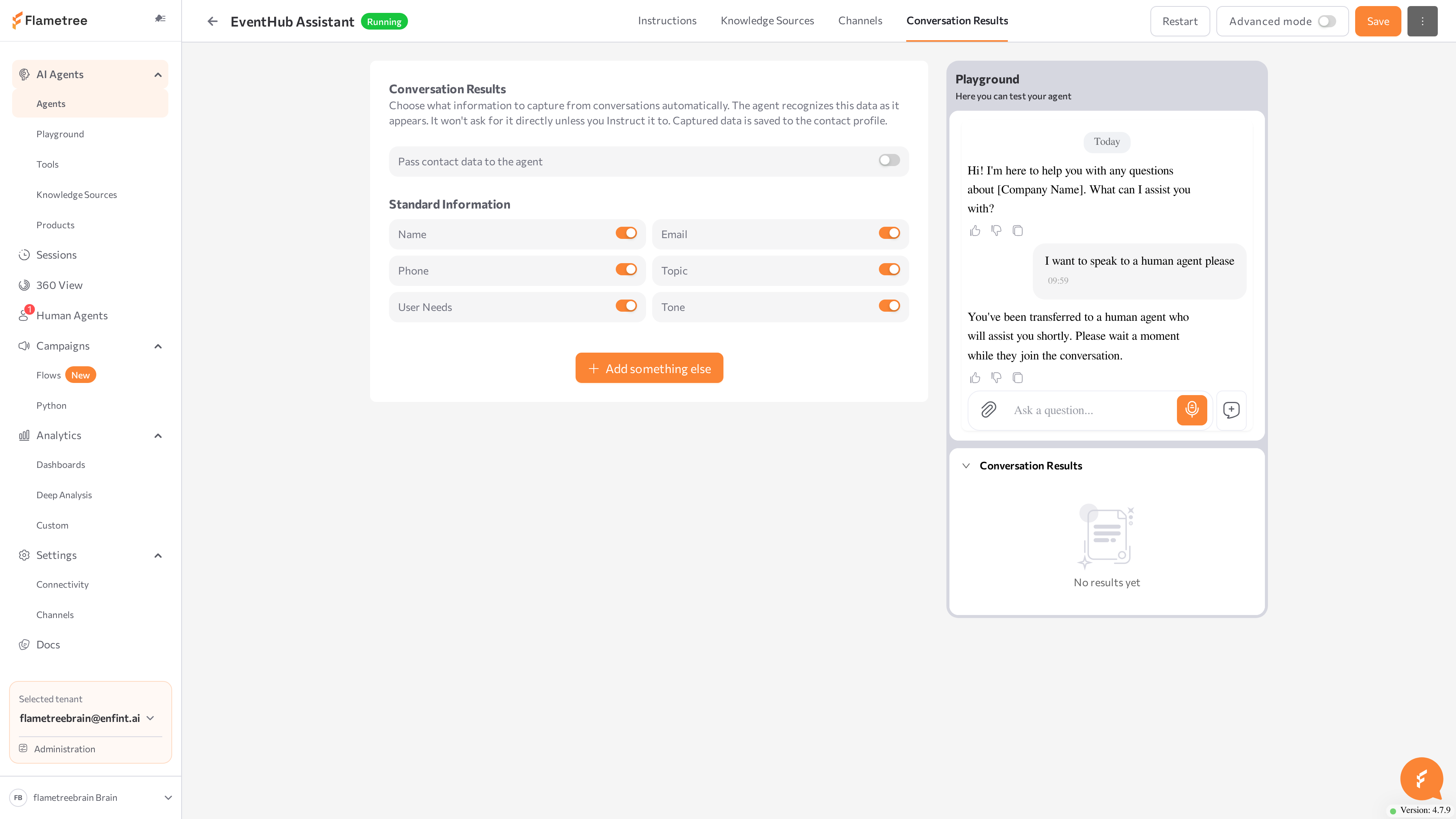
Standard fields, custom fields, and capture options: Simple mode.
Stage 5: Test in the Playground
Use the Playground panel on the right side of the agent page — it always chats with the last saved version.
- Ask for a recommendation:
I want to get better at managing my time. What do you have?The agent should suggest a matching offering from the catalog and mention its price. - Ask a product question:
How much is the Productivity Masterclass?The agent should answer from the catalog. - Express intent to buy and provide your details, then watch the Conversation Results block under the chat fill in live — including Offering of interest.
After any change, click Save and click Start a new session so the test runs against the saved configuration.
Panel states and testing patterns: Playground.
Stage 6: Connect the web widget
The chat widget is configured on the agent's page, not on the Settings screen — there are no external credentials to manage.
- On the agent page, find the Web-widget channel, expand its row, and adjust the appearance options — Tooltip text, the floating button icon, Button color, Icon color, and Floating button size. Click Apply, then Save.
- Click Open demo page to try the widget on a hosted test page in a new tab — no website changes needed.
- To put the widget on your site, click Copy HTML code and paste the snippet immediately before the closing
</body>tag. In website builders, use the custom HTML or script block.
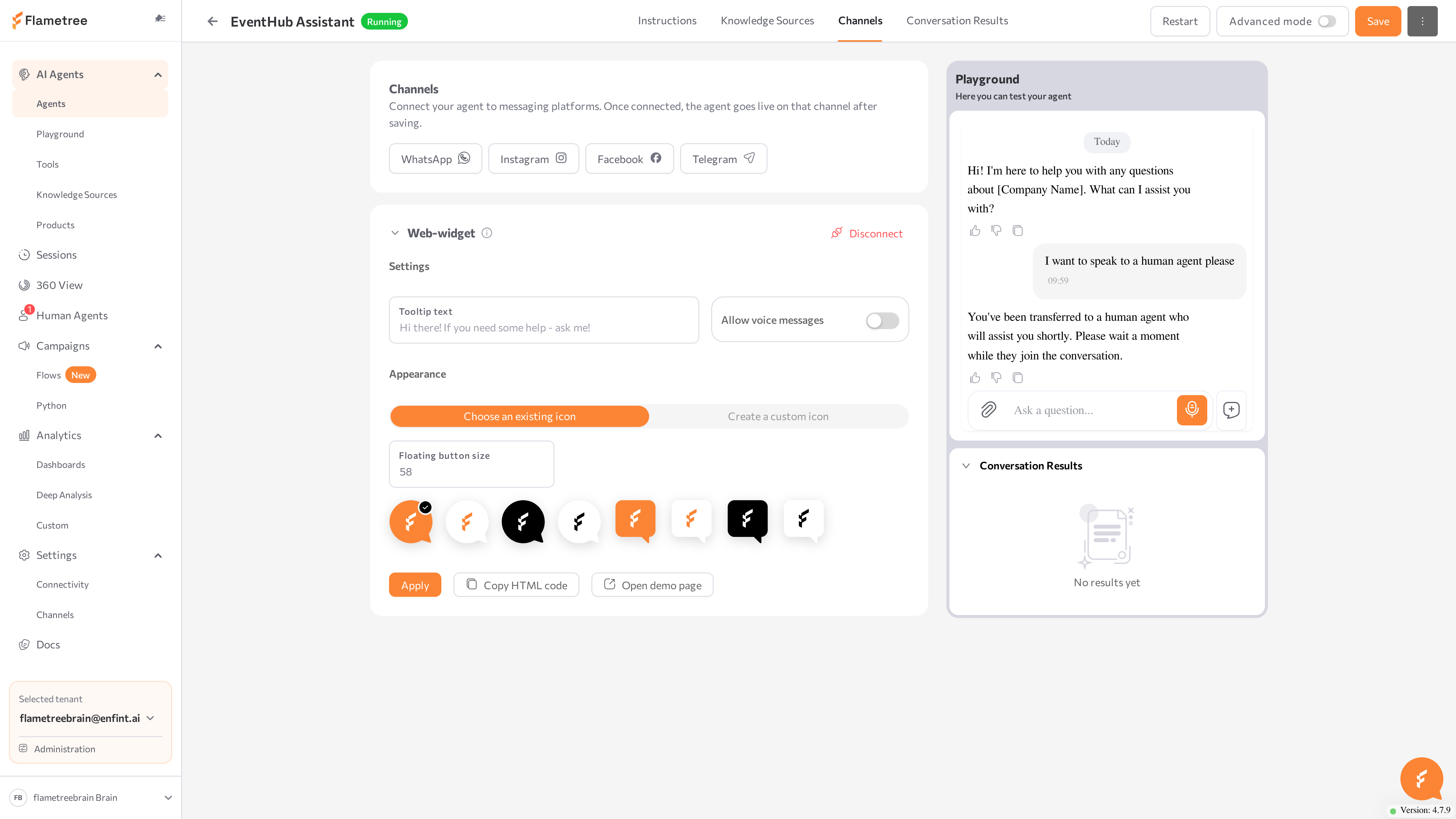
Embed modes, appearance options, and page-side controls: Web Widget.
Stage 7: Review a captured lead in Sessions
Every conversation — including Playground tests — is recorded as a session.
- In the left menu, open Sessions.
- Click Search, pick your agent in the Agents filter of the Session Filters dialog, and click Apply.
- Open your test session: read the messages, and check the collected values — Name, Email, Phone, and Offering of interest — under Session results in the Parameters & results panel.
Filters, logs, and the anatomy of a session: Sessions.
Stage 8: Check the customer in 360 View
The lead details enrich the customer profile you can reuse later.
- In the open session, find the Contact info block in the Parameters & results panel and click Open in 360. The customer profile opens in a new browser tab.
- On the Summary tab, review the Contact info card.
- Switch to the Communications tab to read the conversation and, in the Details panel, check the RESULTS the agent collected.
How profiles are created, enriched, and reused: 360 View.
Stage 9: Check usage on a dashboard
- In the left menu, open Analytics > Dashboards and select the Agents tab.
- Expand the filter panel, set the Lookup Period, pick your agent in the Agent filter, and click Apply.
- Review the charts: session volume, unique users, and average messages per session. Your test conversations are part of these numbers.
How to read each chart: Dashboards.
What you built
- A sales agent generated by the Website AI Sales wizard, refined in Simple mode.
- A product catalog the agent recommends from in the Playground.
- The chat widget ready to embed on EventHub's site.
- Lead details captured as conversation results — visible in Sessions, on the customer profile in 360 View, and counted on the Agents dashboard.
To reach customers first instead of waiting for them, continue with the Outbound WhatsApp Campaign tutorial.
Common issues
| Symptom | Likely cause | Fix |
|---|---|---|
| There is no Create with wizard button. | Your role does not allow creating agents, or no wizard templates are installed for your deployment. | Ask your administrator — see Wizard. |
| The agent ends up with the Error status. | Wizard creation failed — for example, an invalid lead email address. | Check your answers and run the wizard again — see Wizard. |
| The Products item is missing from the menu. | Product catalogs are not enabled for your deployment, or your role does not include the section. | Ask your administrator — see Products. |
| The agent never mentions products. | The catalog is not connected, the agent was not restarted after connecting, or the products are not Active. | Connect the catalog in Advanced mode, save, restart, and set products to Active — see Products. |
| The Playground ignores your latest edits. | You are chatting with the previously saved version. | Click Save, then Start a new session. |
| A conversation result field never fills in. | The How to recognize it description does not match how visitors phrase the value. | Refine the field on the Conversation Results tab — see Simple mode. |
| The widget does not appear on your site. | The snippet is not immediately before </body>. | Move the snippet and recheck — see Web Widget. |
Related pages
- Wizard — every step of the Website AI Sales template
- Simple mode — review and edit a wizard-created agent
- Products — build and connect a product catalog
- Web Widget — embed options and page-side controls
- Playground — test the agent before going live
- Sessions — find and read conversations
- 360 View — the customer profile behind a session
- Dashboards — agent analytics
- Inbound Customer Service Agent — a service agent built by hand