Human Operator Workflow with Copilot
This tutorial covers the human side of customer operations in Flametree: you set up escalation and your operators (as an administrator), then handle a handed-over conversation (as an operator) using Copilot drafts, internal notes, assignment, and Resolve.
The example continues with EventHub, the fictional online-events company from the inbound tutorial — this time you staff the people who take over when the AI agent passes a conversation to a human. By the end you have:
- An agent that escalates to people, with a default operator.
- Operator users, set up in Administration.
- Operator notifications on — browser alerts plus the menu and tab badge.
- Copilot configured on the agent.
- One escalated conversation handled in Human Agents: read in context, answered with a Copilot draft, annotated with a note, assigned, and resolved.
Plan 30–45 minutes. The first four stages are administrator setup; the last four are the operator's day-to-day workflow. Each stage gives only the steps you need and links to the page that covers that screen in full.
Before you start
- You are signed in to the portal. Stages 1–4 need the Tenant Admin role; stages 5–8 are done as a Tenant Operator. See Manage users and roles.
- An agent already exists. If you do not have one, build it first with the Inbound Customer Service Agent tutorial — this tutorial reuses
EventHub Assistantfrom there. - To follow both sides, have one administrator account and one operator account, or play both roles yourself.
Stage 1: Turn on escalation and set the default operator
Whether conversations reach an operator — and who they land on — is decided on the agent, not in the operator workspace. Open EventHub Assistant from AI Agents > Agents, then set escalation in the mode the agent uses.
Simple mode
- On the Instructions tab, switch Allow human handoff on.
- In Handoff Conditions, describe when to escalate, for example:
Transfer to a human agent when the customer asks for a person, wants a refund, or is upset. - Click Save.
Advanced mode
- Escalation is part of the agent's workflow — add a transition that hands the conversation to a human (for example, after repeated failures or on an explicit request). To send every conversation to a person from the first message, turn on Immediate human handoff in the General card instead.
- In the Advanced card, set Default operator to the portal users that this agent's handed-over conversations are assigned to by default, so escalations arrive already assigned rather than waiting in the Unassigned group.
- Click Save, then click Restart to apply the change.

Handoff fields in detail: Simple mode. Workflow escalation, Immediate human handoff, and the default operator: Advanced mode. How escalation drives the workspace: Human Agents.
Stage 2: Create operator users
Operators answer live conversations in Human Agents and do not need configuration access, so give them the Tenant Operator role.
- Open Administration and go to the Users tab.
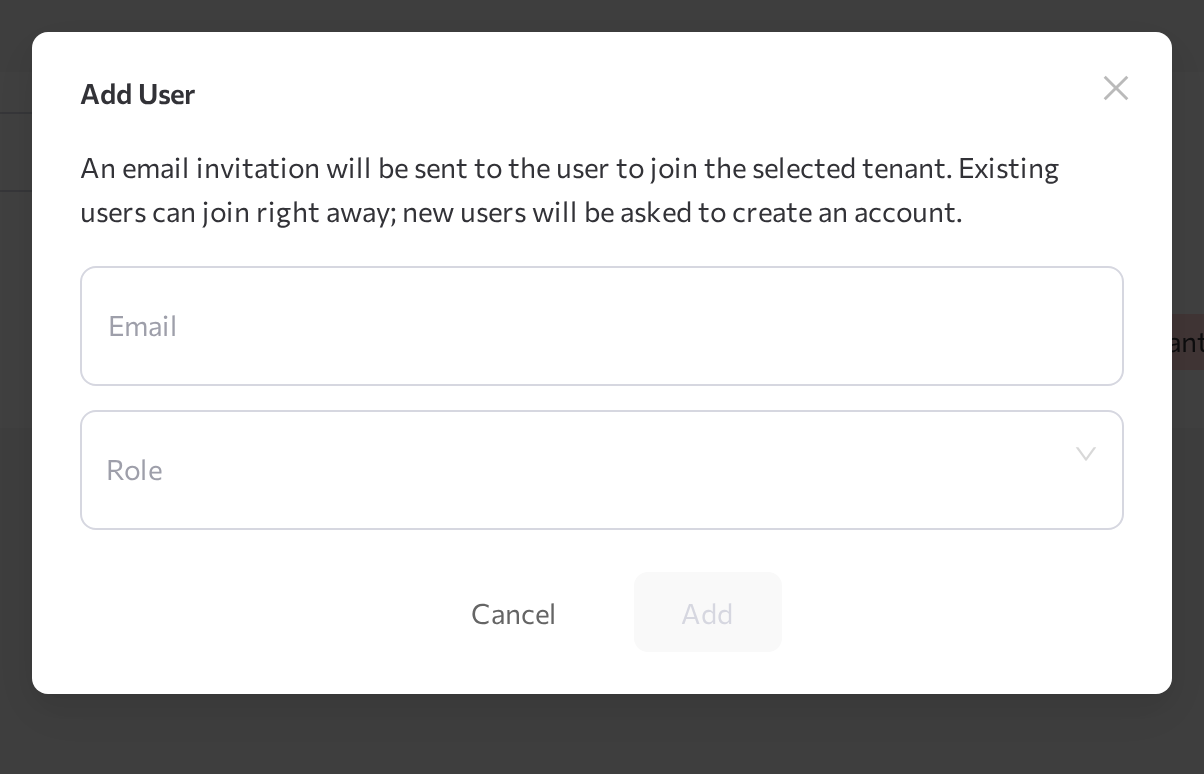
- Click Add User, enter the operator's Email, and choose the Tenant Operator role.
- Click Add. Flametree sends them an email invitation — they create an account (or join right away, if they already have one) to sign in.
To change a user's role later, click the edit (pencil) icon on their row in the Edit User dialog. Roles and the full Users page: Manage users and roles.
Stage 3: Turn on operator notifications
So operators notice escalations, turn on browser notifications and rely on the badge. These steps run in the operator's own browser.
- Sign in as the operator. If the Enable notifications dialog appears, click Allow notifications and accept the browser prompt.
- Otherwise, open the Profile page and click Enable notifications in the header, then allow notifications if the browser asks. The header button then reads Notifications enabled.
- Confirm the badges work: the Human Agents item in the left menu shows a badge with the number of active conversations in the operator workspace, and a red dot marks the browser tab while the operator works in another tab.
Browser notifications fire You have new session assigned. when a conversation is assigned to the operator and New message: when a customer writes in a conversation they handle.
Permission states, the per-browser rule, and the tab badge: Notifications.
Stage 4: Configure Copilot on the agent
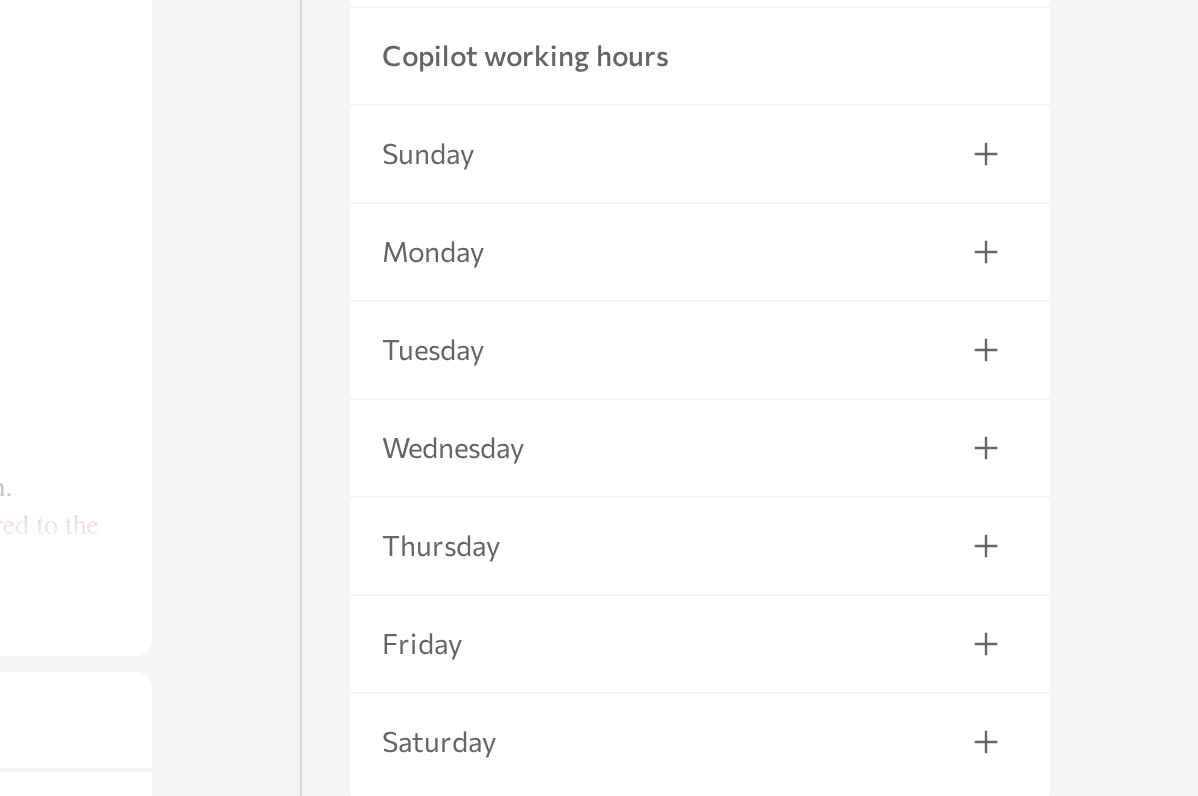
Copilot is the mode in which the agent drafts replies for the operator instead of answering the customer directly. To limit when the agent drafts, set Copilot working hours on the agent (Advanced mode).
- Open
EventHub Assistantand switch on the Advanced mode toggle in the upper-right corner. - In the Advanced card, find Copilot working hours.
- For each day, click + to add a time range with a start and end time; use the delete icon to remove a range.
- Click Save, then restart the agent: Stop agent, wait for Stopped, then Start agent.
You do not have to change anything else: when an operator claims a conversation, Copilot mode is on by default. Copilot working hours and the rest of the Advanced card: Advanced mode.
The setup is done. The remaining stages are the operator's workflow — sign in as the Tenant Operator from Stage 2.
Stage 5: Receive an escalated conversation
When the agent's conditions are met during a chat, the conversation moves to the operator workspace and the operator is notified.
- To produce one for this walkthrough, start a conversation with
EventHub Assistant— for example on the web widget demo page — and writeI want to talk to a human.The agent acknowledges the transfer and stops answering. - As the operator, open Human Agents from the left menu. The escalated conversation is in the list — assigned to you if you are the agent's default operator, or in the Unassigned group otherwise.
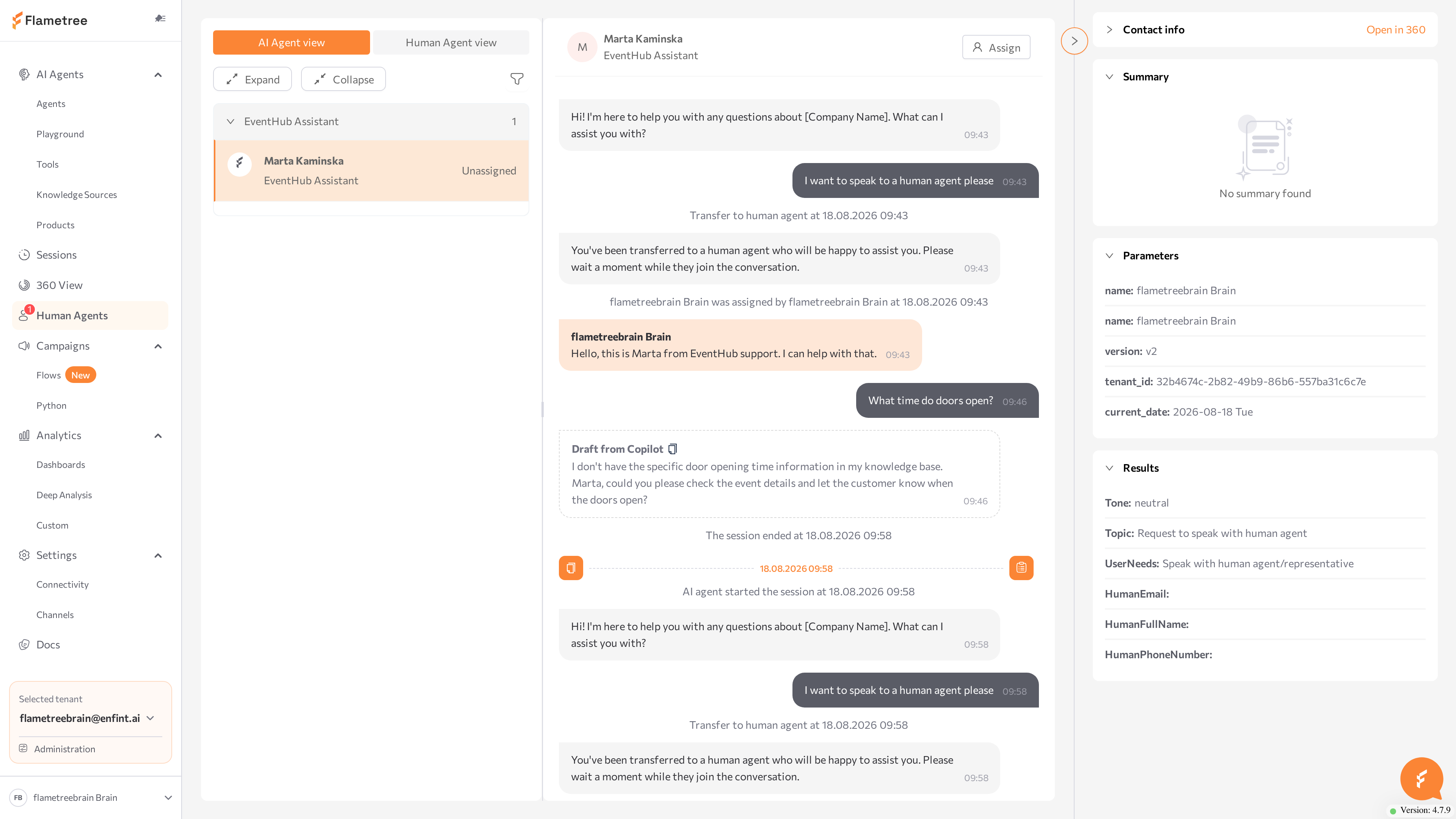
- Choose a view at the top of the conversations list: Human Agent view groups by operator and adds an Unassigned group; AI Agent view groups by the AI agent that handled the conversation.
- Click the conversation card to open the chat in the center panel.
Views, filters, card warning tags, and how conversations arrive: Human Agents.
Stage 6: Read the context, then claim and answer
Before you answer, read what the conversation already produced, then take ownership.
- In the Information panel on the right, read Contact info, the AI-generated Summary, the Parameters, and the Results the agent collected — for EventHub, the name, email, phone, and preferred event date.
- Scroll up in the chat to read the full history. System markers show Transfer to human agent at <date and time> and who did what.
- In the chat header, click Assign, then Me. The confirmation Operator assigned. Copilot mode enabled appears, the message input becomes available, and Copilot mode is on by default.
- Read the Draft from Copilot suggestion in the chat, click the copy icon next to its label to insert it into the input, edit it as needed, and press Enter to send. The customer receives it as coming from you, labeled with your name.
Treat drafts as a starting point — verify anything customer-specific, such as dates and commitments, before you send.
Reviewing context, claiming, and Copilot drafts: Human Agents.
Stage 7: Add a note and assign
Leave context for teammates and route the conversation when it needs another person.
- To record context, switch to the Notes tab above the input, write the note, and send it. It is saved with a Private note label and never reaches the customer.
- To hand off, click Assign (or the current owner's name) in the chat header and pick a teammate's name. Next to each name the dropdown shows how many conversations that person already owns — use the counts to balance the load. The history records <name> was assigned by <your name> at <date and time>, and the new owner sees everything that happened before.
Check which tab is active before sending: Reply goes to the customer, Notes stays internal.
Private notes, assigning, and reassigning: Human Agents.
Stage 8: Resolve the conversation
When the customer's issue is handled, close the conversation so the list stays focused on what still needs attention.
- Open the conversation.
- Click the red Resolve button in the chat header — it appears only on assigned conversations.
- Confirm Are you sure you want to resolve this session? with Yes.

A Session resolved confirmation appears, and the conversation leaves the workspace. The chat keeps a permanent marker — The session was resolved by <your name> at <date and time> — and you can find the closed session later on the Sessions screen. If the customer writes again in the same channel, a new session starts and the AI agent handles it from the beginning.
Before resolving, leave a Private note summarizing the outcome. If the conversation escalates again, the next operator sees your note in the history.
Resolving and what happens after: Human Agents.
What you built
- An agent that escalates to people, with a default operator so handovers can arrive already assigned.
- Operator users with the Tenant Operator role and a working schedule.
- Operator notifications: browser alerts for assignments and replies, plus the menu and tab badge.
- Copilot configured on the agent, with working hours.
- One escalated conversation handled end to end: read in context, answered with a Copilot draft, annotated, assigned, and resolved.
An operator can also start a handover instead of waiting for one: on the Sessions screen, open an active session and click Hand over to the operator under the chat — the AI stops responding and the session appears in Human Agents unassigned.
Common issues
| Symptom | Likely cause | Fix |
|---|---|---|
| No escalations reach the workspace | The agent has no handoff turned on, or its conditions are too narrow | Turn on Allow human handoff (Simple mode) or add a workflow escalation (Advanced mode), and widen Handoff Conditions — see Configure escalation on the agent |
| Escalations always land in Unassigned | No Default operator is set on the agent | Set Default operator in the Advanced card, then save and restart the agent |
| The Allow human handoff toggle is unavailable | The agent's workflow was modified in Advanced mode | Configure escalation in the workflow, or restore the default process — see Simple mode |
| An operator does not see Human Agents or Analytics | The account has the wrong role | Set the role to Tenant Operator on the Users tab of Administration |
| No browser notifications arrive | Notifications are not enabled in that browser, or the role can't change the setting | Click Enable notifications on the Profile page; subscriptions are per browser, so repeat in each one |
| No message input at the bottom of the chat | The conversation is unassigned | Click Assign, then Me |
| No Draft from Copilot appears | The Copilot switch is off, or the AI agent is stopped | Turn the Copilot switch on; ask a Tenant Admin to start the agent if the card shows Agent not running |
| The Resolve button is missing | The conversation is not assigned, or your role lacks the permission | Assign the conversation first; if it stays missing, ask your administrator |
Related pages
- Human Agents — the operator workspace: claim, Copilot, notes, assign, resolve
- Manage users and roles — operator users and roles
- Notifications — browser notifications and the tab badge
- Simple mode — turn on handoff and define conditions
- Advanced mode — workflow escalation, default operator, and Copilot working hours
- Sessions — read conversations and hand them over to an operator
- Inbound Customer Service Agent — build the agent this tutorial staffs