Call Analytics for Recorded Calls
In this tutorial you turn a folder of recorded calls into structured, searchable data in Flametree. You create a Call Analytics agent, tell it what to extract, import the recordings as audio, read each analyzed session, and see the outcomes across all calls in Deep Analysis. There is no live channel — this is offline analysis of recordings you already have.
The example continues with EventHub, the fictional online-events company from the inbound and outbound tutorials. EventHub's small phone team handled a batch of registration calls, and you want to know how they went. By the end you have:
- A Call Analytics agent with a defined set of fields to extract.
- A handful of recorded calls imported and processed.
- Each call as a session with a speaker-separated transcript and extracted results.
- The aggregate outcomes across the batch in a Deep Analysis dashboard.
Plan 30–45 minutes, plus background processing time that depends on the length of your recordings. Each stage gives only the steps you need and links to the page that covers that screen in full.
Before you start
- You are signed in to the portal — see Sign up and sign in.
- A role that allows creating agents and a role that allows importing sessions. If the Create new agent or Import session button is disabled, ask your administrator.
- A few recorded calls in a standard audio format such as MP3 or WAV. Two-party calls — one customer, one operator — work best.
- A language model and a transcription connection for your tenant. New agents get the tenant's default language model, and transcription is usually preconfigured. If imports fail with a model error, check Settings > Connectivity or ask your administrator.
Stage 1: Create the Call Analytics agent
Call Analytics is one of the agent types you pick when you create an agent. The agent reads recordings — it never sends messages, has no channels, and does not appear in the Playground.
- In the left menu, go to AI Agents > Agents.
- Click Create new agent and select Call Analytics — the third option, after Inbound Agent and Outbound Agent.
- In the Create new Call Analytics window, enter
EventHub Call Reviewin the Agent name field and click Create.
The agent appears in the list with the type Call Analytics, and its configuration page opens.
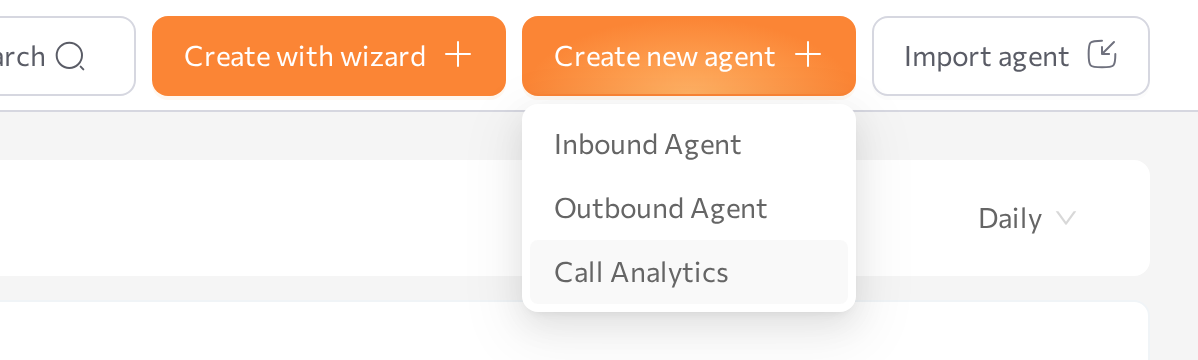
The agent type and how processing works: Call Analytics. The general creation flow: Agents.
Stage 2: Define what to extract
A Call Analytics agent has no conversation logic. In Advanced mode its main sections are the Conversation result section (this stage), which defines, in YAML, the fields the agent extracts from every imported call, and the Analytics section (Stage 5).
-
On the agent page, switch the Advanced mode toggle on in the upper-right corner.
-
Scroll to the Conversation result section and define the fields you want from each EventHub call. For example:
- field_name: CallOutcome
  field_description: The outcome of the call
  field_title: Call outcome
  field_type: Literal["REGISTERED", "WILL_DECIDE", "NOT_INTERESTED", "WRONG_NUMBER"]
  kind: FormInfoField
- field_name: EventName
  field_description: The event the customer asked about
  field_title: Event
  kind: FormInfoField
- field_name: FollowUpDate
  field_description: Date the operator promised to follow up. Leave empty if none.
  field_title: Follow-up date
  field_type: date
kind: FormInfoField -
Click Save.
For values you plan to count or chart later, use a Literal type with a fixed list — as in CallOutcome above. Free-text answers vary from call to call and are harder to aggregate.
Every field_type you can use and what each captures: Conversation result field types. The section and its YAML format: Define conversation results.
Stage 3: Import the recordings
Recordings are imported from the Sessions screen, one file at a time. The agent does not have to be running — processing happens in the platform.
- In the left menu, open Sessions.
- In the page header, click Import session.
- In the Import session from audio dialog, pick
EventHub Call Reviewin Select agent. Only Call Analytics agents are listed. - Click Upload audio and choose a recording.
- Click Start Import and wait for the confirmation Session import started.
- Repeat for each recording in your batch.
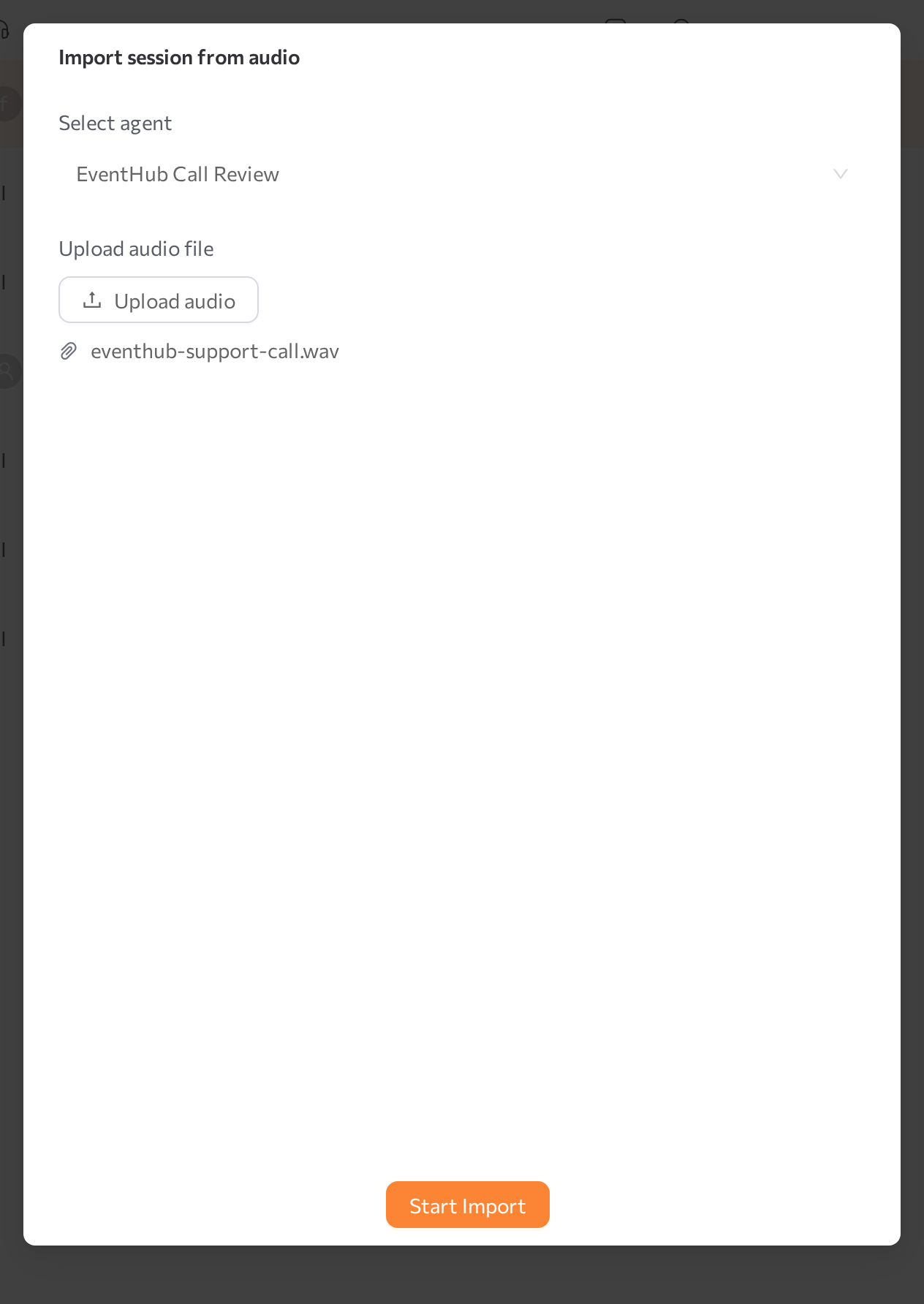
After import, Flametree transcribes the recording, separates the speakers, and extracts the fields you defined in Stage 2. The import flow in full: Import a session from audio. The end-to-end agent workflow: Call Analytics.
Stage 4: Read an analyzed call
Processing runs in the background and takes a while, depending on the length of the recording. When a call finishes, it appears in Sessions as a finished session owned by your Call Analytics agent.
- On the Sessions screen, click Search, pick
EventHub Call Reviewin the Agents filter of the Session Filters dialog, and click Apply. Filtering by the agent gathers all imported calls in one place — they are attributed to the portal user who uploaded each recording. - Open one of the imported sessions:
- The Chat panel shows the full transcript, split into messages by speaker, in the same view used for live conversations.
- The Session results block of the Parameters & results panel shows the extracted values — Call outcome, Event, and Follow-up date from Stage 2.
- If the chat looks empty right after import, the recording is still being transcribed — wait a moment and reopen the session.
Reading sessions, results, and logs: Sessions.
Stage 5: See the outcomes across all calls
Reading calls one by one tells you about each conversation; Deep Analysis tells you about the batch. An analysis evaluates every session the agent owns against metrics you define and turns the results into dashboards you can drill into.
- Open the agent in Advanced mode again and scroll to the Analytics section.
- Edit the analysis configuration — for example, classify each call by an outcome category, so the batch breaks down into a trend chart and a summary card. A minimal example and the configuration structure are in Configure an analysis.
- Click Recalculate to save the configuration and process all the imported sessions from scratch. The calculation status appears next to the section title.
- When the calculation finishes, open Analytics > Deep Analysis in the left menu. Keep the analytics type on Agents, pick
EventHub Call Reviewin Select agent, and set the Start date and End date to cover your imports. - Read the dashboard: the trend chart shows outcomes over time, and the summary cards show the distribution across the whole period. Click Details on a card to open the calls behind a number, then click Go to session to reopen any call on the Sessions screen.
Configuring metrics, reading the charts, and drilling into the underlying calls: Deep Analysis.
What you built
- A Call Analytics agent that extracts a fixed set of fields from any call you import.
- A batch of recorded calls, each turned into a session with a speaker-separated transcript and extracted results.
- A Deep Analysis dashboard that classifies the whole batch and links every number back to the calls behind it.
To analyze live calls instead of recordings — where the agent talks to callers in real time over a phone channel — see the Voice Agent tutorial.
Common issues
| Symptom | Likely cause | Fix |
|---|---|---|
| The Import session button is disabled. | Your role does not allow importing sessions. | Ask your administrator for the required permission. |
| Your agent is missing from the Select agent list. | The dialog lists Call Analytics agents only. | Create a Call Analytics agent first (Stage 1); inbound and outbound agents cannot process imported audio. |
Failed to import session. Please try again. | The upload did not go through. | Check your connection and that the file is a valid audio recording, then retry. |
| The chat looks empty right after import. | The recording is still being transcribed. | Wait a moment and reopen the session. |
| The session results show an import error instead of your fields. | A language model or transcription connection is missing or misconfigured. | Check Settings > Connectivity or ask your administrator, then import the file again. |
| Extracted values are empty or wrong. | The field descriptions are too vague, or the audio is noisy or has more than two speakers. | Review the field descriptions in the Conversation result section; re-import a cleaner two-party recording. |
| Deep Analysis shows No data available. | No analysis is configured, or no calculation has run yet. | Edit the Analytics section and click Recalculate (Stage 5). |
| Recent calls are missing from the charts. | The analysis has not processed them yet, or the End date is too early. | Run Continue calculation and check that End date includes the import dates. |
Related pages
- Call Analytics — the agent type, end to end
- Advanced mode — the Conversation result and Analytics sections
- Conversation result field types — every
field_typeyou can extract - Sessions — import recordings and read transcripts and results
- Deep Analysis — aggregate dashboards over the calls
- Agents — create, start, and manage agents
- Voice Agent — the companion tutorial for live calls