Product recommendation agent with product catalog
In this tutorial you give an existing agent a product catalog and turn it into one that recommends what to buy. You create a catalog, fill it with products in the catalog editor, connect it to the agent, tell the agent how to recommend, and confirm the result in the Playground — all without changing the agent's channels.
The example continues with EventHub, the fictional online-events company from the other tutorials. Here EventHub sells paid masterclasses and courses, and you want its agent to suggest the right one and share its price and purchase link. By the end you have:
- A product catalog created on the Products screen.
- EventHub's offerings added in the catalog editor, one product per row.
- The catalog connected to the agent in Advanced mode.
- A task instruction that tells the agent when and how to recommend.
- Recommendations confirmed in the Playground.
Plan 30–45 minutes. Each stage gives only the steps you need and links to the page that covers that screen in full.
This tutorial adds a catalog to an agent you already have. To generate a website sales agent with the wizard and add a catalog along the way, see Website Sales Agent.
Before you start
- You are signed in to the portal with a role that includes the Products section and allows editing agents — see Roles and permissions. The Products item appears only if your deployment enables product catalogs.
- You can read email sent to your portal account address — the catalog editor invitation goes there.
- An agent already exists. If you do not have one, build it first with the Inbound Customer Service Agent tutorial — this tutorial reuses
EventHub Assistantfrom there. - A short list of EventHub's offerings with prices and purchase links to put in the catalog.
Stage 1: Create a product catalog
A catalog is a structured table of what EventHub sells. You create the catalog in the portal; the products themselves live in the catalog editor, an online database that opens in a separate browser tab.
- In the left menu, go to AI Agents > Products. The screen is titled Product Catalogs.
- Click Create product catalog.
- In the Create New Catalog dialog, enter a Catalog Name — for example
EventHub Offerings— and click Save.
The portal confirms with Catalog created successfully, and the catalog appears in the table with its Name, its URL (the link that opens the catalog editor), and a delete action under Actions. Each new catalog starts with one example product row so you can see the expected format.
Catalog names must be unique. If the name is already taken, the portal shows Failed to create catalog — pick a different name.
Creating catalogs, the table columns, and deletion: Products.
Stage 2: Get into the catalog editor
The first time you open the Products screen, an invitation to the catalog workspace is sent to your portal account email. Accept it once; after that, catalog links open directly.
- In the catalogs table, click the catalog's URL. The catalog editor opens in a new browser tab.
- Sign in to the catalog editor, or create an account, using the same email address as your portal account — the invitation is issued to that address.
- Accept the workspace invitation, from the invitation email or from the editor's start page.
After you accept, the workspace shows the ProductCatalogs database with a table for each of your catalogs.
If no invitation arrived, click Resend invitation on the Products screen — the portal confirms with Invitation sent successfully, please check your email — then check your inbox and spam folder.
Invitations, resending, and editor access in detail: Get access to the catalog editor.
Stage 3: Add EventHub's products
Open the EventHub Offerings catalog from its URL and replace the example row with EventHub's offerings, one product per row. Each catalog has these columns:
| Field | What to enter for EventHub |
|---|---|
| Name | The offering name shown to customers, for example Productivity Masterclass. |
| Brief Description | A 2–3 sentence summary. The agent reads this for every active product to decide which one fits, so make it clear and benefit-focused. |
| Description | The full details: what's included, who it is for, what problem it solves, and how it works. |
| Category | The product category — for example Webinar or Course. |
| Price | The price or pricing description — for example $29 one-time. |
| Link | The URL where the offering can be bought or viewed. |
| Active | Whether the agent may offer the product (True/False). The agent only offers active products. |
For example, a complete EventHub row:
| Field | Value |
|---|---|
| Name | Productivity Masterclass |
| Brief Description | A 2-hour live webinar to boost your daily productivity |
| Description | This live webinar covers proven productivity techniques, tools, and mental frameworks to help professionals achieve more in less time. Suitable for freelancers, managers, and entrepreneurs |
| Category | Webinar |
| Price | $29 one-time |
| Link | https://example.com/productivity |
| Active | True |
Add a few more offerings the same way so the agent has something to choose between, and set Active to True on each one you want the agent to recommend.
Keep the catalog focused — about 20 products at most works well. The agent loads the name and brief description of every active product at once, so a long, unfocused list dilutes its recommendations. Set Active to False to hide a seasonal offering instead of deleting the row.
Every column, the editor, and how the agent reads product data: Add or edit products.
Stage 4: Connect the catalog to the agent
An agent uses one product catalog at a time, and you connect it on the agent page in Advanced mode.
- Go to AI Agents > Agents and open
EventHub Assistant. - If the agent page shows Simple mode, switch the Advanced mode toggle in the upper-right corner.
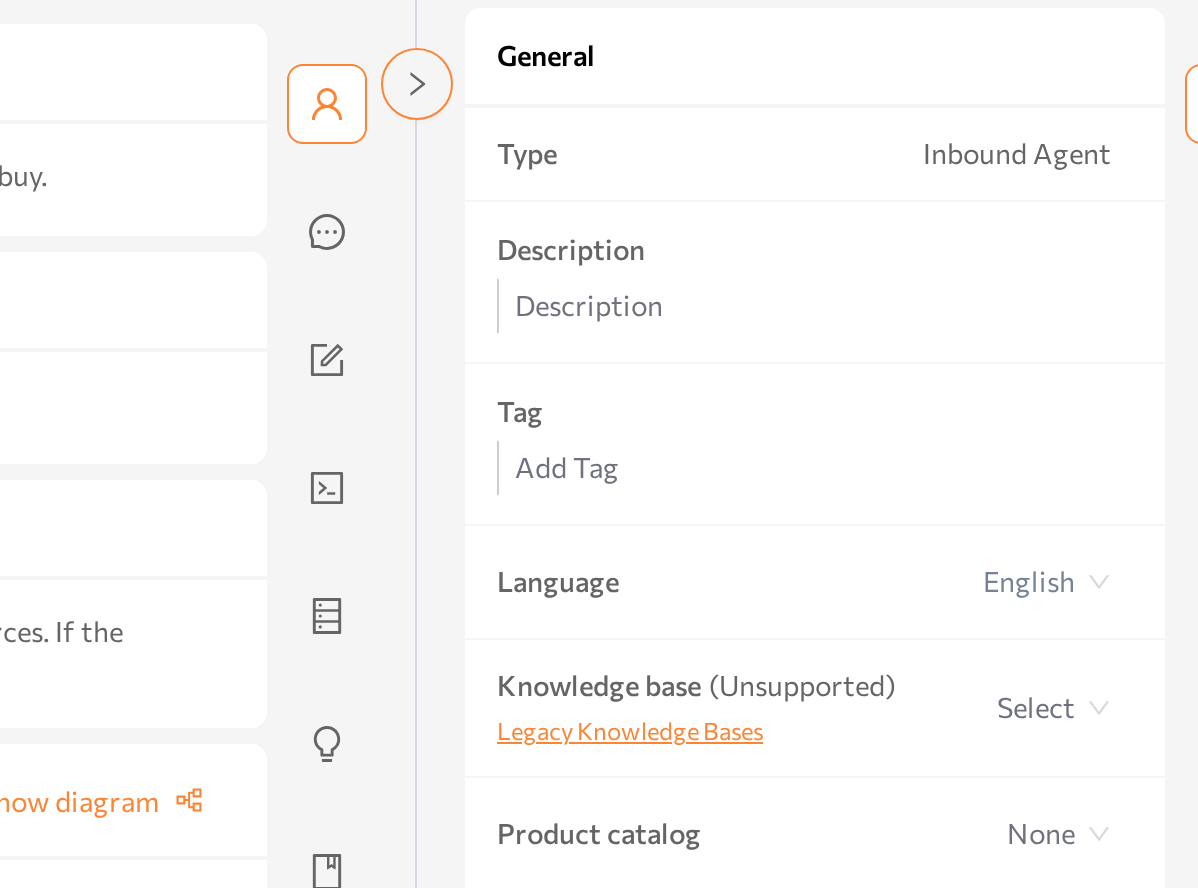
- In the Settings panel, find the General card.
- In the Product catalog field, select
EventHub Offerings. The field shows None while no catalog is connected. (The Add new catalog link at the bottom of the list opens the Products screen with the create dialog already open.) - Click Save.
- If the agent was running, restart it so it picks up the connection: click Stop agent, wait for the Stopped status, then click Start agent.
Connecting and disconnecting a catalog: Connect a catalog to an agent.
Stage 5: Tell the agent to recommend
Connecting the catalog gives the agent the data; the agent's task instructions decide when it brings products up, how many it suggests, and how persistent it is.
- Write this guidance in the agent's task. In Simple mode, edit the Primary Task on the Instructions tab; in Advanced mode, edit the Task section. For EventHub, add something like: recommend a matching offering when the customer describes a need, name one or two options with their price, and share the purchase link once the customer shows interest.
- Click Save. (Saving in Simple mode restarts the agent automatically; in Advanced mode, restart it as in Stage 4.)
For the difference between describing a task and scripting a conversation, and what makes a good task definition: Simple mode. The Advanced-mode Task section: Advanced mode.
Keep the recommendation rules in the task; keep the products in the catalog. That way you can switch offers on and off in the catalog editor without touching the agent's instructions.
Stage 6: Test recommendations in the Playground
Use the Playground to chat with the agent as a customer would and confirm it recommends from the catalog. The Playground always talks to the last saved version of the agent.
- Open the Playground panel on the agent page in Simple mode, or open AI Agents > Playground and select
EventHub Assistant. If the agent is stopped, click Run agent. - Ask for a recommendation:
I want to get better at managing my time. What do you have?The agent should suggest a matching offering from the catalog and mention its price. - Ask a product question:
How much is the Productivity Masterclass, and where do I sign up?The agent should answer with the price and the Link from the catalog. - Ask about something you do not sell, to confirm the agent does not invent a product that is not in the catalog.
After any change to the catalog or the agent, click Save and then Start a new session so the test runs against the current data — the agent loads the product overview when a conversation starts.
Panel layout, test scenarios, and the Parameters & results panel: Playground.
What you built
- A product catalog created on the Products screen and filled with EventHub's offerings in the catalog editor.
- The catalog connected to
EventHub Assistantin Advanced mode. - A task instruction that tells the agent when and how to recommend.
- Recommendations confirmed in the Playground, drawn from the catalog's active products.
To keep recommendations current, edit the catalog in the editor whenever offerings change — product changes apply on their own, so a new conversation uses the updated data without restarting the agent. To review real recommendations later, read the conversations in Sessions.
Common issues
| Symptom | Likely cause | Fix |
|---|---|---|
| The Products item is missing from the menu. | Product catalogs are not enabled for your deployment, or your role does not include the section. | See Roles and permissions; ask your administrator. |
| No invitation email arrived. | The invitation went to a different address or to spam. | Click Resend invitation on the Products screen and check your spam folder — see Products. |
| The catalog editor shows no workspace or denies access. | You are signed in to the editor with a different email than your portal account. | Sign out of the editor and sign in with the same address you use for the portal. |
| The agent never mentions products. | The catalog is not selected, the agent was not restarted after connecting, the products are not Active, or a custom workflow has no product tools. | Connect the catalog in Advanced mode, save and restart, set products to Active, and add product tools to a custom workflow — see Products and Tools. |
| The agent quotes an outdated price or link. | The conversation loaded the catalog at its start. | Update the row in the catalog editor and re-test in a new conversation — click Start a new session in the Playground. |
| The Playground ignores your latest edits. | You are chatting with the previously saved version. | Click Save, then Start a new session — see Playground. |
Related pages
- Products — create catalogs, the catalog editor, and how the agent uses product data
- Simple mode — write the agent's primary task
- Advanced mode — connect a catalog and edit the Task section
- Tools — add product tools to a custom workflow
- Playground — test how the agent offers products
- Sessions — read recorded recommendation conversations
- Website Sales Agent — build a sales agent with the wizard and a catalog